Table of Contents
- Before you start
- Creating invoice reminders
- Turning on invoice reminders for your book
- Excluding specific invoices from reminders
- Excluding specific customers from reminders
- Including existing invoices in reminders
- Viewing reminder status in the invoices list
- Viewing reminder status in the Customers list
- Read more
Creating invoice reminders in Reckon One
- Before you start
- Creating invoice reminders
- Turning on invoice reminders for your book
- Excluding specific invoices from reminders
- Excluding specific customers from reminders
- Including existing invoices in reminders
- Viewing reminder status in the invoices list
- Viewing reminder status in the Customers list
- Read more
Learn how to create and manage invoice reminders in Reckon One, to send automated reminders to customers for unpaid invoices.
Before you start
- Check that you have a suitable Reply-to email address in your book settings, so that customers' replies to invoice reminders are sent to the right email address.
- (Optional) Enter your business name in the Show emails as sent from field (also in book settings), so emails sent from Reckon One show as being from your business.
- Consider whether you can keep up to date with creating payments for invoices in Reckon One. Be aware that reminders are sent for invoices that have not been marked as paid in Reckon One. If invoices are paid but not marked as such in Reckon One, reminders may be sent for paid invoices.
Creating invoice reminders
You can create up to 5 reminders. Each reminder must be set for a unique timeframe before, on or after the invoice due date. To create reminders:
- Select the the cogwheel icon in the top right corner of the screen, (⚙️), then select Settings, then Invoice reminders in the Day to day section.
- Select Create reminder.
- Specify when you want the reminder to be sent. You can choose to send it on the invoice due date, or any number of days before or after.
- (Optional) Use the Add CC and Add BCC fields to add extra email address/es that you want to receive the reminder. This would typically be email addresses of staff within your company who need to see that a reminder has been sent.
- (Optional) Change the default Subject and Message content. To tailor the message to the recipient, you can use the provided
<tags>in the Subject and/or Message sections. When the email is sent, these will be replaced by actual data that relates to the customer and invoice.- To use a tag, simple place the cursor where you want to place the tag and click on the tag from the "Tags" section from the right.
- Select Create reminder. Reminders won't be sent yet - you need to turn the invoice reminders feature on.
An example of an individual invoice reminder email:
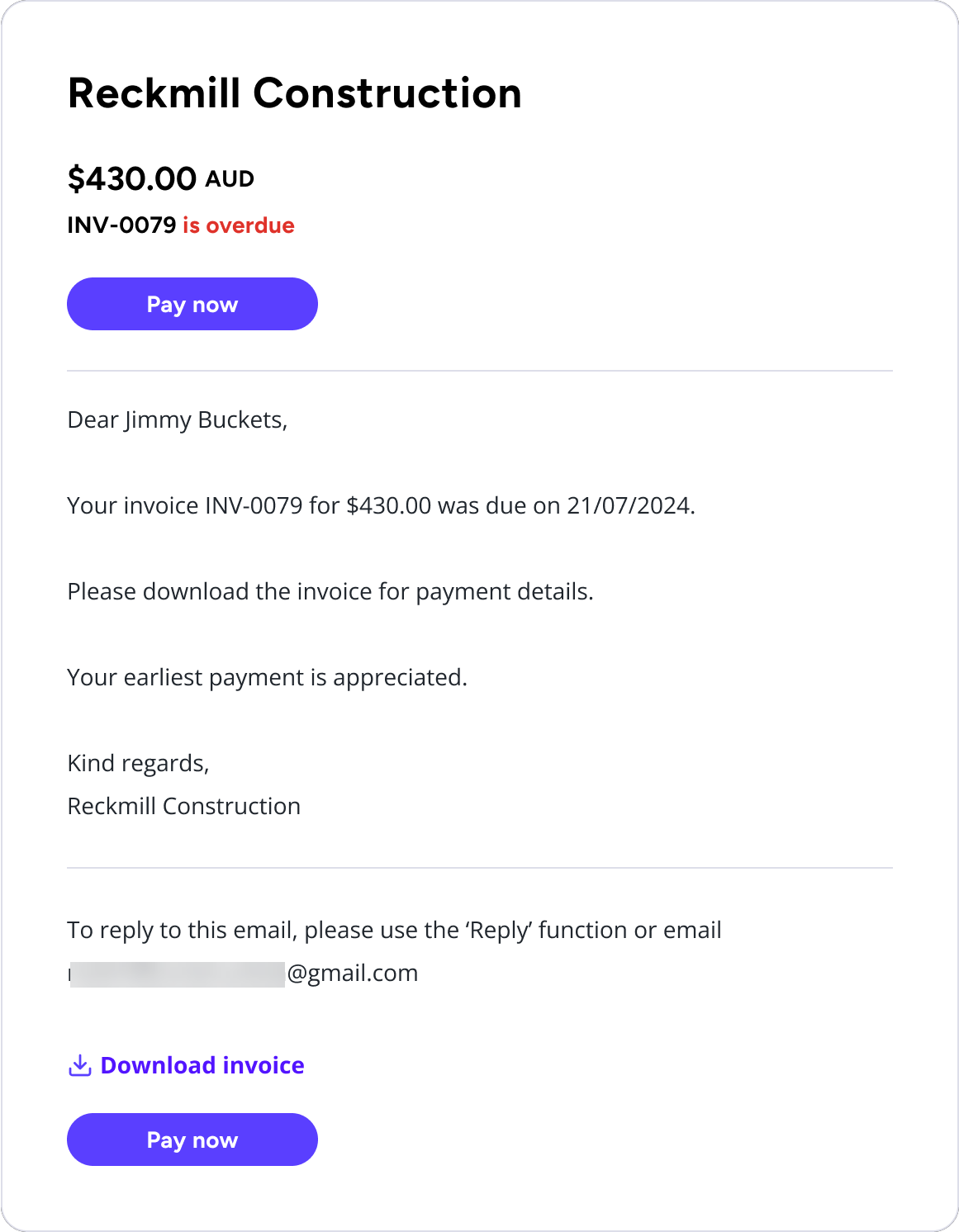
If a customer has 5 or more invoices due at the same time
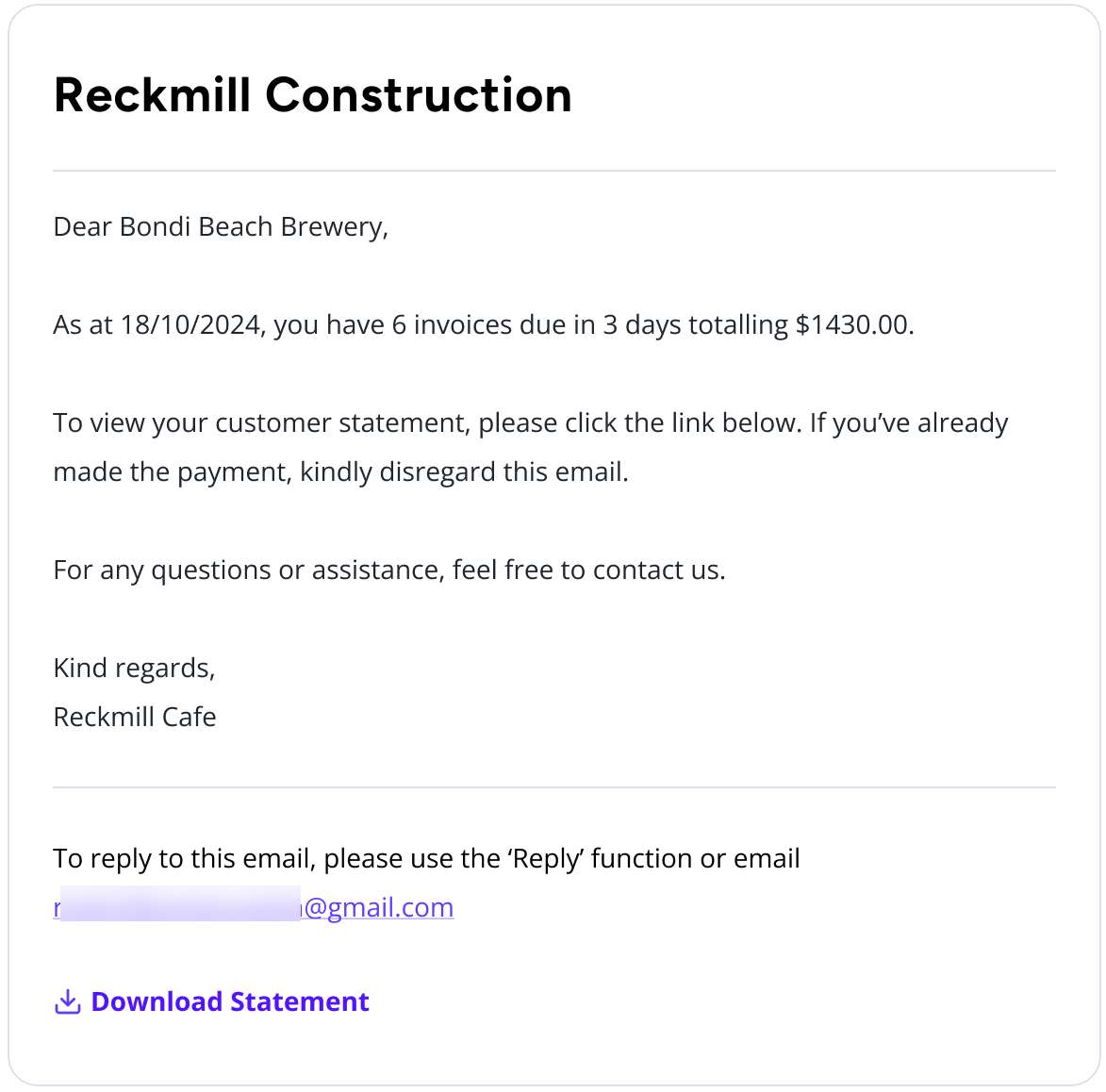
If a customer has 5 or more unpaid invoices that meet the criteria for a single invoice reminder on a given day, a single reminder email will be sent with a link to a customer statement instead.
You cannot change the text of the email that gets sent out. An example of a summarised invoice reminder email:
Turning on invoice reminders for your book
By default, the invoice reminder is turned off. Turning this feature on for your book means that your created reminders will be sent for all future invoices (created in the web or the Invoices mobile app) to all customers, unless you exclude specific invoices or customers.
To turn invoice reminders on for your book:
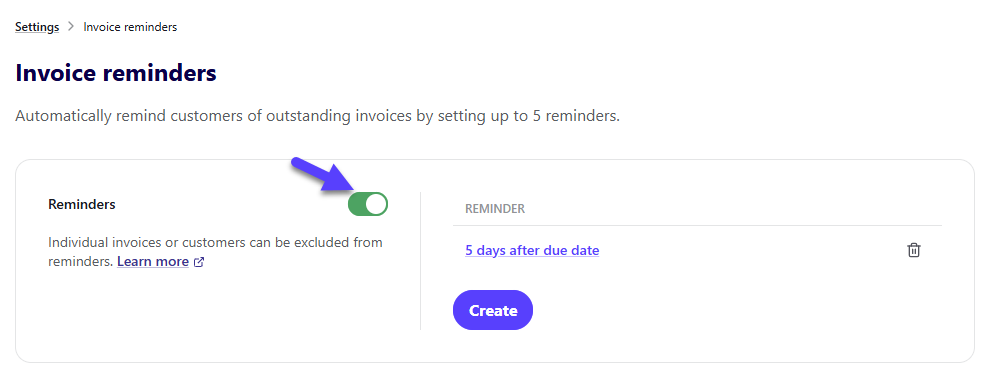
- Select the cogwheel icon in the top right corner of the screen, (⚙️), then select Settings, then Invoice reminders in the Day to day section.
- Click on the Reminders toggle. It will turn green when on.
Excluding specific invoices from reminders
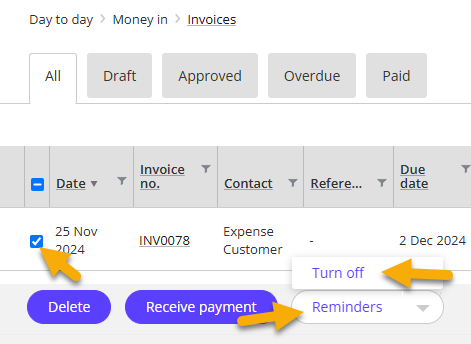
To turn off reminders for specific invoices:
- Go to Day to day, then in the Money in section, select Invoices.
- Select the invoice/s and select Turn off from the Reminder option
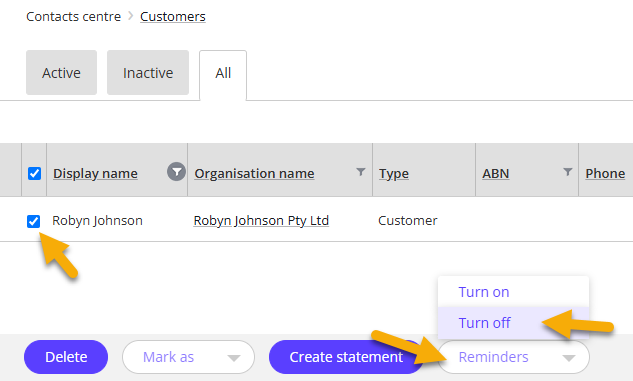
Excluding specific customers from reminders
To turn off reminders for specific customers so no reminders will be sent for their invoices:
- Go to Contacts centre, then Customers.
- Select the customer/s and select Turn off from the Reminder option.
Including existing invoices in reminders
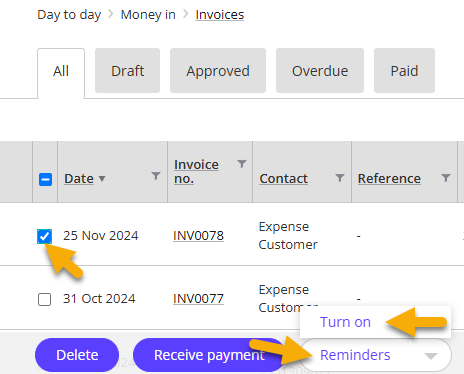
You can choose to send reminders for existing unpaid invoices that had already been created before invoice reminders was switched on for the book:
- Go to Day to day, then in the Money in section, select Invoices.
- Select the invoice/s and select Turn on from the Reminder option.
Viewing reminder status in the invoices list
You can choose to see the reminder status in the invoices list:
- Go to Day to day, then in the Money in section, select Invoices.
- Click in the spanner icon at the top right of the screen to show column options.
- Click Reminder Status to see this column. You can adjust the width of the columns by clicking and dragging the column lines.
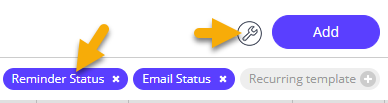
- Click on the spanner icon again to close the column options.
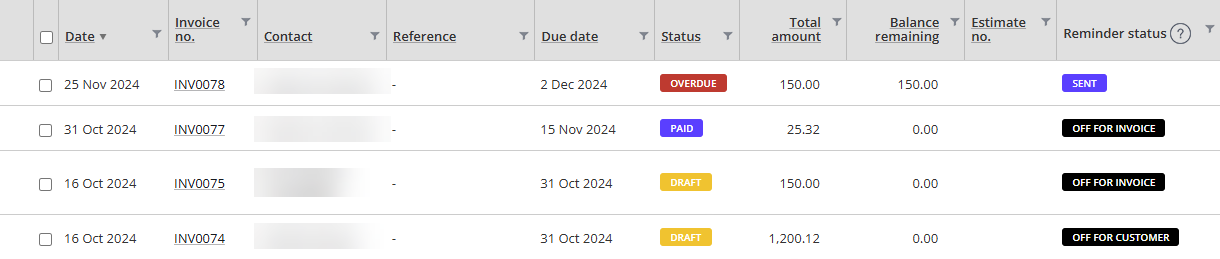
Reminders status
- UNSENT: Reminder has not been sent yet.
- SENT: One or more reminders have been sent for this invoice.
- OFF FOR CUSTOMER: Reminders are turned off for the customer.
- OFF FOR INVOICE: Reminders are turned off for the invoice.
Viewing reminder status in the Customers list
You can choose to see the reminder status in the customers list:
- Go to Contacts centre, then select Customers.
- Click in the spanner icon at the top right of the screen to show column options.
- Click Reminder Status to see this column. You can adjust the width of the columns by clicking and dragging the column lines.

- Click on the spanner icon again to close the column options.
Reminders status
- OFF: Reminders won't be sent for this customer.
- ON: Reminders will be sent, unless turned off for a specific invoice.
Read more
- Learn how to record payments for invoices
- Learn how to use passwords to protect invoices and customer statements
Need more help?
Ask the Reckon Community at: https://community.reckon.com/categories/reckonone
Or log a Support Ticket: https://www.reckon.com/au/support/
