Table of Contents
- About qualifying earnings and Payday Super
- What's changed in Reckon One
- Choose a method to update pay items to report as qualifying earnings
Update pay items to report qualifying earnings under Payday Super in Reckon One
- About qualifying earnings and Payday Super
- What's changed in Reckon One
- Choose a method to update pay items to report as qualifying earnings
Learn how to update your pay items in Reckon One, so you can report qualifying earnings under Payday Super.
About qualifying earnings and Payday Super
Payday Super is a change to how you calculate and when you pay your employees' super guarantee, and it starts on 1 July 2026.
Under Payday Super, super guarantee and super payments made under collective agreements are calculated from an employee's qualifying earnings (QE). Qualifying earnings is a new Single Touch Payroll (STP) reporting category which includes payments from ordinary hours of work, and some other payments. Qualifying earnings must be reported to the ATO as part of your pay runs and other STP submissions.
Learn more about what payments are qualifying earnings.
What's changed in Reckon One
Reporting of qualifying earnings
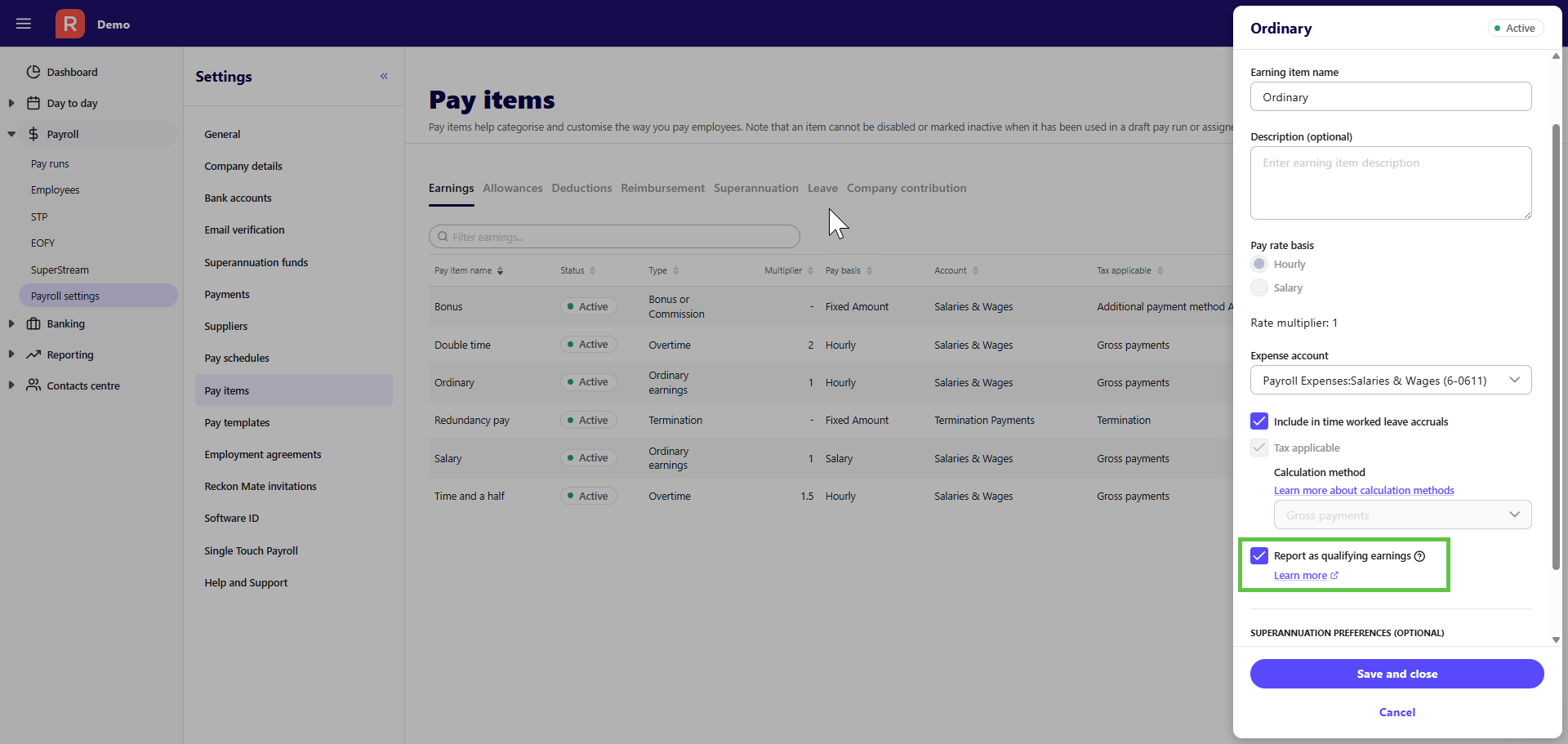
When you create or edit earnings, allowances, or leave pay items in Reckon One, you will now have a new checkbox option called 'Report under qualifying earnings'. Selecting this checkbox will ensure that the values will be reported to the ATO as qualifying earnings (under a new code, Q) when submitted as part of a pay run, EOFY report, or update event.
The maximum contribution amount will also shift from a quarterly cap to an annual cap. Instead of applying per quarter, the cap will apply to the total qualifying earnings for an employee for the financial year. If amounts exceed the annual cap, they won't be reported under code Q.
Super calculations
There are no changes to how super is calculated in Reckon One. As long as you continue to indicate which earnings, allowances, and leave items include super, we'll continue to calculate super on those pay items whether they're reported as qualifying earnings (QE) or not.
In most cases, pay items that are QE will include super guarantee and super from collective agreements, but some employees may need super paid on earnings that aren't QE. For example, overtime typically isn't QE, and under Payday super, wouldn't normally have super calculated on it. However, if you have an employee under an industrial obligation that says you need to calculate super on overtime, you would need to calculate super on this item, even if you're not reporting it as QE. You can do this in Reckon One, simply by selecting to include the relevant super pay item on the overtime item, and leaving the 'Report as qualifying earnings' checkbox unselected.
Choose a method to update pay items to report as qualifying earnings
You can either choose to auto-update pay items, or manually update them.
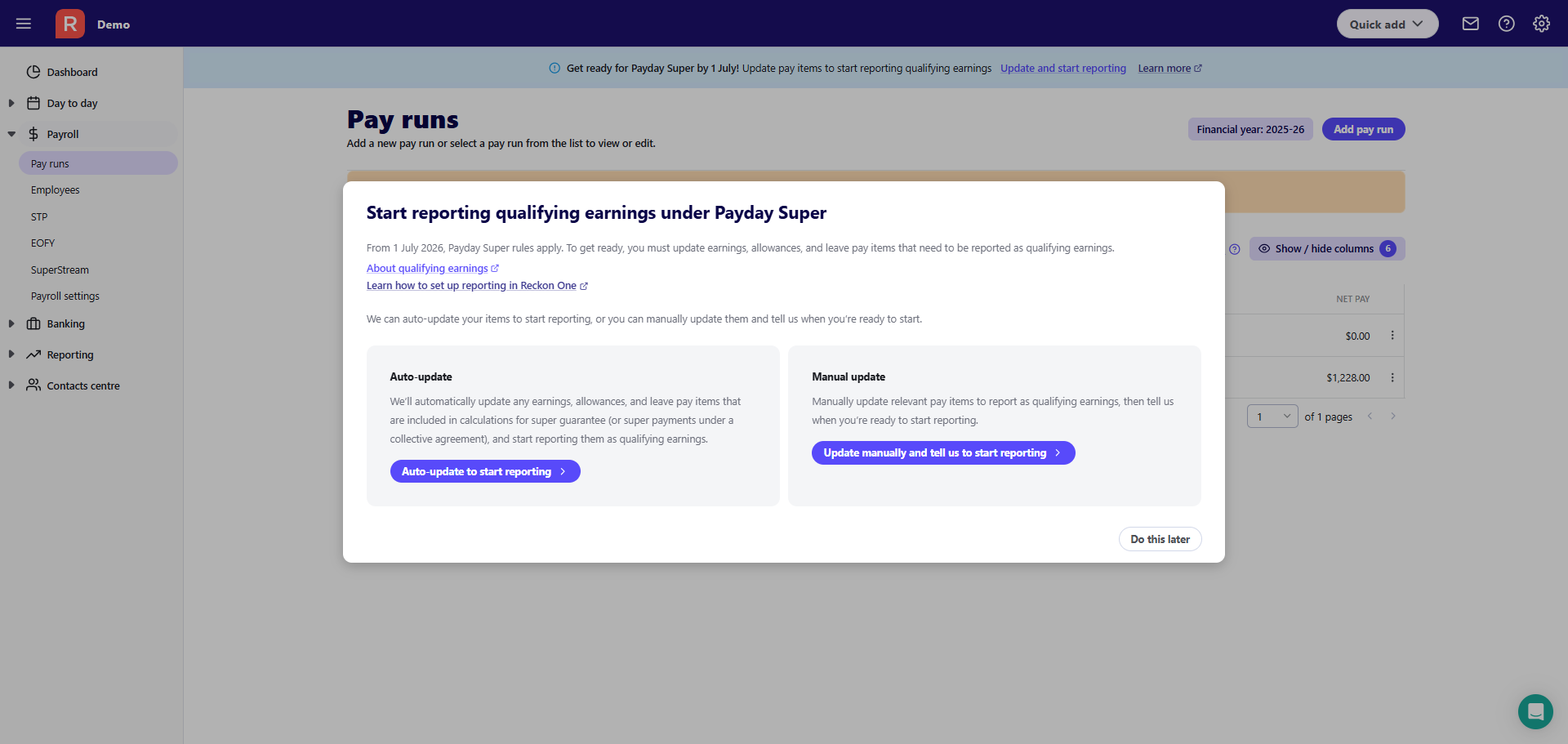
Auto-update
Auto-updating means that:
- we'll find all your earnings, allowances, and leave pay items that also have a super guarantee or collective agreement superannuation pay item included in their setup, and we'll automatically select the 'Report as qualifying earnings' checkbox on these items
- we'll start reporting these pay items as qualifying earnings (under the code Q) whenever you make an STP submission (such as a pay run):
- from 1 July 2026, if you're auto-updating before this date
- immediately, if you're auto-updating after 1 July 2026
- you'll need to check that the items we auto-update are correct for your specific circumstances and reporting obligations.
How to auto-update
To auto-update your pay items to report as qualifying earnings:
- Select Update and start reporting on the 'Get ready for Payday Super' banner on your Reckon One dashboard or on the:
- Pay runs screen (click on Pay runs in the Payroll menu)
- STP submission screen (click on STP in the Payroll menu)
- Pay items screen (click on Payroll settings in the Payroll menu, then on Pay items)

- Select Auto-update to start reporting
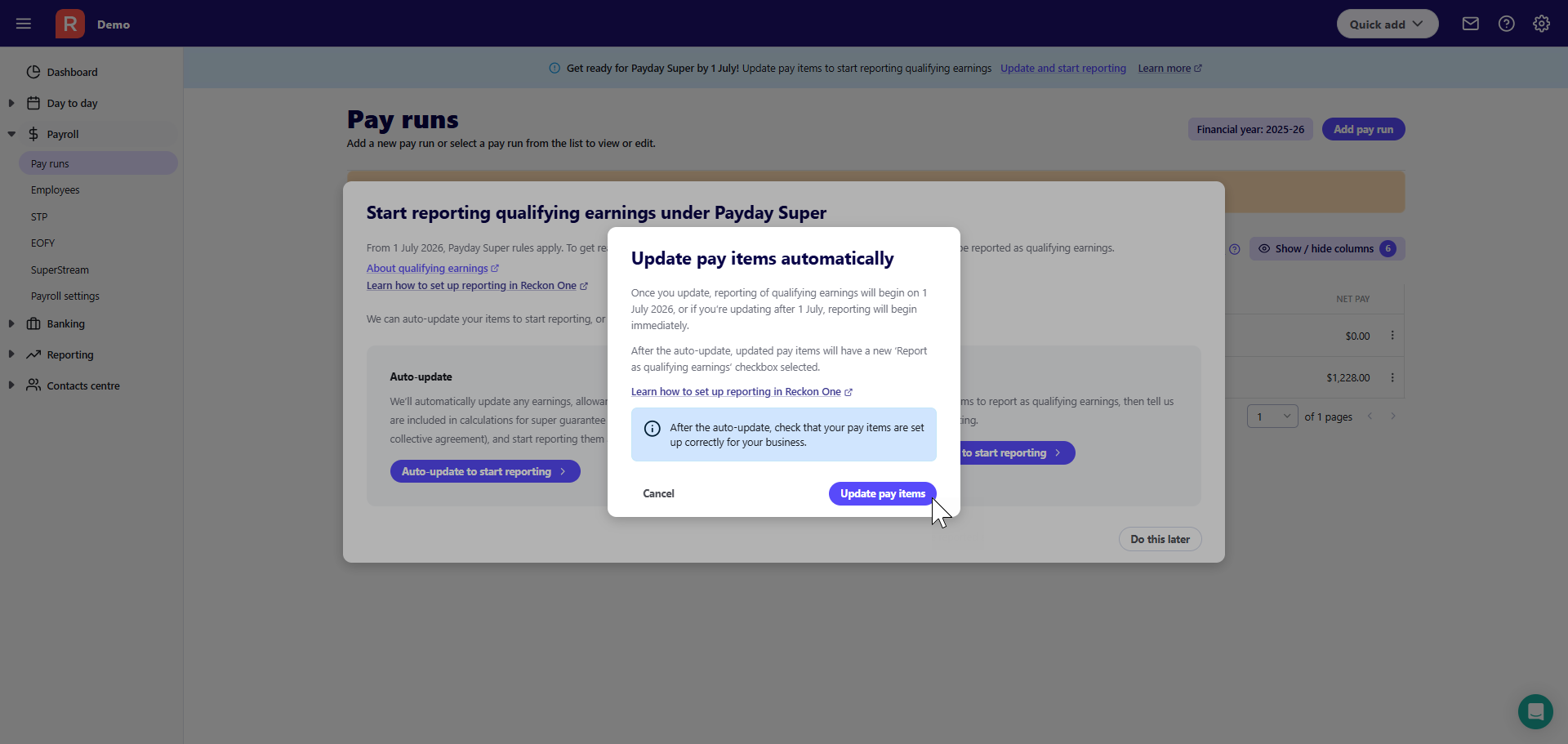
- Select Update pay items.
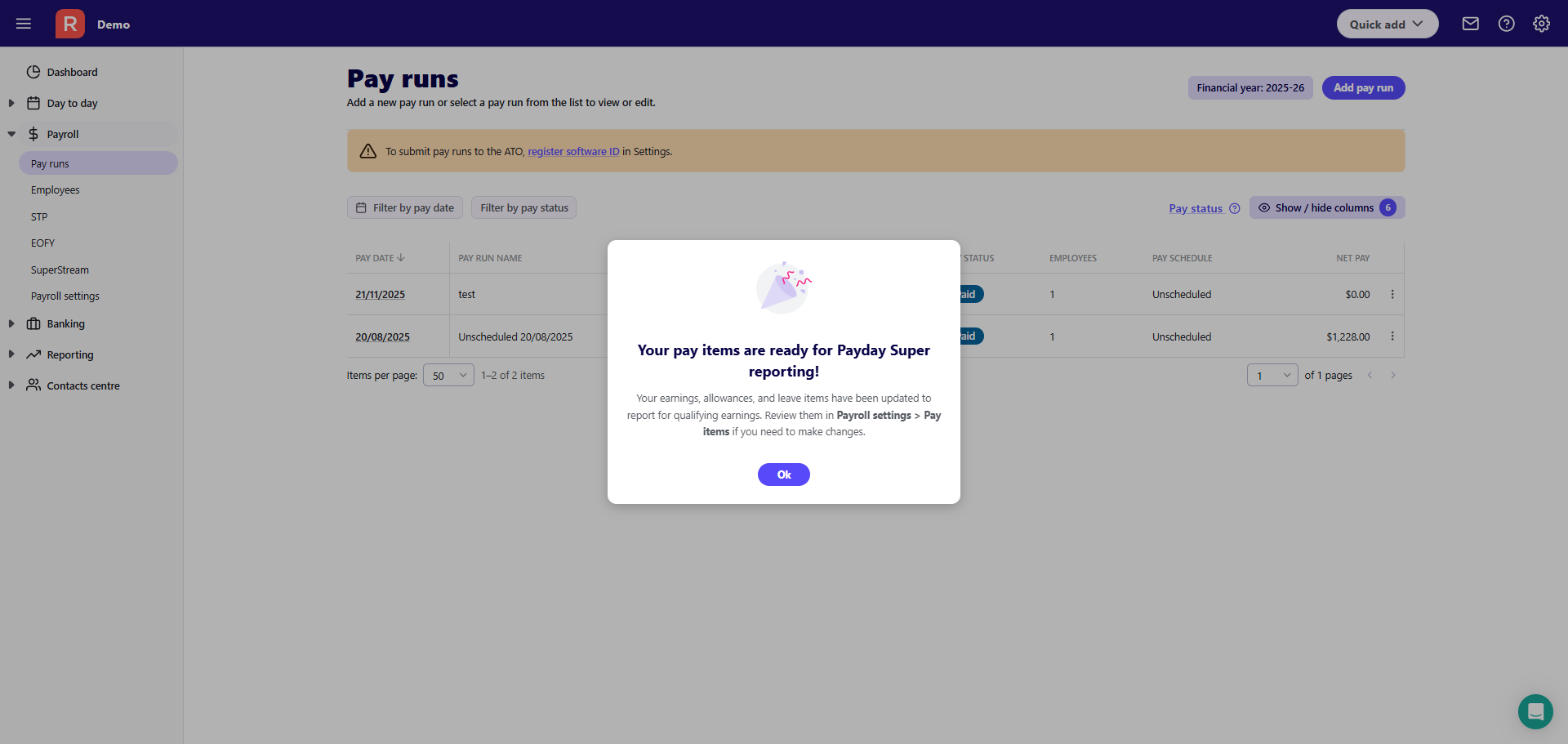
- A modal will be displayed when the update is complete
- Remember to check that your pay items are set up correctly for your business and specific reporting obligations. In the Payroll menu, go to Payroll settings and select Pay items. Click on the pencil icon on each pay item to review the settings, ensuring that the 'Report as qualifying earnings' checkbox is selected on pay items that are reportable as qualifying earnings, and that your Superannuation preferences section is correct.
Manual update
Manually updating means that:
- you'll choose which pay items to report as qualifying earnings by manually selecting the 'Report as qualifying earnings' checkbox on relevant earnings, allowances, and leave pay items
- you'll tell us when you're ready for us to start reporting qualifying earnings (under the code Q) through pay runs and other STP submissions. After you tell us you're ready, we'll start reporting:
- from 1 July 2026, if you tell us you're ready before this date
- immediately, if you tell us you're ready after 1 July 2026
How to manually update
To manually update your pay items to report as qualifying earnings:
- Select Update and start reporting on the 'Get ready for Payday Super' banner on your Reckon One dashboard, or on the:
- Pay runs screen (click on Pay runs in the Payroll menu)
- STP submission screen (click on STP in the Payroll menu)
- Pay items screen (click on Payroll settings in the Payroll menu, then on Pay items)

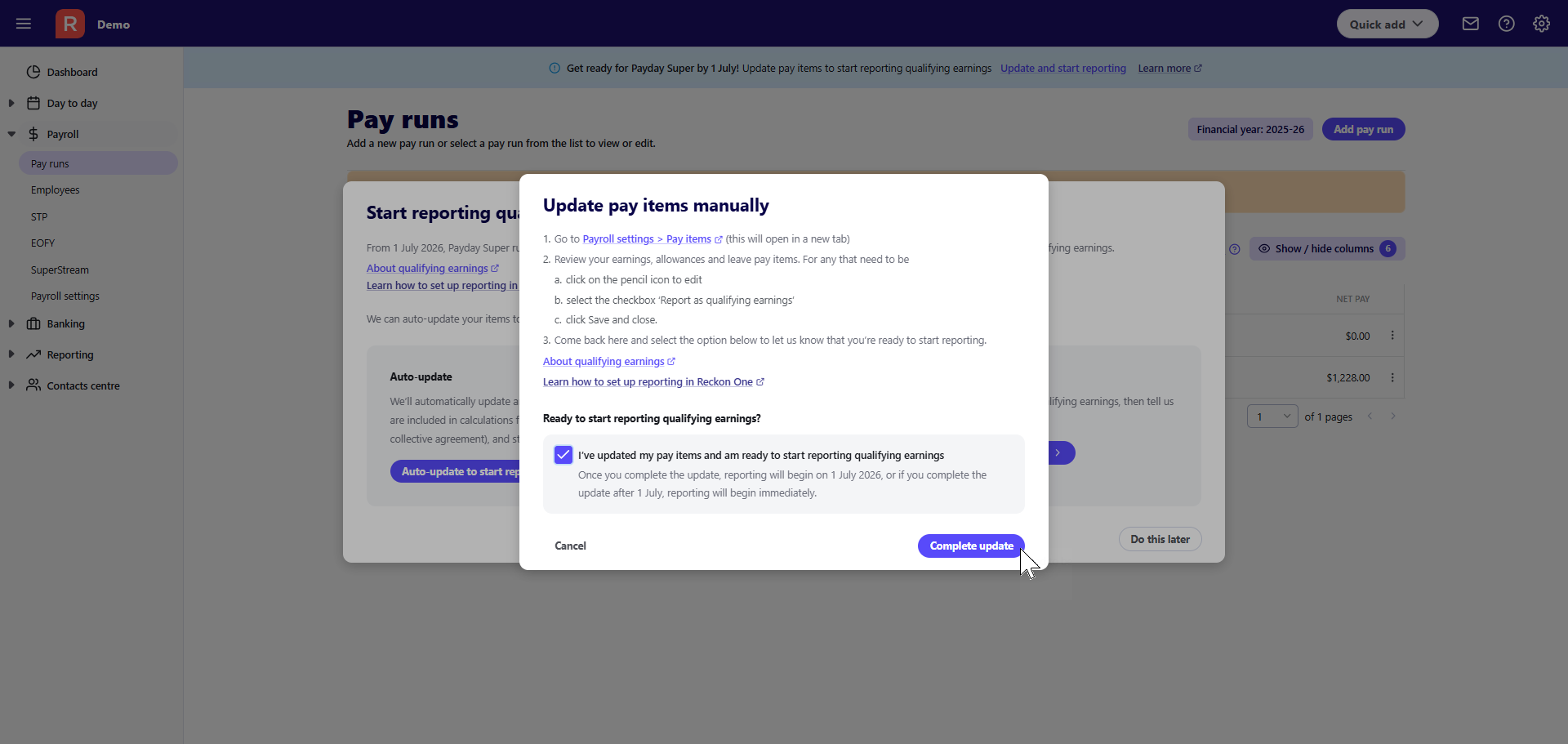
- Select Update manually and tell us to start reporting
- Click on the Payroll settings > Pay items link (this will open the Pay items screen in a new tab)
- On the Pay items screen:
- Click on the pencil icon next to earnings, allowances, and leave pay items that need to be reported as qualifying earnings.
- Select the Report as qualifying earnings checkbox.
- Check that your Superannuation preferences section is correct.
- Click Save and close.
- Once finished, go back to the tab where you selected to update manually. Then:
- Select the I've updated my pay items and am ready to start reporting qualifying earnings checkbox.
- Select Complete update.