Table of Contents
Edit an employee's pay in Reckon One
Learn how to edit an employee's pay, including earnings & leave, allowances, PAYG tax, deductions, reimbursements, company contributions and superannuation, in a pay run in Reckon One.
You can edit pay runs that are in draft
You can edit an employee's pay in any draft pay run. If the pay has already been marked as Paid, you will need to revert the pay run to draft, and consider any potential implications on STP reporting or on actual amounts paid to the employee and/or super funds.
Collapse and expand pay categories
To edit an employee's pay:
- In the Payroll menu, click on Pay runs.
- Click on the pay run you wish to edit.
- Click on the employee's name.
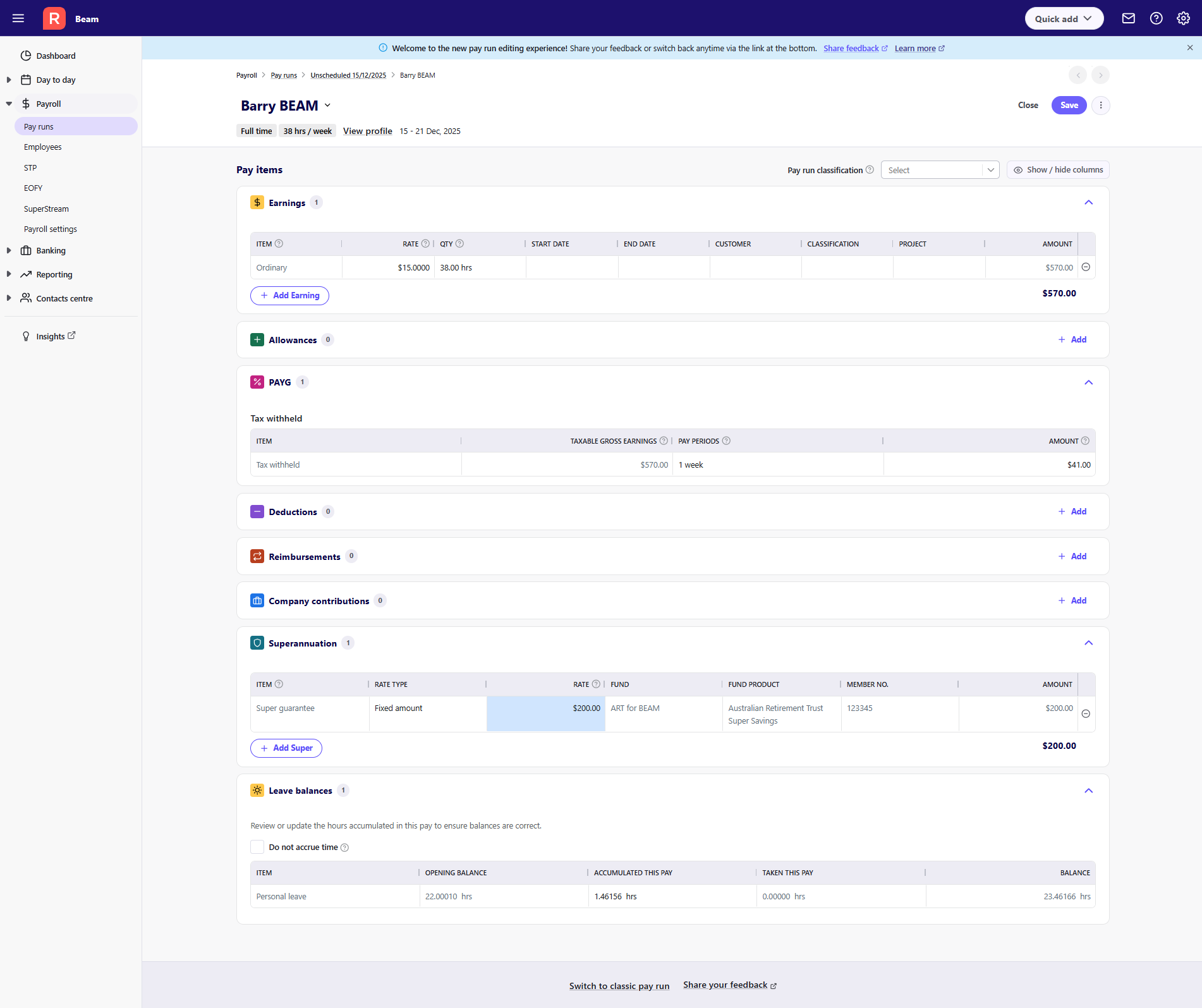
- On the editing screen, you will see all pay categories that are in use across the book, with those containing pay items expanded to show all elements in the employee's pay. You can collapse or expand a category by clicking on the chevron to the right of the category name.
Add, edit or remove a pay item
Add or remove a pay item
To add or remove a pay item to an employee's pay:
- In the Payroll menu, click on Pay runs.
- Click on the pay run you wish to edit.
- Click on the employee's name.
- To add a pay item, either:
- Click on the Add option next to a pay category name (if collapsed), or underneath the list of existing pay items within a category
- Click into the new item field in the table and select the pay item from the dropdown menu
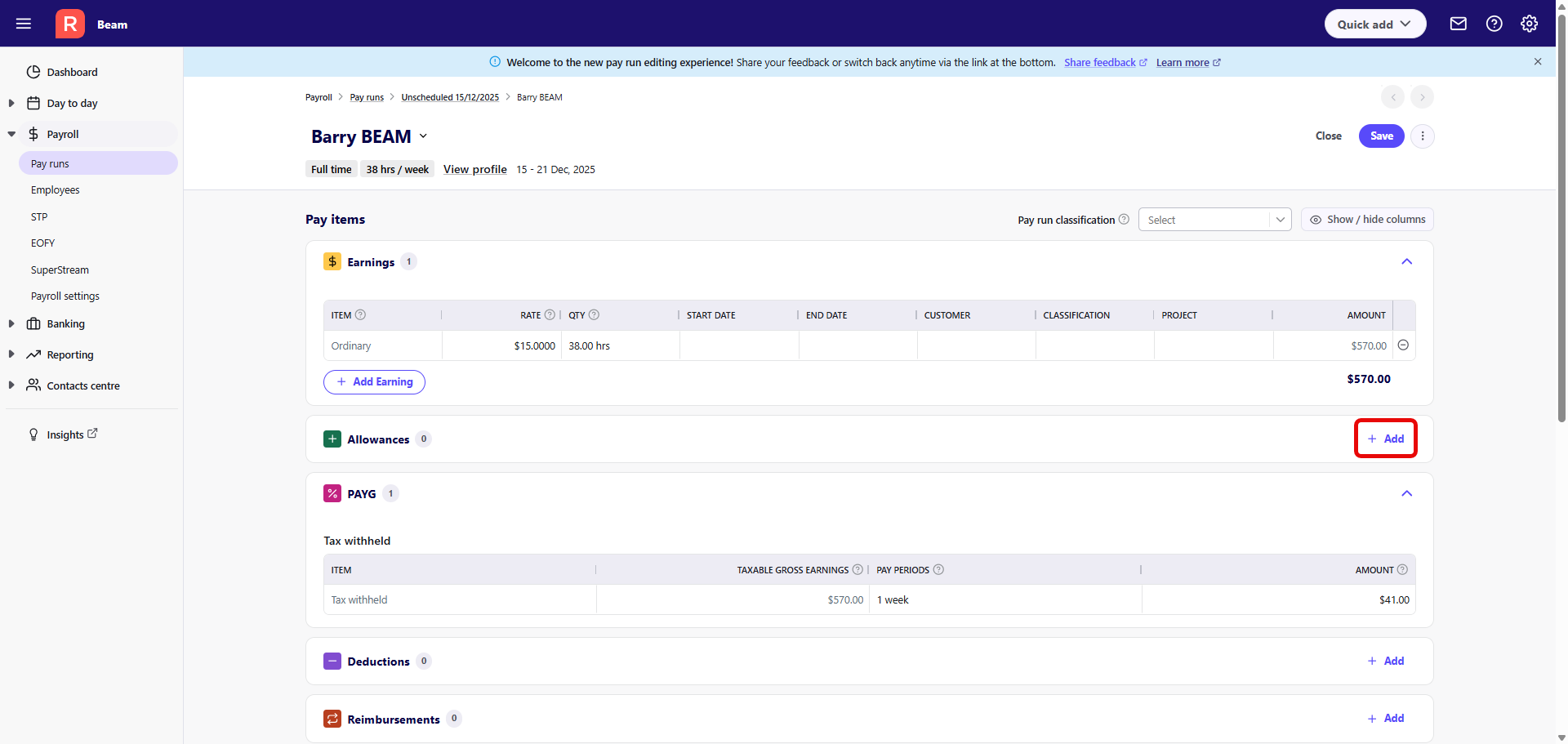
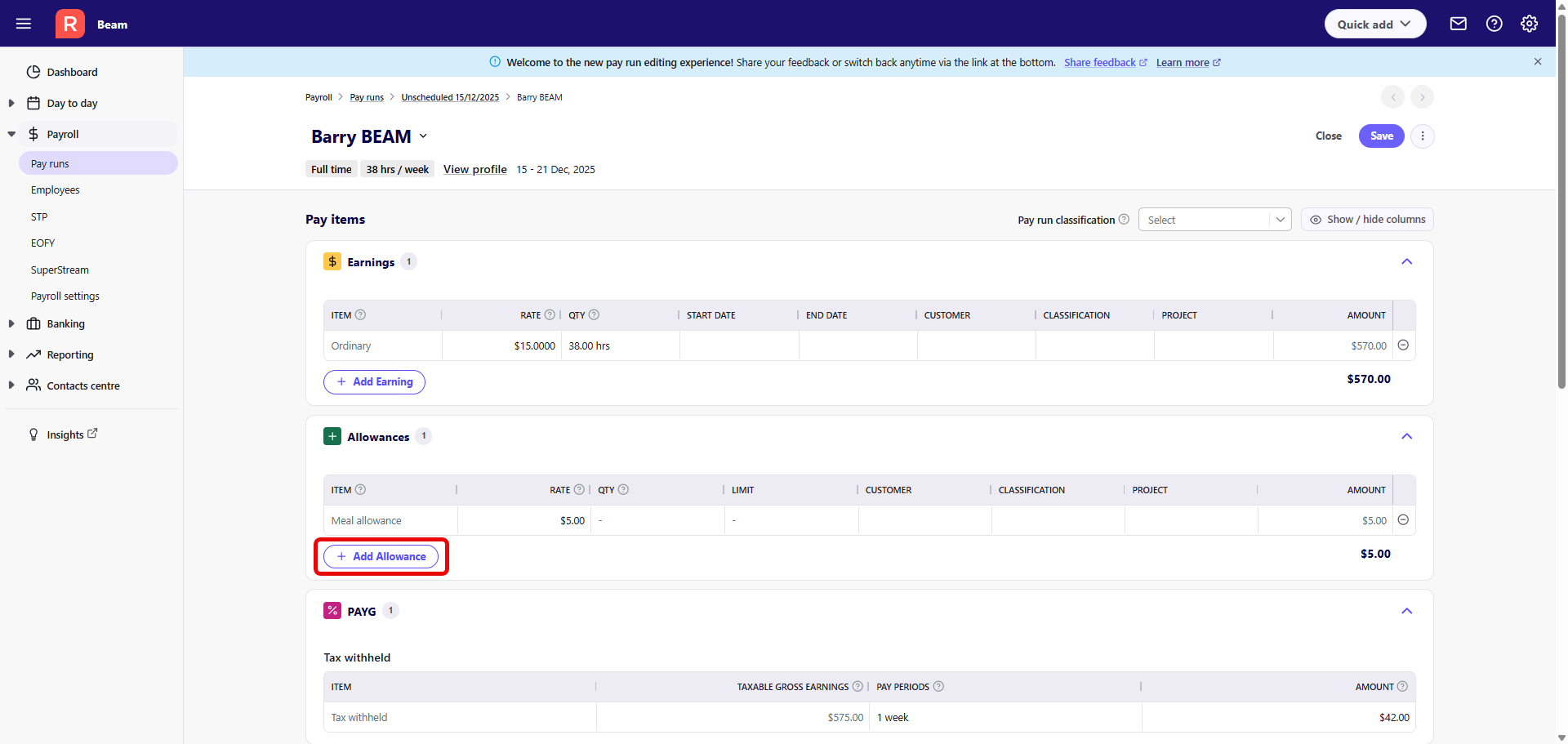
- Enter information about the pay item in the relevant columns.
- To remove a pay item, click on the Remove item button (the minus sign in a circle) at the end of the pay item row.
Edit a pay item
To edit a pay item, simply click into the relevant cell in the grid and type or select to edit. You can tab through cells using your keyboard.
Enter lump sum tax amount for an earnings item
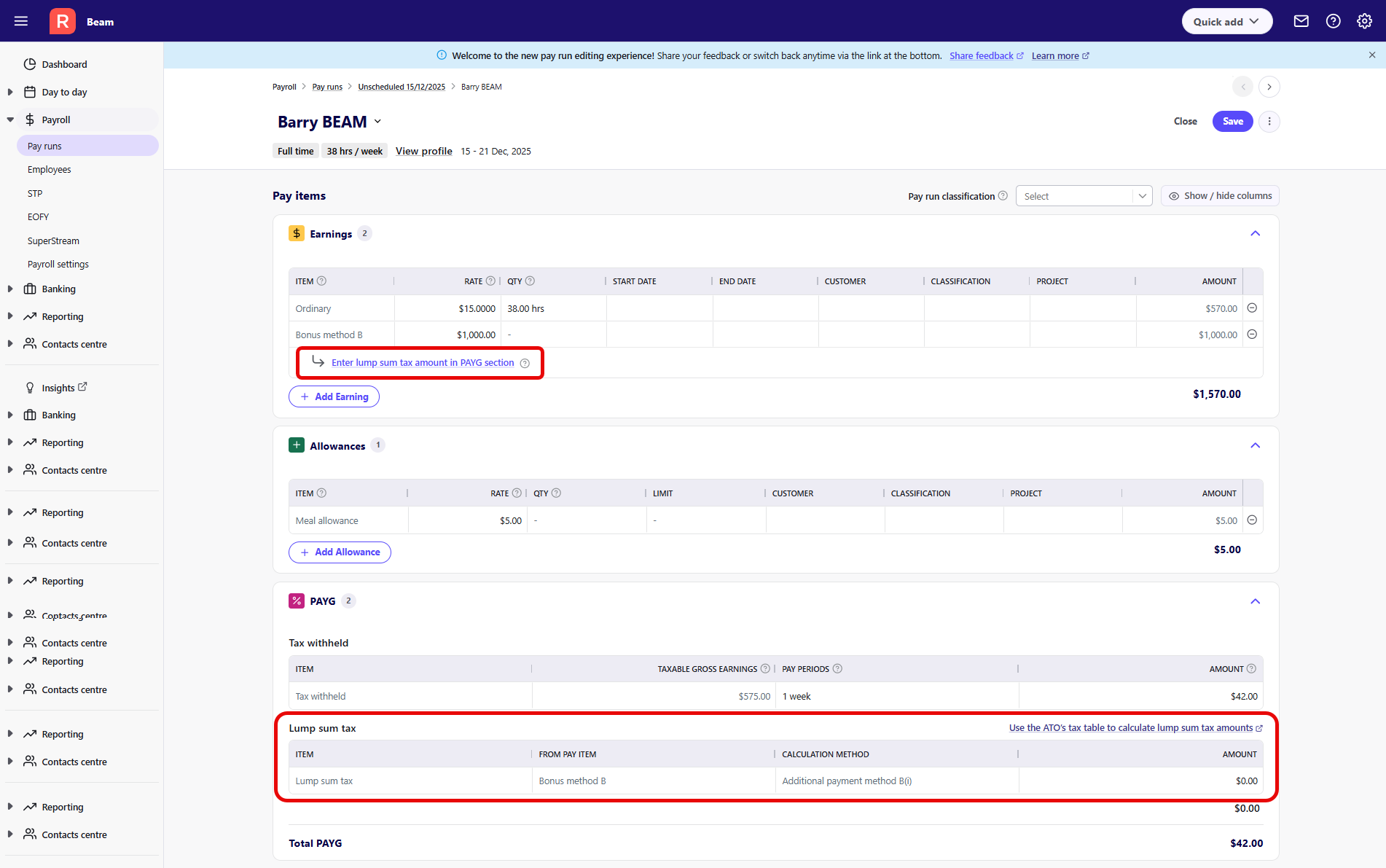
When you add an earnings item that requires additional tax to be withheld, and have clicked save, a link will appear in the Earnings section that allows you to easily jump down to the PAYG section to enter the additional tax in the Lump sum tax area. You will need to calculate this tax amount yourself. For help on this, refer to the ATO guidelines on calculating the withholding amount.
Move between employees to edit their pay
To easily move between employees to edit their pay, either:
- Click on the dropdown arrow next to the name of the employee you're currently editing, then search and/or select the next employee
- Click on the arrow in the top right to move to the next employee


Remove employee from a pay run
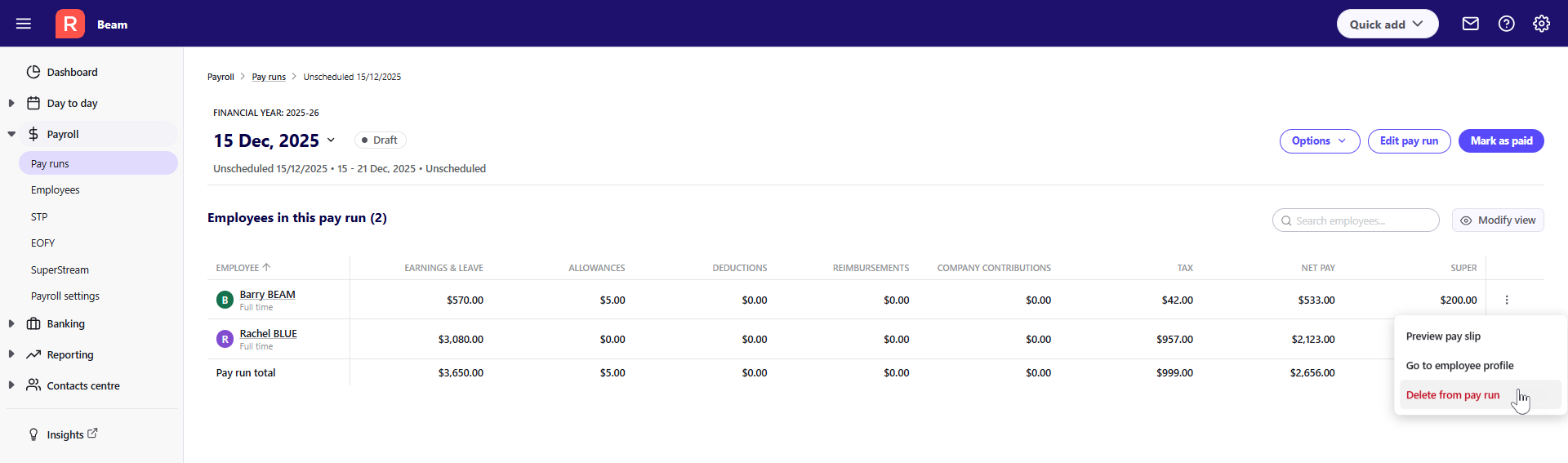
You can either remove an employee from the pay run, or from the screen where you're editing the employee's pay. To remove from the pay run, click on the 3 dots next to the employee's name, then select Delete from pay run.
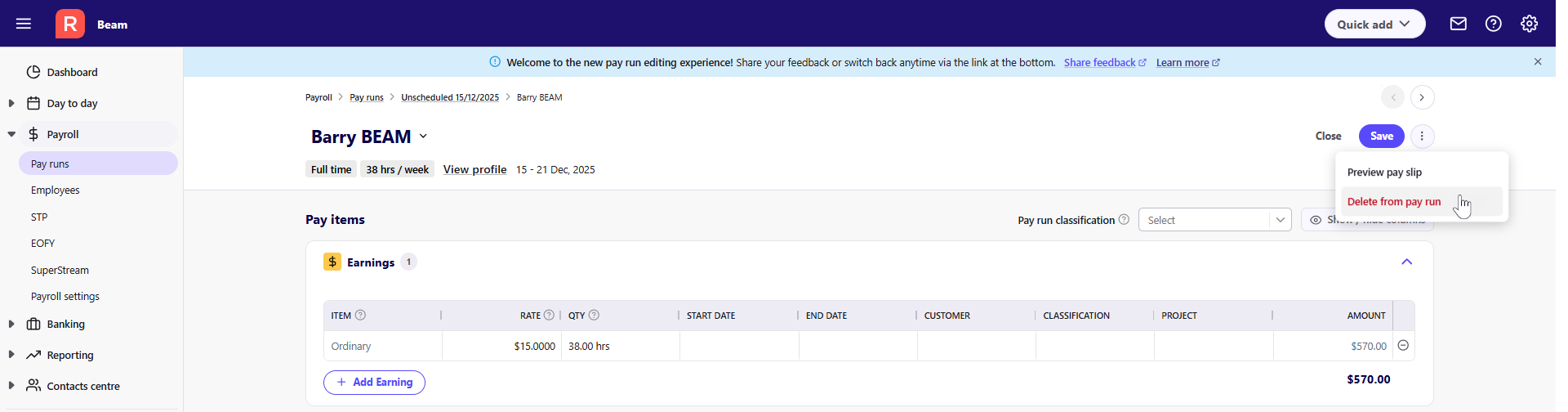
To remove from the edit screen, click on the 3 dots in the top right and select Delete from pay run.
Read more
- Learn how to process a pay run and submit it to the ATO
- Learn how to assign classifications in payroll
- Learn how to process multiple pay periods in a single pay run
