Table of Contents
About invoice templates in Reckon One
Learn about invoice templates and how to manage them in Reckon One.
About invoice templates
Reckon One has a range of different templates to use for invoices, each with a different layout and style to match a range of professional uses. You can customise each template or create your own custom template for specific uses (with specific branding elements and information displayed).
Choose or customise a Reckon One invoice template
The Reckon One templates contain the same information by default, but offer different styles and layouts to suit your business.
Our 3 modern templates have the broadest functionality - they offer header images and adjustable sizing and positioning of different elements and colours, and can be duplicated. These templates are called:
- Bold
- Light
- Compact
Older Reckon One books may also have access to our older templates, but these are not as customisable:
- Professional
- Standard
- Product and services
- Generic
Learn how to customise the branding and information displayed on invoices.
Use custom templates
Create a custom template
You can create a new custom template by duplicating an existing modern template (Bold, Light or Compact) and then customising it to your needs.
- Go to Settings (cog icon in top right corner), General, then Manage templates.
- From the Template dropdown, select the template you wish to duplicate.
- Click Duplicate.
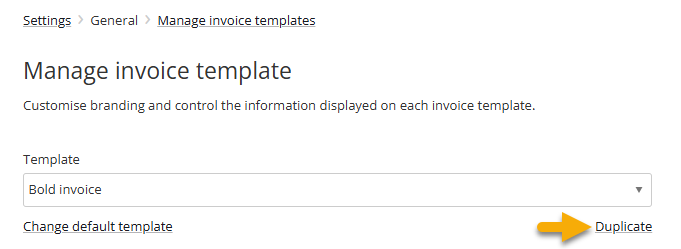
- Give the new template a unique name or accept the default.
- Customise the template by adjusting the branding or the information it displays.
Rename a custom template
Only custom templates that you’ve created can be renamed:
- Go to Settings (cog icon in top right corner), General, then Manage templates.
- From the Template dropdown, select the custom template you wish to rename.
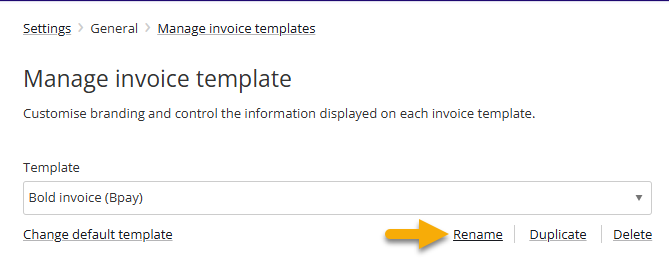
- Under the Template dropdown box, click Rename.
Delete a custom template
You can only delete custom templates that you’ve created and that haven't been used in a transaction:
- Go to Settings (cog icon in top right corner), General, then Manage templates.
- From the Template dropdown, select the custom template you wish to delete.
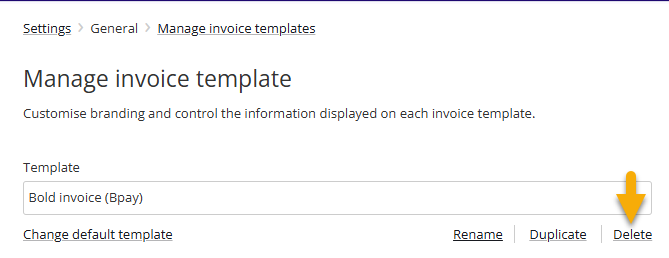
- Under the Template dropdown box, click Delete.
Read more
- Watch a video tutorial on invoice templates on the Reckon Online Community
- Learn how to change the default invoice template for your book
