Table of Contents
Record payments and credits on customer invoices in Reckon One
Learn how to record payments and apply credits to customer invoices in Reckon One.
This feature is available on all accounting and Reckon Ultimate plans.
Record payment
You can record payment on an invoice with a status of Unpaid or Approved. To record payment:
- In the Day to day menu, select Invoices.
- Click on the invoice.
- Click Record payment.
- (Optional) Change the Payment date (it defaults to today’s date)
- (Optional) To record a partial payment, change the Amount.
- Select a Bank account for the payment to be recorded against.
- (Optional) Enter a Reference.
- Click Record payment, or if you wish to add more payment details, select the dropdown arrow, then click Add full payment details. This will take you to the Receive money screen which will allow you to add a Contact, Payment method, Allocation notes and other details.
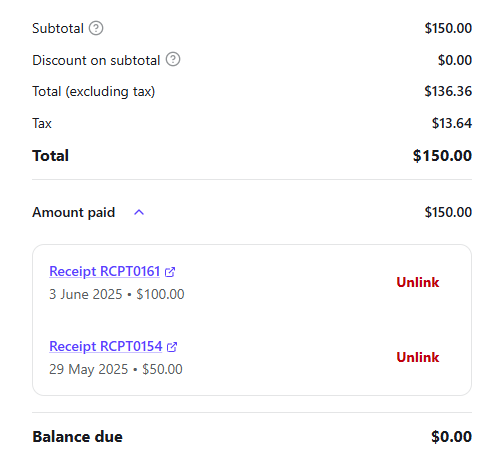
You’ll now be able to view the payments via the banner at the top of the screen, or in the invoice totals section under Amount paid.
When the invoice is paid in full, it will have a status of Paid.
Apply a customer credit to an invoice
- In the Day to day menu, select Invoices.
- Click on the invoice.
- Click Record payment.
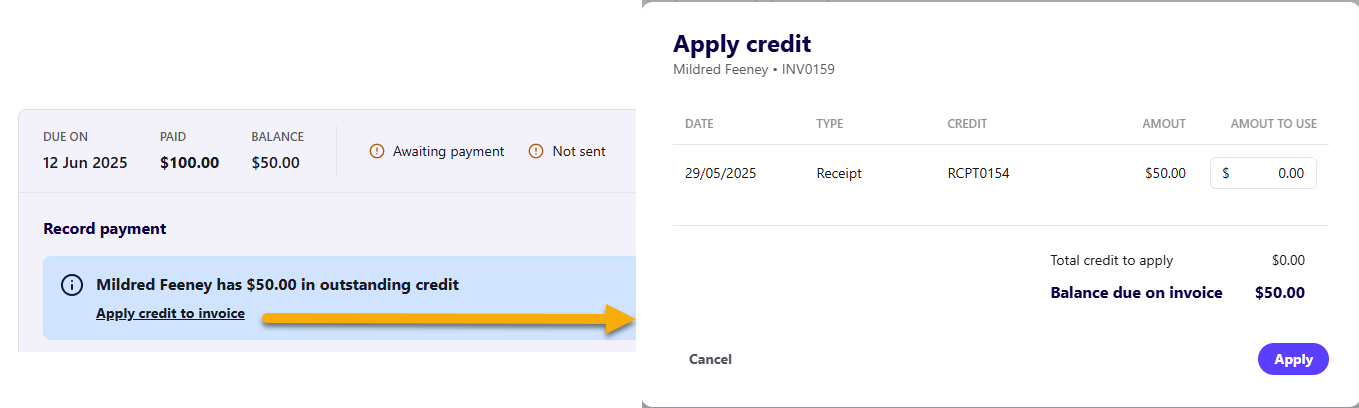
- If the customer has a credit available, you will see a blue alert telling you there is outstanding credit.
- Click Apply credit to invoice.
- On the Apply credit screen, enter an Amount against the relevant credit.
- Click Apply.
When the invoice is paid in full, it will have a status of Paid.
Read more
- Learn how to edit an invoice
- Learn how to view invoice history
