Table of Contents
Share custom reports in Reckon One
Learn how to share your custom reports with your Reckon One book, so users in your book can use it.
Learn more about creating and managing custom reports.
How it works
Only you can see the custom reports you create, unless you choose to share them with the Reckon One book. Once a report is shared with the book, any user with access to the book and the necessary reporting permissions can:
- view the report
- edit the report filters and data and display options
- edit the report name, description or group
- delete the report from the book.
Any changes made to shared reports will show across the entire book for all users.
Share a custom report
To share a custom report with your book:
- In the Reporting menu, select Reports. This will show all your reports, or to see only your custom reports select the Custom tab on this screen.
- Click on the More options menu (3 dots) to the right of the report you wish to share.
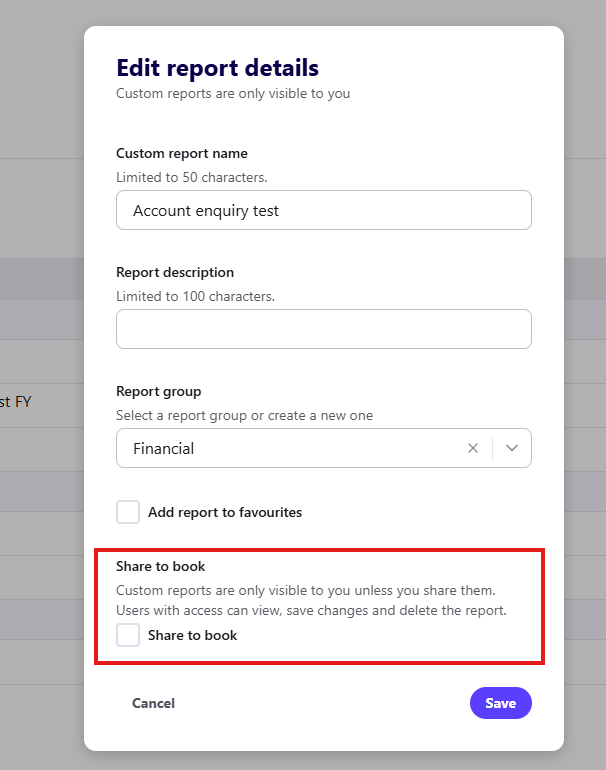
- Click Edit report details & sharing.
- Select the Share to book checkbox.
- Click Save.
How shared custom reports are grouped
Custom report groups are unique to each user within a book, so shared custom reports may not appear under the same group for each user in the book. If you share a custom report that's in a custom group you created, the report will appear ungrouped. Each user in a book can group shared custom reports in any way they like, without affecting other users' groupings.
Read more
- Learn more about creating, managing and grouping custom reports
