Table of Contents
Terminate an employee in Reckon One
Learn how to terminate an employee in Reckon One payroll.
Terminate an employee
- Go to Payroll, then Employees.
- Select the employee.
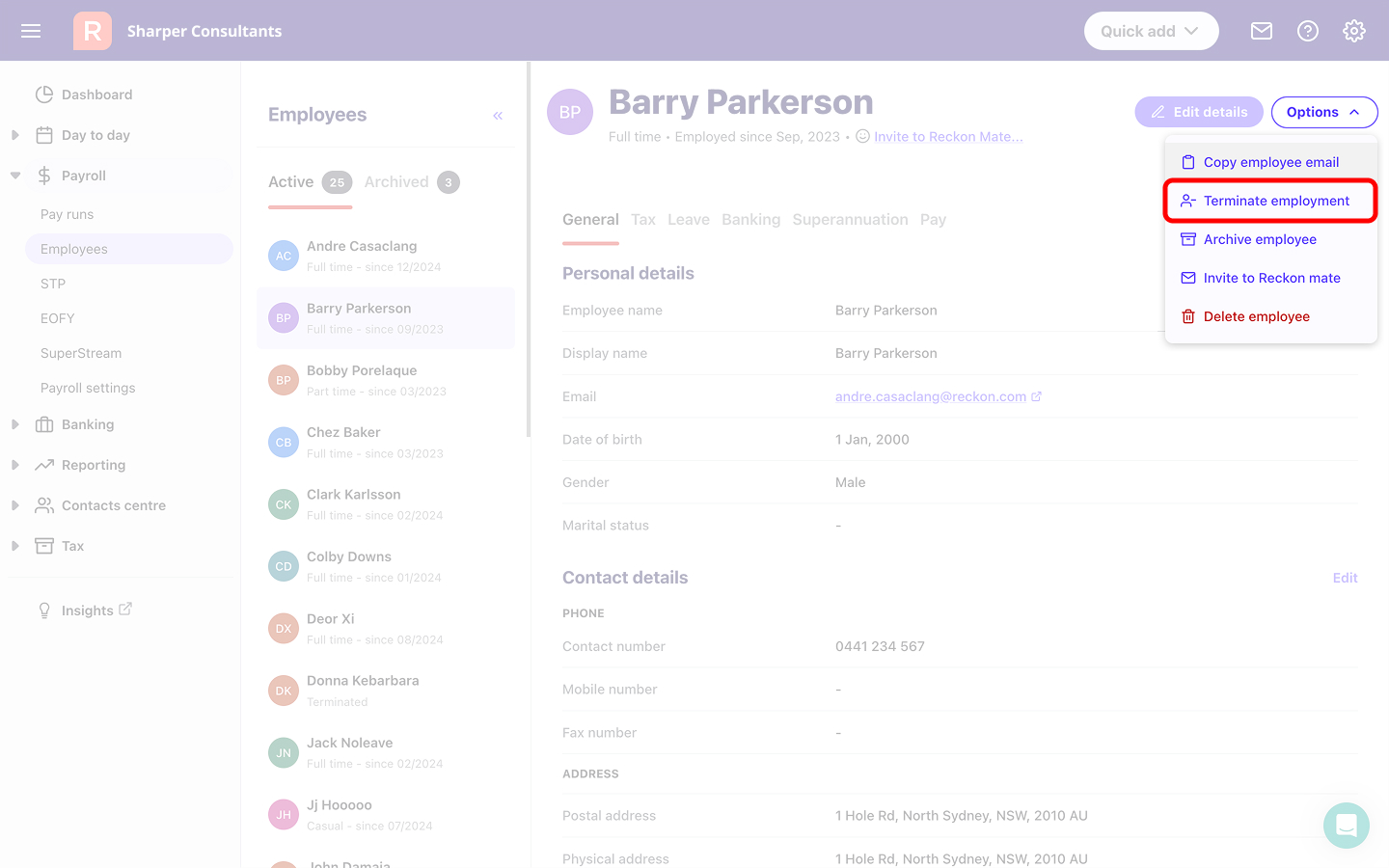
- Go to Options, then select Terminate employment.
- Enter the End date and select the Reason for termination from the drop-down list. The Reason for termination will determine the default reporting categories for unused leave (which can be changed or adjusted once you create the pay run):
- If you select Redundancy or Ill health, any unused leave that has been selected to pay out on termination will be allocated to Lump sum A code R.
- If you select Voluntary Cessation, Dismissal, Contract Cessation or Transfer, unused leave will be allocated to Unused leave on termination.
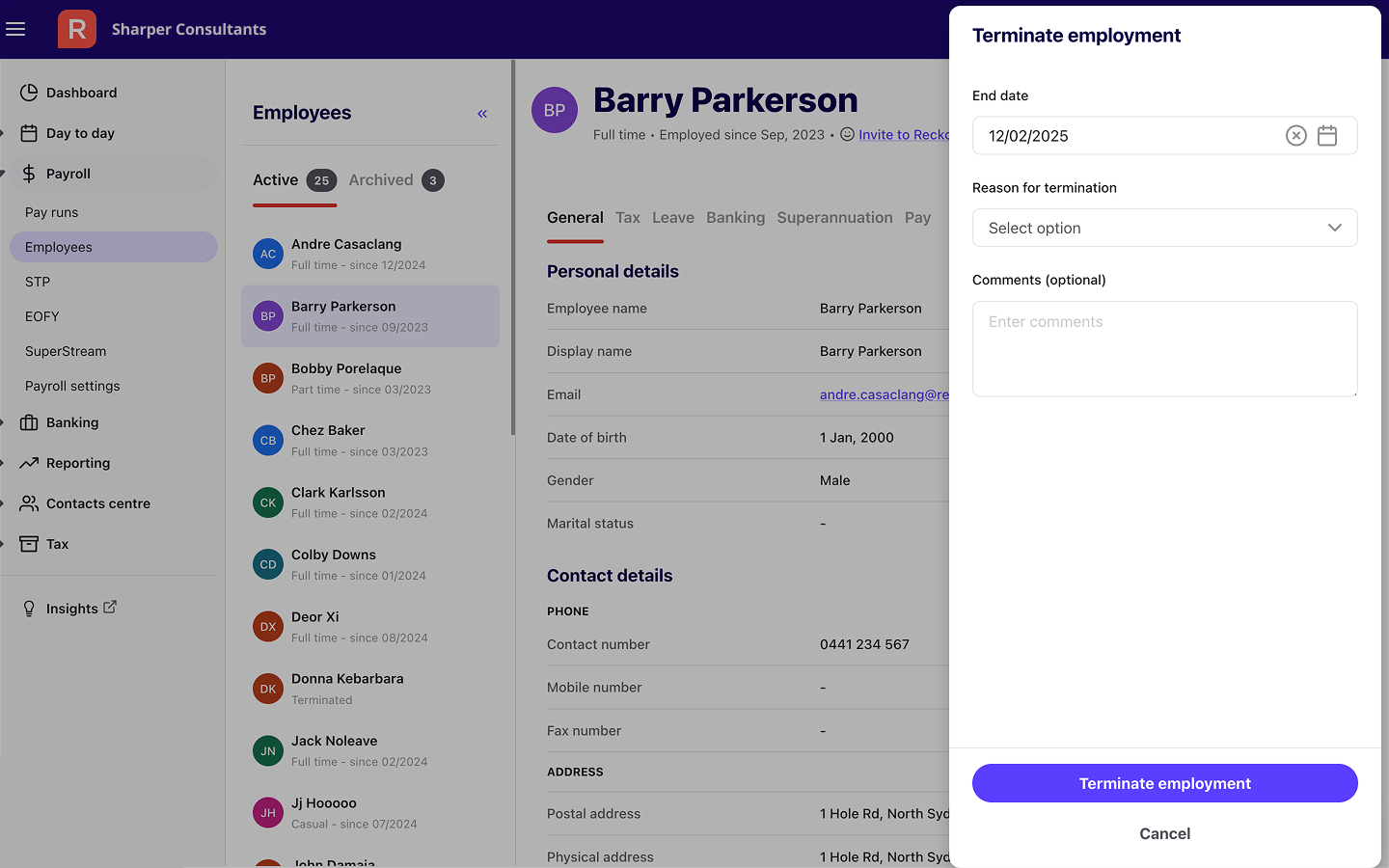
- Select Terminate employment.
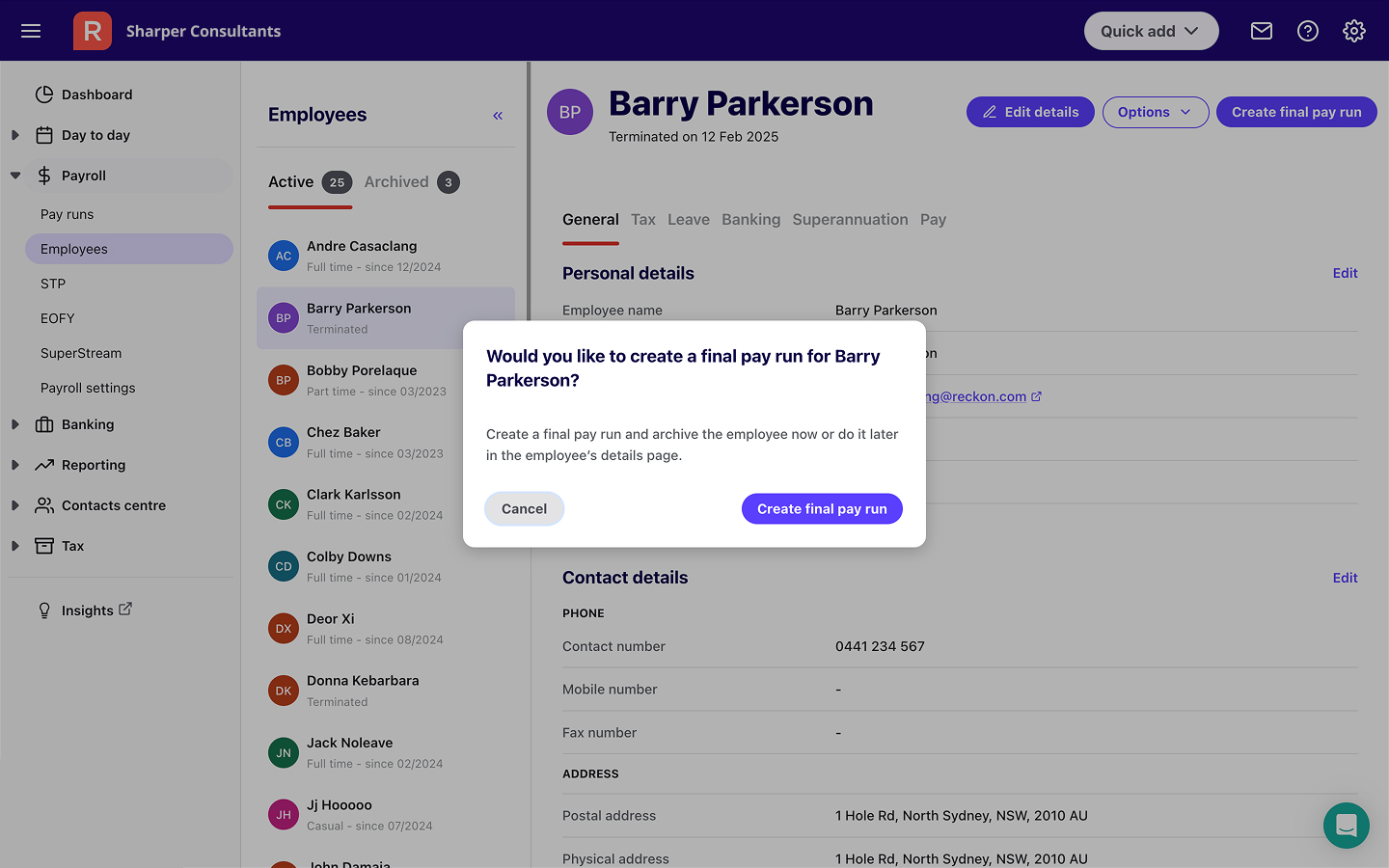
- You'll then be asked if you want to create a final pay run now. If you don't wish to do it now, and would prefer to do it later, click Cancel. Learn more about processing a final pay run.
Read more
- Learn how to create a final pay run
- Learn how to process an employee termination payment (ETP)
