Table of Contents
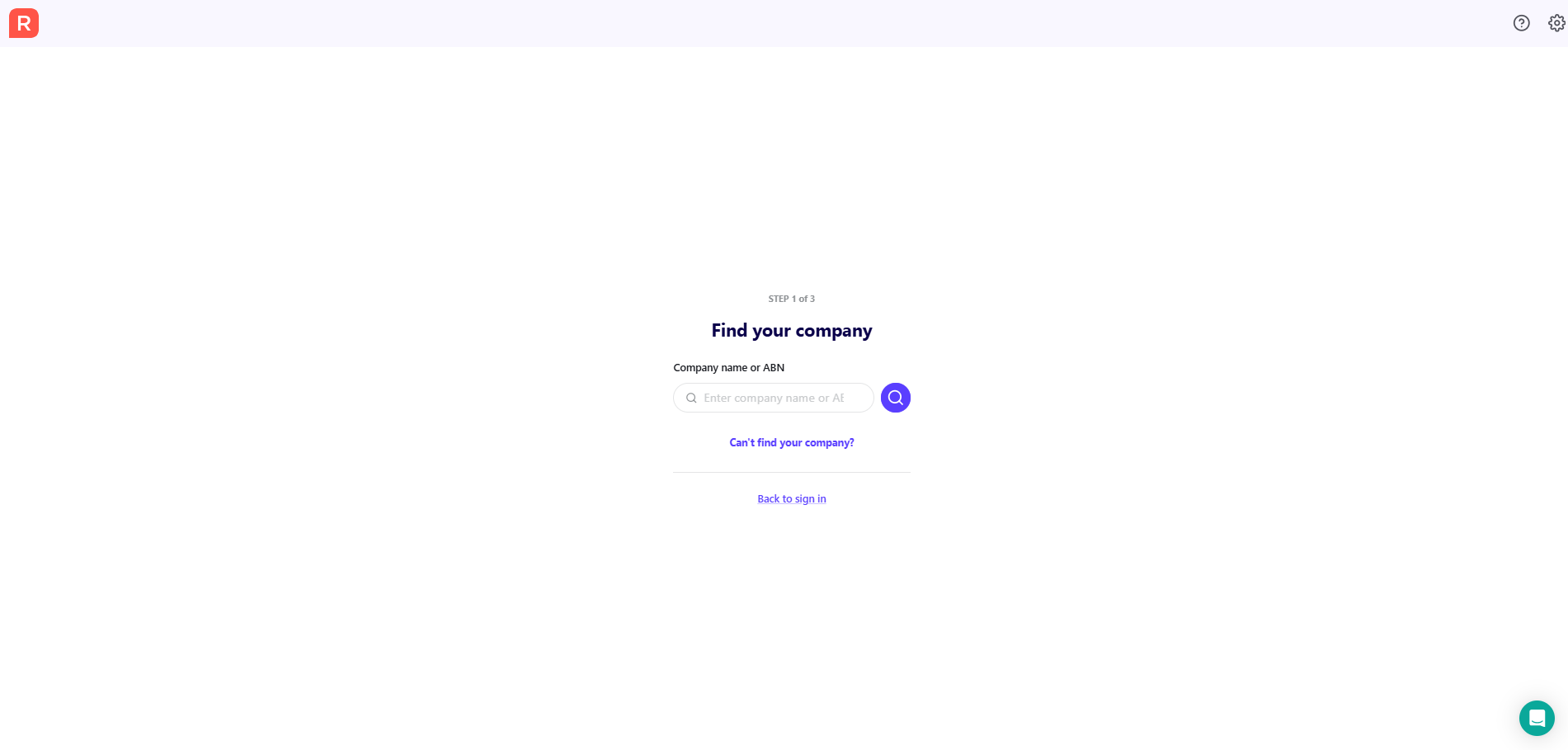
Prompted to find company when accessing payroll in Reckon One
Learn why you're being prompted to find your company when accessing payroll in Reckon One, and what to do about it.
Why this occurs
You will be prompted to find your company when:
- a book has a payroll plan
- an ABN has not been entered in the book.
This is because payroll functionality requires an ABN.
We prompt you to add an ABN when you create the book in portal. If you skipped this step or if you created your book via our payroll app, you will be prompted to find your company when you go to access any payroll screen from within Reckon One.
Access payroll when asked to find your company
- Enter your company name or ABN then select the search icon to search.
If you are searching for an ABN, an ABN has 11 digits. You may need to verify and re-enter the search text.
- Select the relevant company from the list shown.
- Select Continue.
- Enter the last 3 digits of the ABN.
- Enter the branch number (use 001 if there is no branch number).
Click Choose a different ABN if you have selected the incorrect company, and follow the process again.
- Select Continue.
- On the Book details screen, review your contact number and if you're registered as an employer of Working Holiday Makers, select the checkbox Are you registered with the ATO as an employer of Working Holiday Makers?.
- Select Complete company setup.
Read more
- Get started with payroll by adding an employee
