How to access the Accountants Data Transfer (ADT) feature from Reckon Accounts
The Accountants Data Transfer (ADT) is a feature in the Reckon Accounts Accountant Edition that allows you to convert your client’s financial data (including tax code details) from Reckon Accounts to MYOB software like MAS, Accounts, or Accountant’s Office (Australia/New Zealand). It’s useful for accountants who want to run reports in the accountant's practice software that they are used to.
ADT lets businesses share financial data with their accountant without granting full access to the company file.
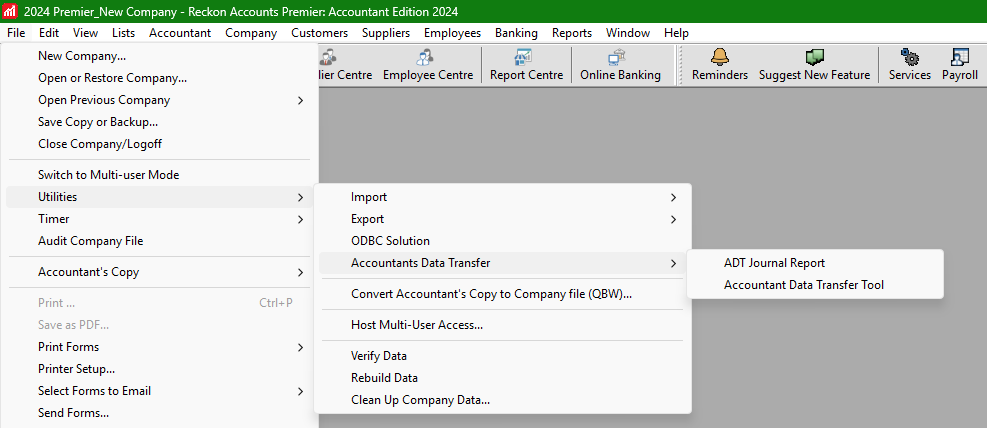
Previously, you could find this feature under File > Utilities > Accountants Data Transfer in Reckon Accounts. However, starting with the latest Reckon Accounts Business Range released from 2025, this feature is being phased out and is no longer directly visible in the menu. You can still access it by running the ADT application manually.
If you see an incorrect year reference when running ADT, this won’t affect the functionality.
This workaround allows you to keep using ADT despite it being hidden in newer versions.
- Go to C:\Program Files (x86)\Intuit\Reckon Accounts <Version>\ADT
- Copy the ADT.exe and paste in your Desktop as a shortcut
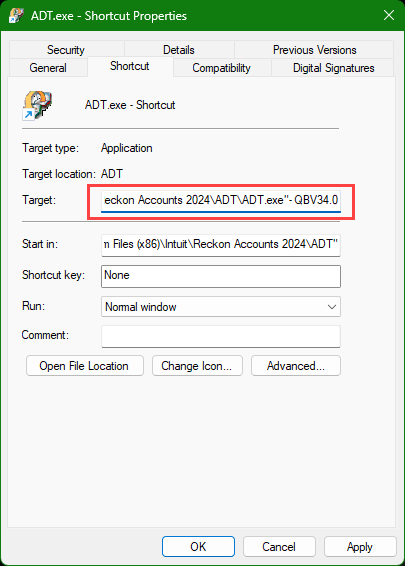
- Right-click on the shortcut and select Properties
- Add a space and
-QBV34.0at the end of the Target field.
Example:"C:\Program Files (x86)\Intuit\Reckon Accounts 2024\ADT\ADT.exe" -QBV34.0 - Click Apply and OK
- Download the ADT Journal report file.
- In Reckon Accounts, go to Reports > Memorised Reports > Memorised Report List.
- In an empty area of the list, right-click and select Import Template.
- Navigate to the downloaded ADT Journal file, select it, and click Open.
- Click OK to save the memorised report.
You can now use this report whenever prompted to use the ADT Journal report in ADT.
