Table of Contents
Understand the payroll employee list screen in Reckon One
Learn about the employee list screen in the payroll menu of Reckon One, what you can do there, and how to customise it.
About the employee list screen
The employee list screen in the payroll menu of Reckon One contains a list of your employees, grouped by status and displaying key information. From this screen, you can find and view employee records, create new employees and invite employees to self-onboard.
To view this screen, select Employees in the Payroll menu.
Find employees
Filter by status
You can filter employees by status, using the tabs at the top of the screen:
Filter name | Shows |
All | Employees of all statuses. |
Active | Employees that are currently employed, that is, they're not recorded as terminated and have not been archived in Reckon One. |
Terminated | Employees that have a recorded End date. They may or may not have been archived in Reckon One. |
Archived | Employees that have been archived. They may or may not have been terminated. |
Incomplete | Employees that do not have all the necessary details recorded on their profile. These will often be employees who have self-onboarded in Reckon Mate, for which you still need to populate some information. |
Search employees
To search for employees, use the search bar in the top right above the employee list. You can search for:
- Display name only
- First name
- Last name
- Employee number
Search results will only show for the status tab selected. If you wish to search from your full employee list, make sure the All tab is selected before you start searching.
Sort employees by display name
To sort employees by display name, click on Display name in the column header. This will sort the display names alphabetically according to the display name.
Information in the employee list
The employee list displays columns showing key information for each employee. :
- Display name
- First name
- Last name
- Employment type (e.g. full time, part time, casual)
- Employee number
- Job title
- Start date
- End date
- Pay frequency
- Pay schedule
- Mobile number
- Status
By default, you'll see all possible columns. You can customise the information you see.
Customise the information you see
You have the option to customize the columns in the employee list to meet your specific requirements. These personalized columns will remain unchanged even after logging out of your book. Customisations are user-specific and will only be visible to the user who made the changes. They do not apply to other users of the book.
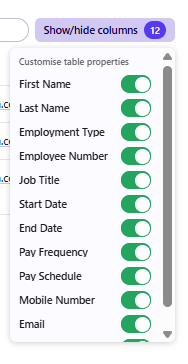
- Click on Show/hide columns in the top right corner above the employee list. This will display a list of possible column options. Those that are showing will be in toggled on (the toggle will show as green).
- Click on the toggles to show and hide columns as desired.
Read more
- Learn how to create a new employee in Reckon One
