Table of Contents
View and send pay slips in Reckon One
Learn how to view and send pay slips in Reckon One.
This feature is available on all payroll and Reckon Ultimate plans.
Preview pay slips from a draft pay run
To preview pay slips for a draft pay run:
- In the Payroll menu, select Pay runs.
- Select the relevant pay run with a status of Draft.
- Select Preview pay slips.
- To preview an individual employee's pay slip, select View pay slip next to the employee's name. To preview pay slips for more than one employee in a combined PDF, select the employees and click on the View pay slips button.
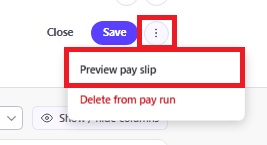
You can also preview a payslip while editing an employee's pay.
- Click on the employee's name in the pay run.
- Click on the 3 dots in the top right, then select Preview pay slip.
View or send pay slips from a paid pay run
To view and send pay slips to employees:
- In the Payroll menu, select Pay runs.
- Select the relevant pay run with a status of Paid.
- Select View and send pay slips.
- To view an individual employee's pay slip, select View pay slip next to the employee's name. To view pay slips for more than one employee in a combined PDF, select all or some of the employees and click on the View pay slips button.
- To send payslips, select all or some of the employees and click on Send pay slips. You can enter a CC email address if you want to send a copy of the pay slips to another person.
Read more
- Learn how to create a SuperStream batch to pay superannuation
- Learn how to add notes to pay slips
