Table of Contents
Set up Stripe payment services in Reckon One
Learn how to enable Stripe to get paid faster with secure payments, automatic receipts, and seamless tracking in Reckon One. Stripe is a fee-based service that gives customers the option to pay directly from their invoice via the payment methods you nominate (card, Apple Pay and/or Google Pay). When they pay, your invoice will automatically be marked as paid and a receipt is created in Reckon One.
Connect to Stripe
Link your account
To link a new or existing Stripe account:
- In the Day to day menu (Business section), select Payment services.
- Select Stripe.
- Select Set up Stripe Payments.
- Enter your Email address for your Stripe account (new or existing account).
- Follow the steps presented by Stripe. These steps will depend on your current status with Stripe and your business setup.
If you don't have all the information available, you can click Return to Reckon on the left and finish the setup at a later date.
Activate Stripe payments
Once you have successfully linked your Stripe account, you need to activate Stripe payments:
- Select the Stripe fee account from the dropdown.
- Tick the Activate Stripe payments checkbox at the top of the screen.
- Click Save & close.
After activating Stripe, a new Stripe bank account is automatically created in Reckon One to record your payments.
Send an invoice
Once you have enabled Stripe, to send an Invoice with the Pay Now button available:
- Create a new Invoice
- Email the invoice to your customer
When the customer receives the email, they will have a Pay Now button.
Once the invoice is paid
When a payment is made via Stripe, Reckon will automatically:
- Mark the invoice as Paid.
- Add a receipt (which will be listed on the Receive money screen in the Day to day menu).
- Allocate the receipt for the payment to the Stripe bank account in Reckon One that's automatically created when you activate Stripe payments.
- Allocate Fees to your Stripe fee account that you selected when you activated Stripe payments.
What your clients or customers see
When you send your client / customer an invoice via email, they will:
- Receive an invoice email with a Pay Now link.
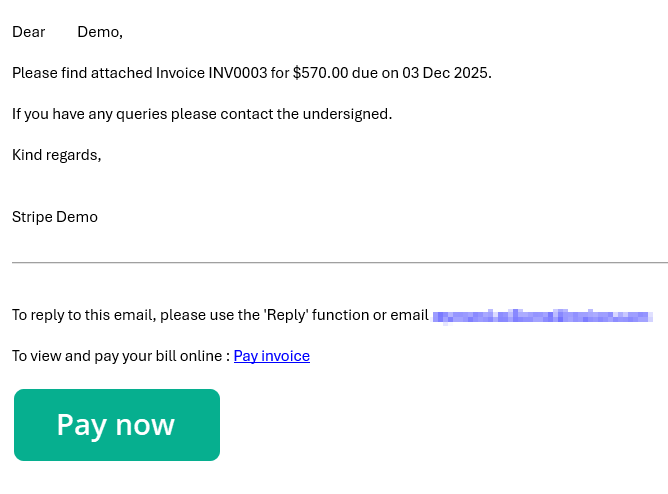
- After clicking Pay Now, they will be taken to a Payment Gateway, where they can select Pay Now. If you have enabled both PayPal and Stripe, they will have the option to select which payment method to use.
- They will be redirected to the secure Stripe payment gateway, where they can enter their card details and make the payment.
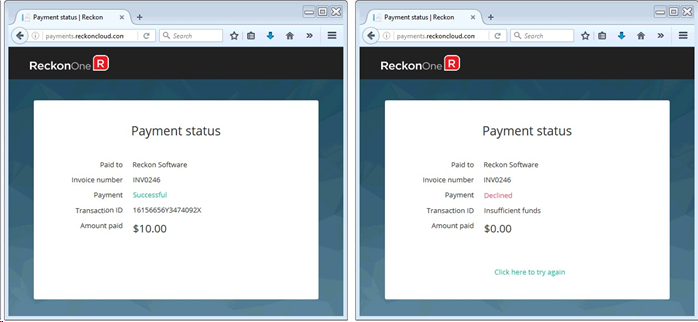
- Once completed, they will be returned to a Payment status page.
Deactivate Stripe
To stop using Stripe as a payment method for your customers:
- In the Day to day menu (Business section), select Payment services.
- Select Stripe.
- Un-tick the Activate Stripe payments checkbox at the top of the screen.
- Click Save & close.
Read more
- Learn more about Stripe
- Learn how to send customer invoices
- Learn how to edit customer invoices
- Learn more about bank accounts in Reckon One
