Table of Contents
Open button is missing or Reckon Insights page is blank
Issue
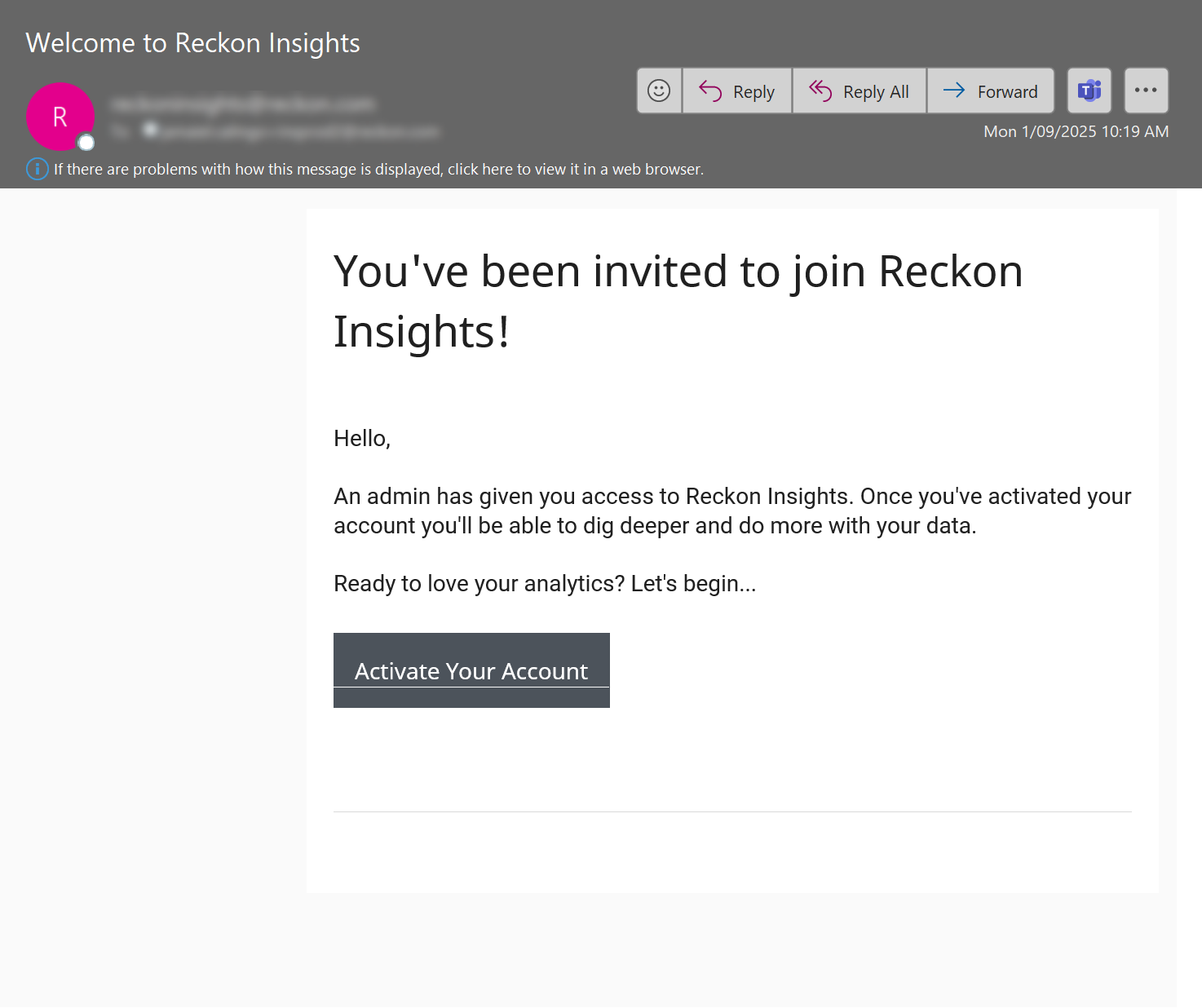
After receiving a welcome email from Reckon Insights, some users may see the following when logging in via Reckon Portal:
- The Open button is missing on the Reckon Insights tile.
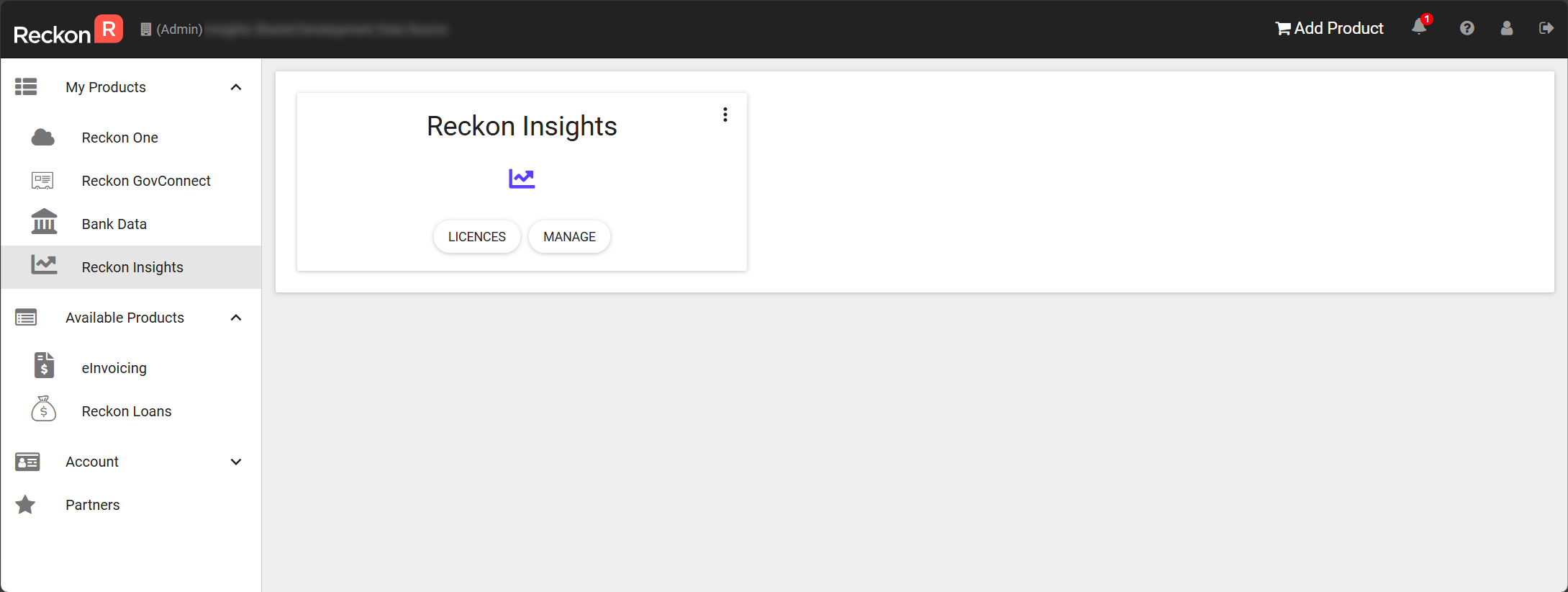
- The Reckon Insights tile itself is missing from the Reckon Portal.
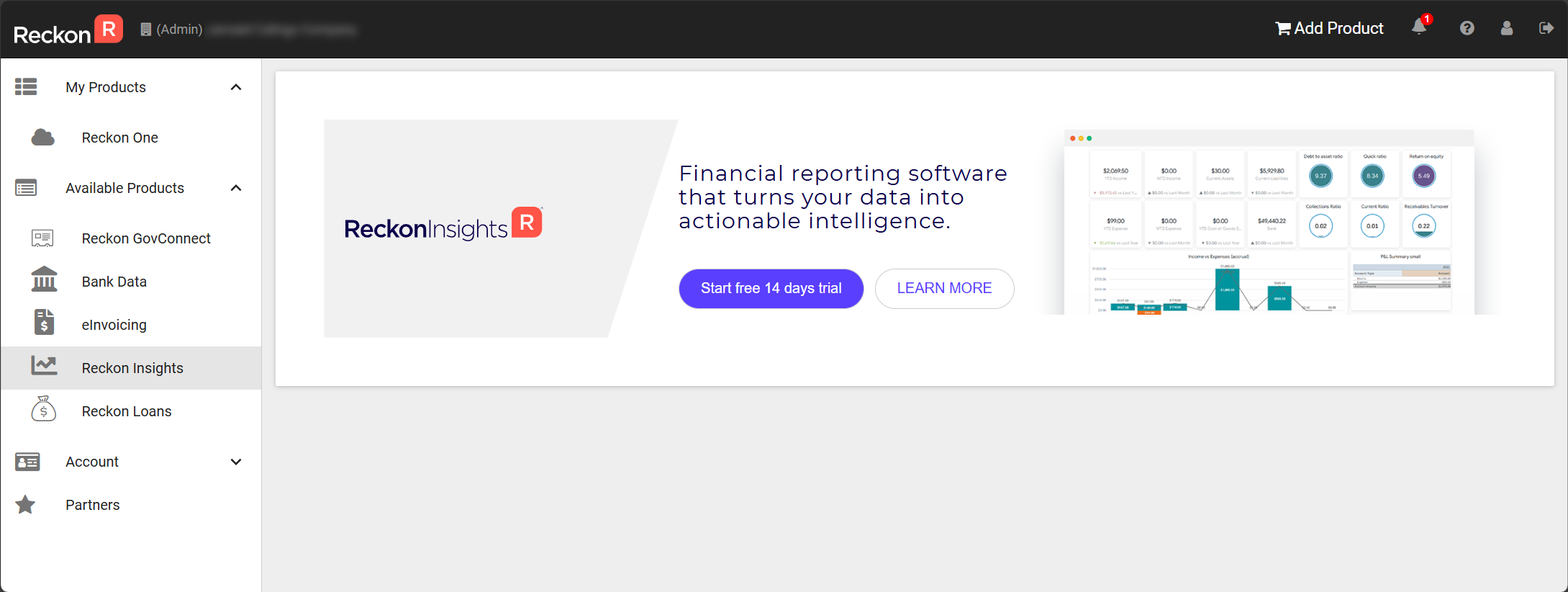
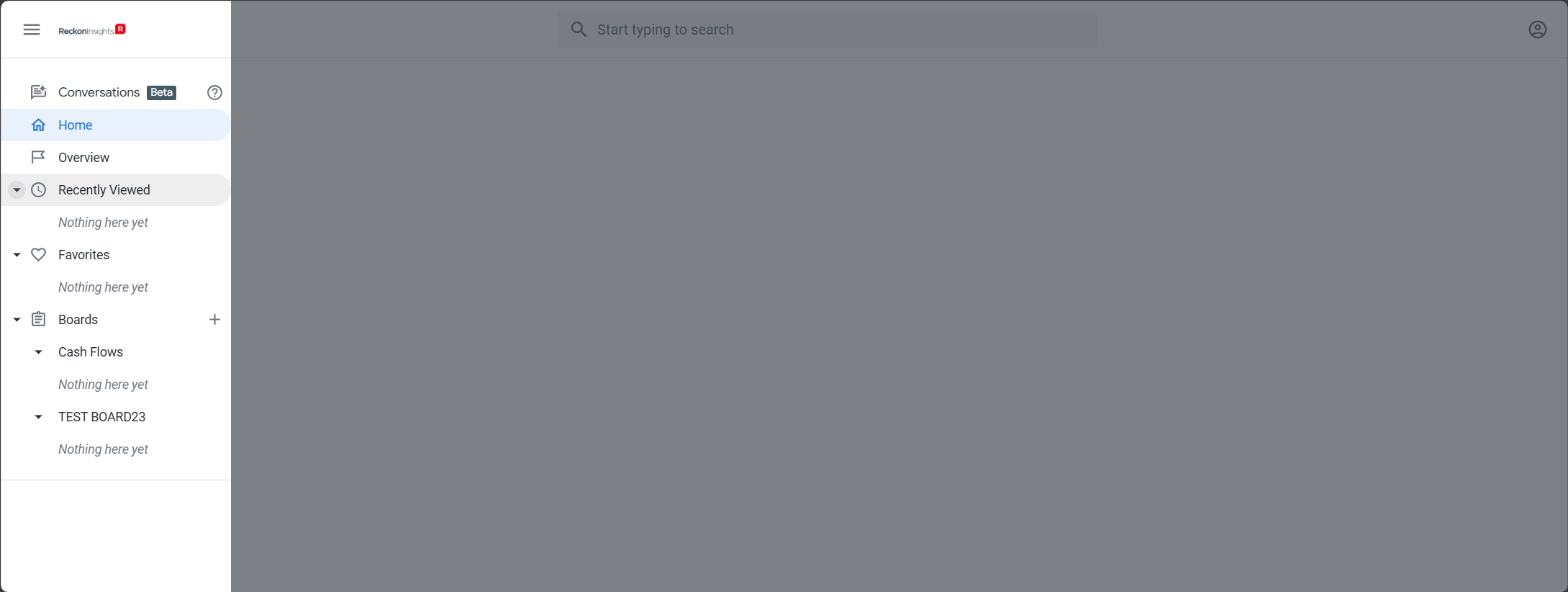
- The Reckon Insights page opens but appears blank.
Cause
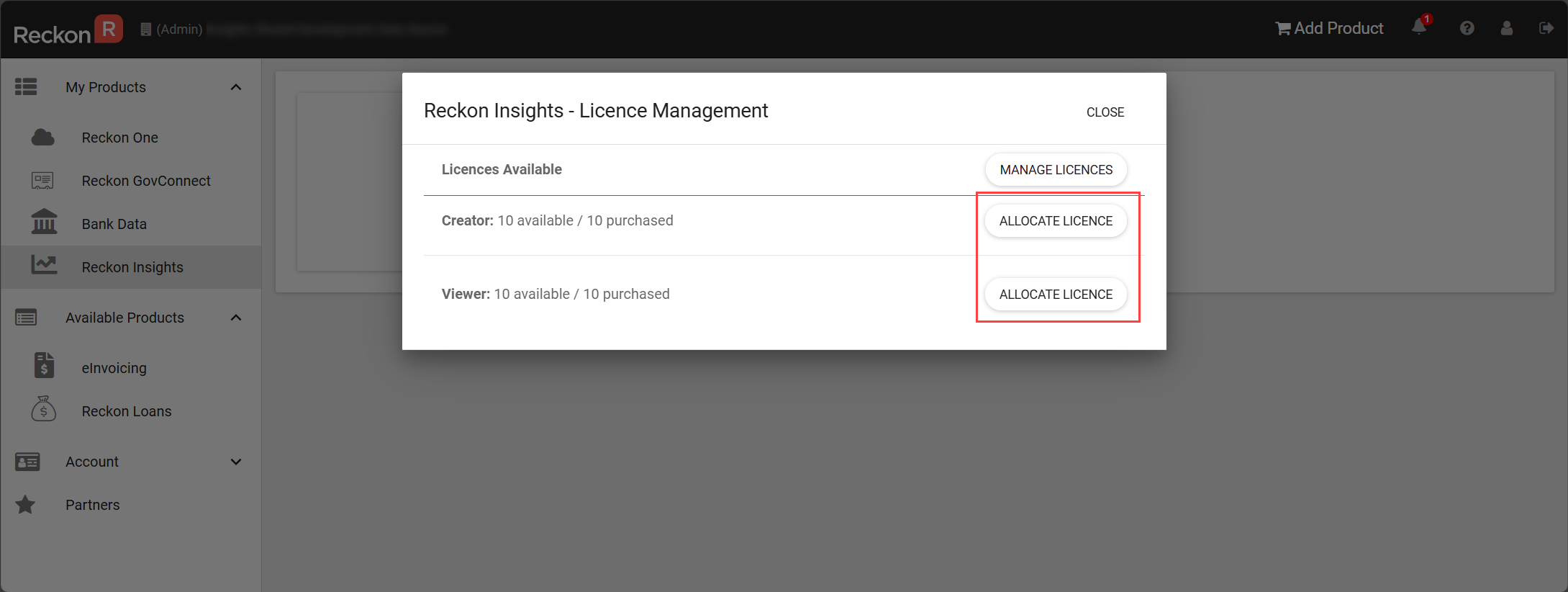
- Reckon Insights licenses haven’t been allocated as either Creator or Viewer.
- For first-time users, the allocated user hasn’t activated their Reckon Insights account (via the activation email).
Solution
Step 1: Allocate the License
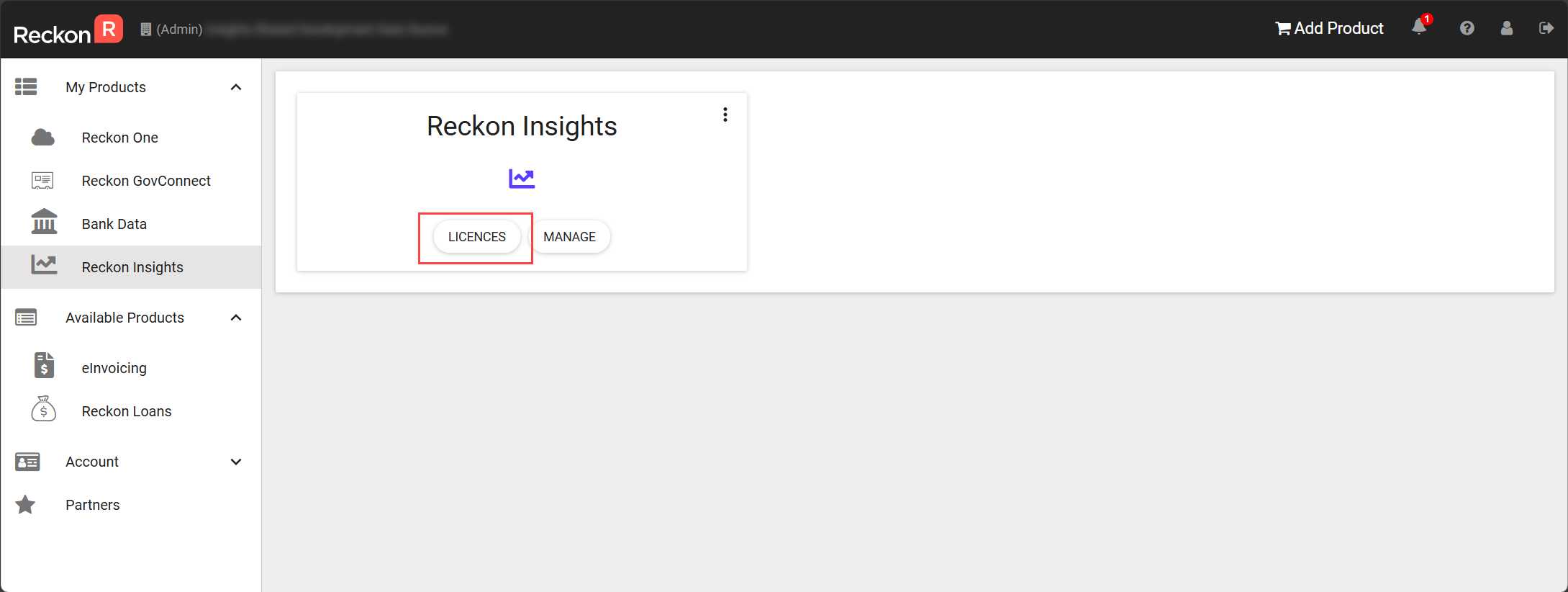
- Log in to Reckon Portal as the account holder who purchased the Reckon Insights licenses.
- Select the Reckon Insights product.
- Click Licenses on the tile.
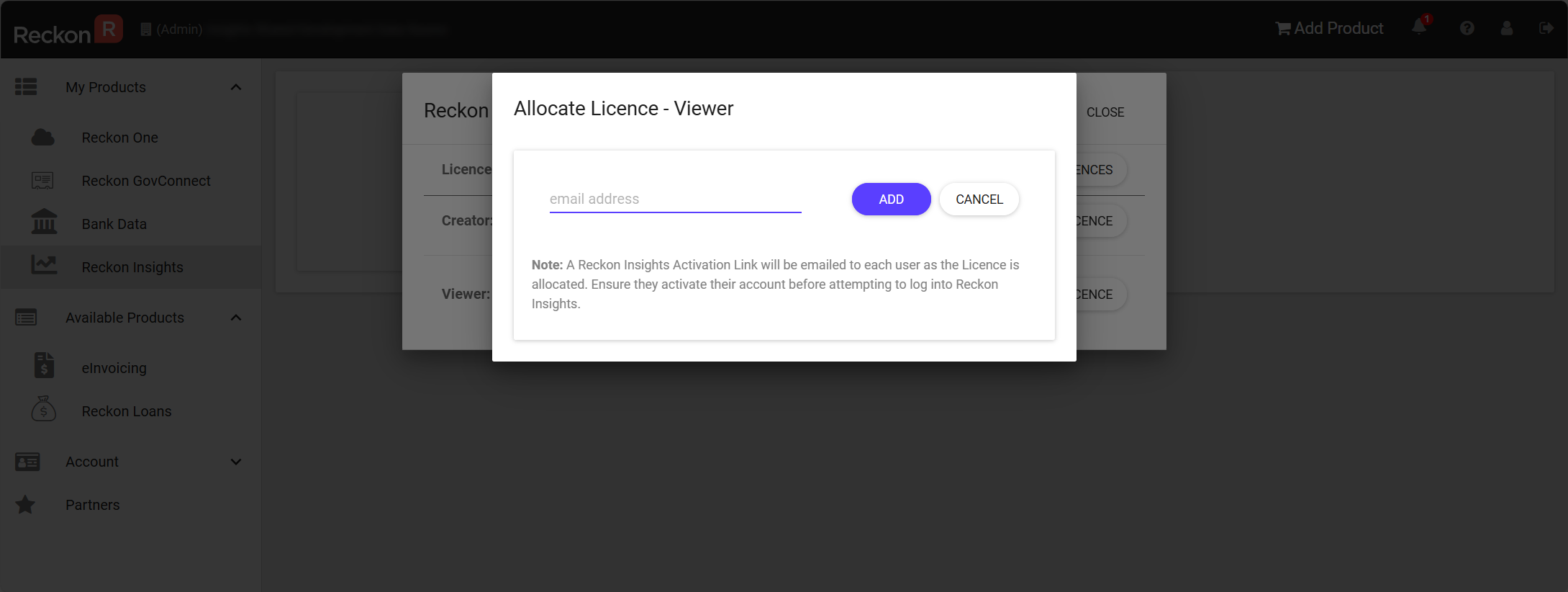
- Choose Allocate License and select either Creator or Viewer.
- Enter the Reckon Portal account (email address)
- Then, click on Add
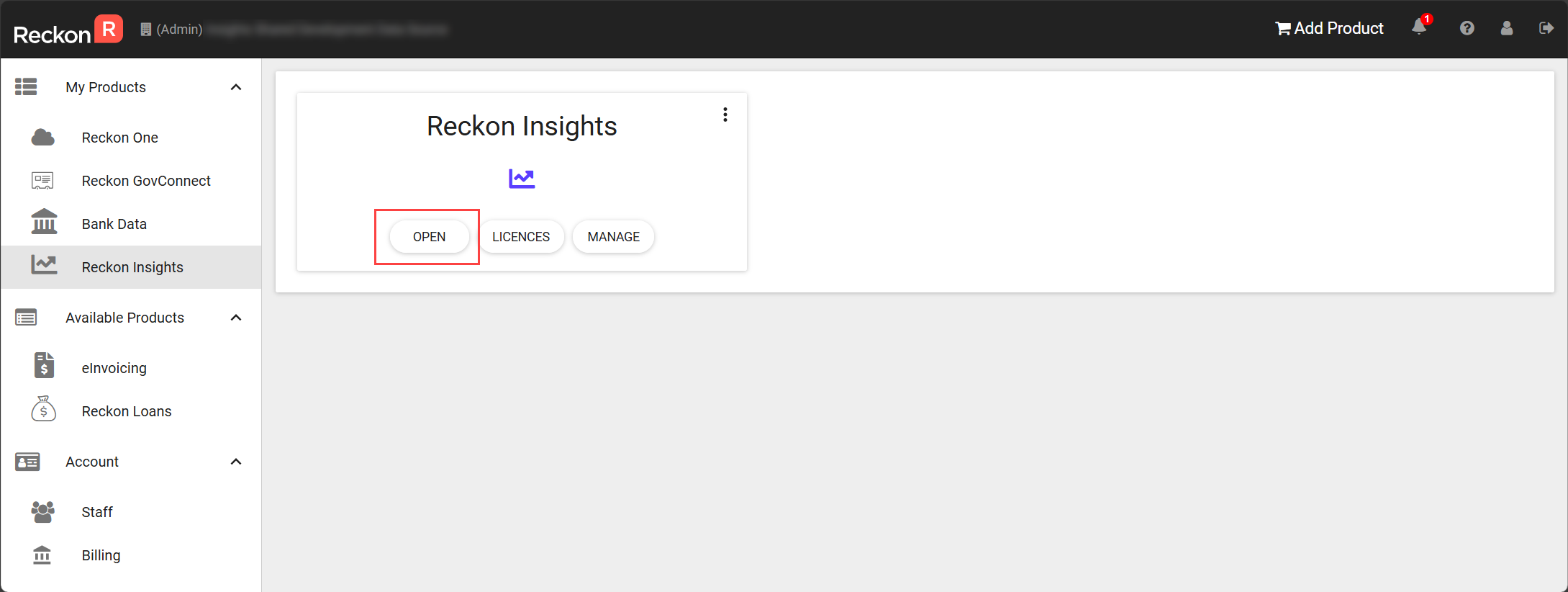
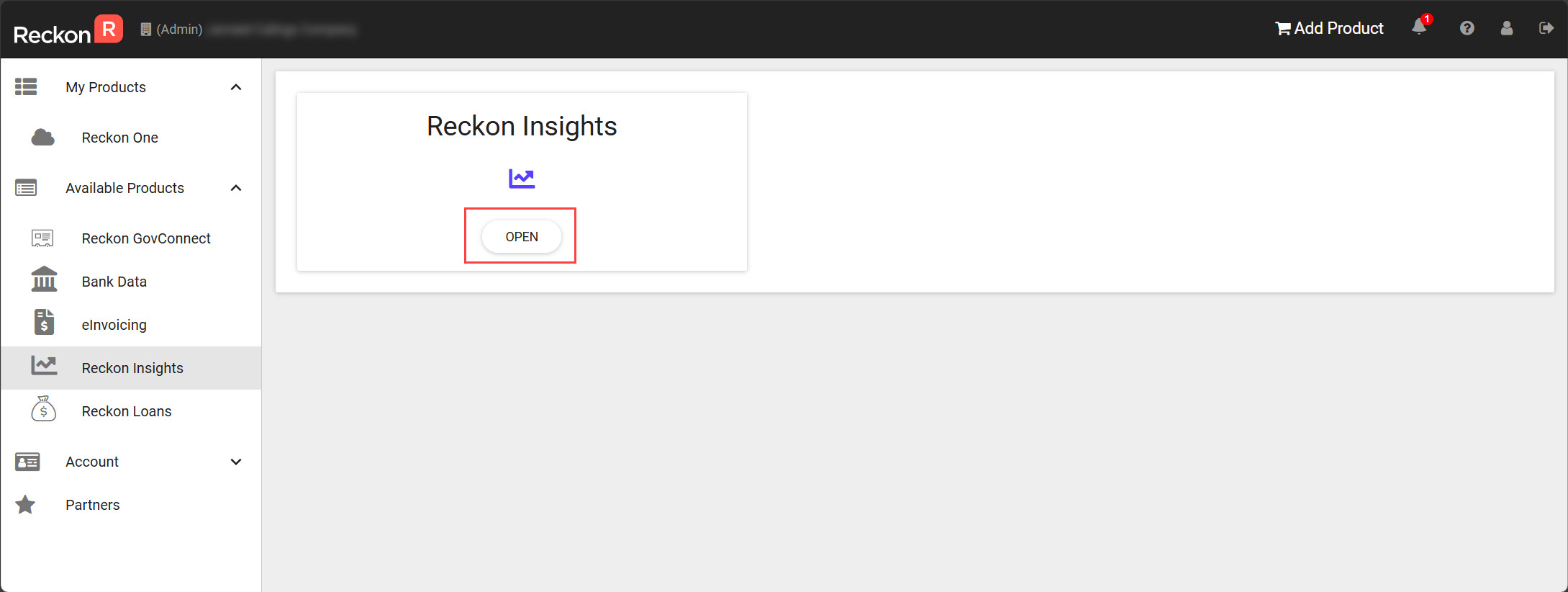
- Once a license is allocated, the Open button will appear.
- Clicking it will open Reckon Insights in a new tab.
Step 2: Activate your Reckon Insights account after allocation
Please refer to Activate your Reckon Insights for instructions.
Step 3: Add the allocated user to the Data feed
Please refer to the Add a feed for instructions.
