Table of Contents
Assign classifications in a pay run in payroll app
Learn how to assign a classification in a pay run in the Reckon payroll app, including how to assign it to an employee, a pay run, and pay items within a pay run.
How classifications work in payroll
Classifications can be assigned to an employee, a pay run, or an Earnings & leave or Allowances pay item within a pay run.
When a classification is assigned to an employee, it will carry through to any pay run (and Earnings & leave and Allowances pay items within that pay run) that the employee is included in. You can change (override) this in a pay run, without affecting the employee profile.
When you assign or change a pay run's classification, the Earnings & leave and Allowances pay items within that pay run are automatically assigned the same classification. You can change the pay item classification at any time without affecting the classification assigned to the pay run. If you change the pay run classification, it will override any changes made to pay item classifications.
Before assigning a classification
Before assigning a classification in a pay run, you must have enabled classifications and created at least one classification in Reckon One.
Assign a classification to an employee
When you assign a classification to an employee, it will automatically carry through to any future pay run the employee is included in (and Earnings & leave and Allowances items in that pay run). You can override the pay run and pay item classification when needed.
- Tap on Employees icon on the footer navigator.
- Select the employee from the list.
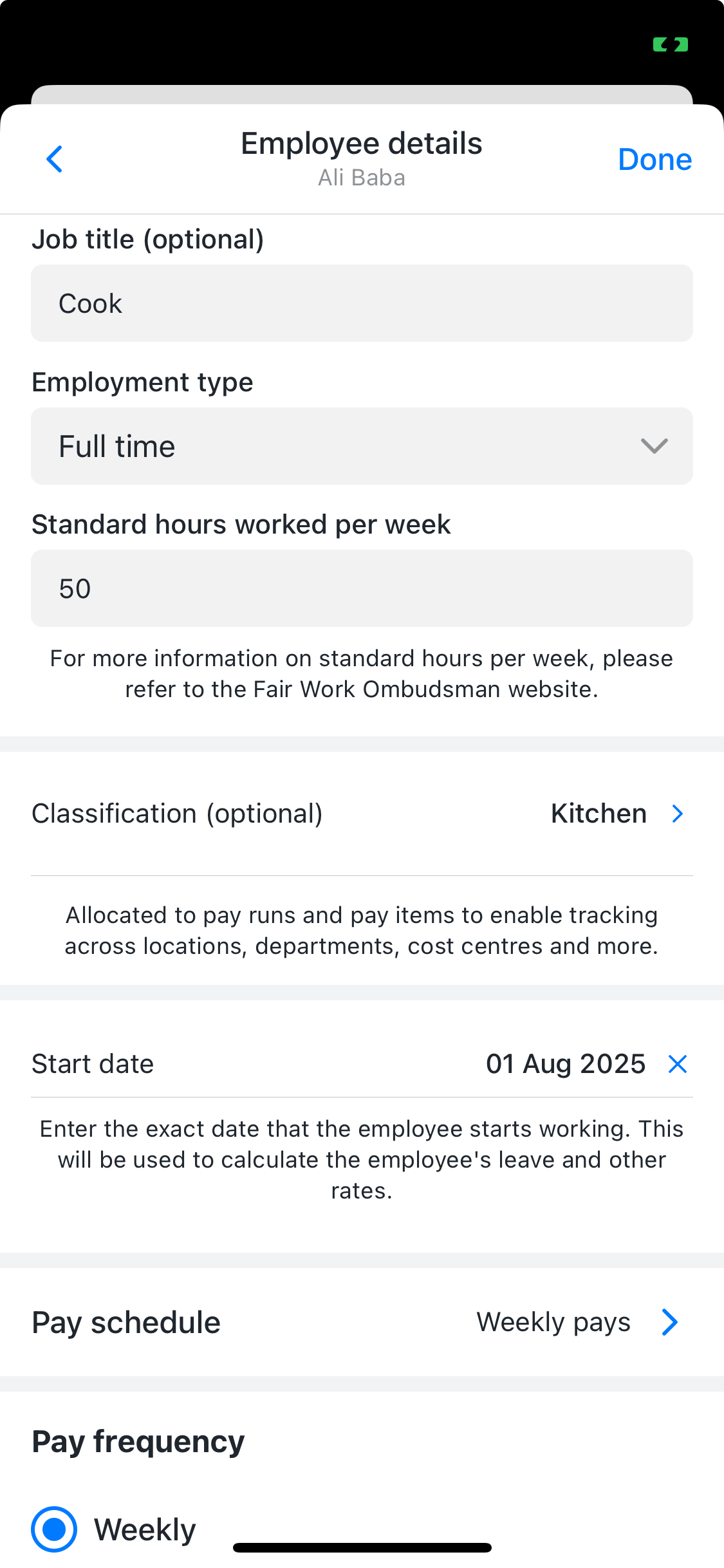
- Scroll to Employment details within the General tab and select Edit.
- Tap on Classification (optional) field, select from the list of classifications.
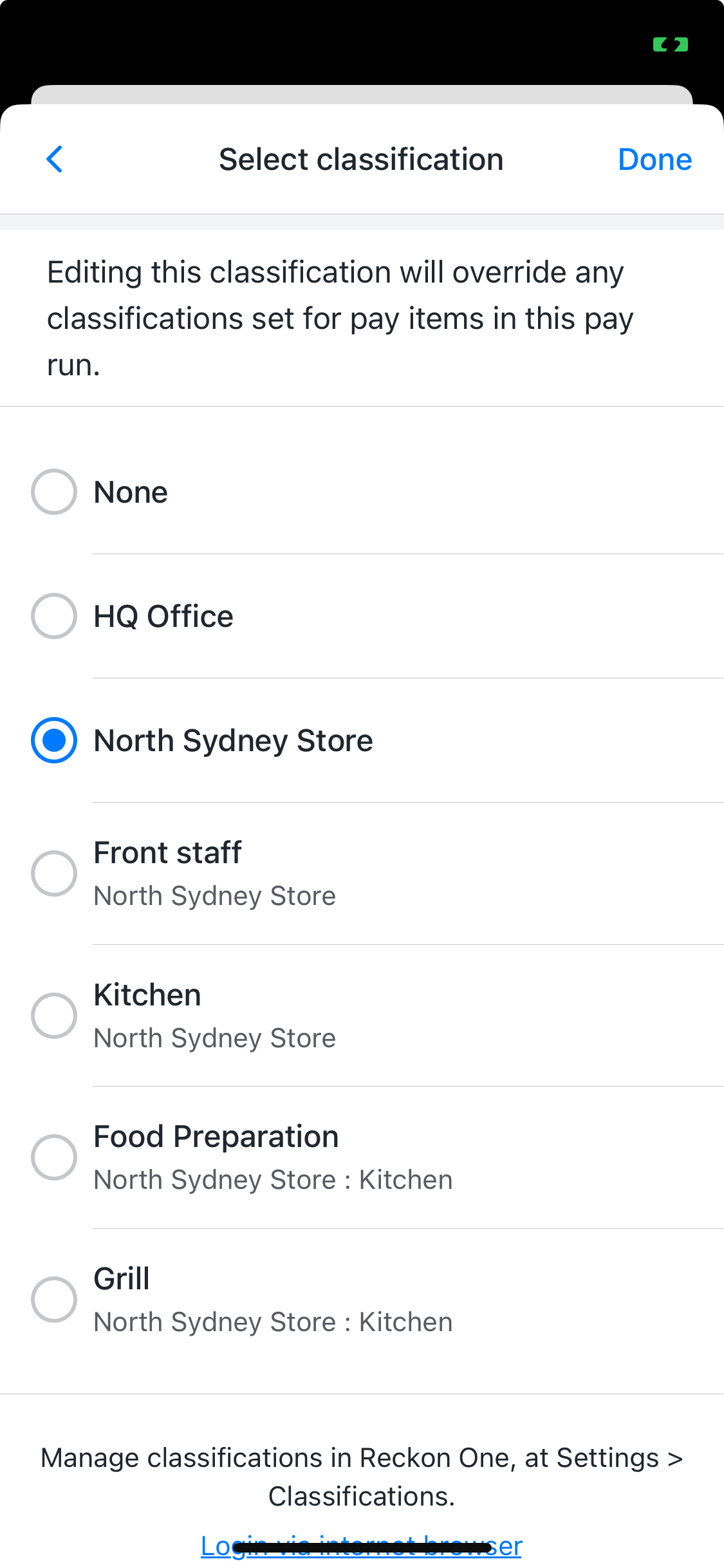
- Select Done to save.
Assign or override a pay run classification
You can assign a classification for a pay run if the employee hasn't been assigned one, or override a pay run classification carried through from an employee profile. Overriding the pay run classification won't alter the employee's profile.
For example, imagine your pay run is assigned the classification of 'Cost centre A', and you've assigned the classification of 'Cost centre B' to one pay item in the pay run. If you then go and change the pay run classification to 'Cost centre C', the pay item's classification will be changed to 'Cost centre C' as well.
To assign or override a pay run classification:
- Tap on Pay runs icon on the footer navigator.
- Add a new pay run, or select an existing pay run.
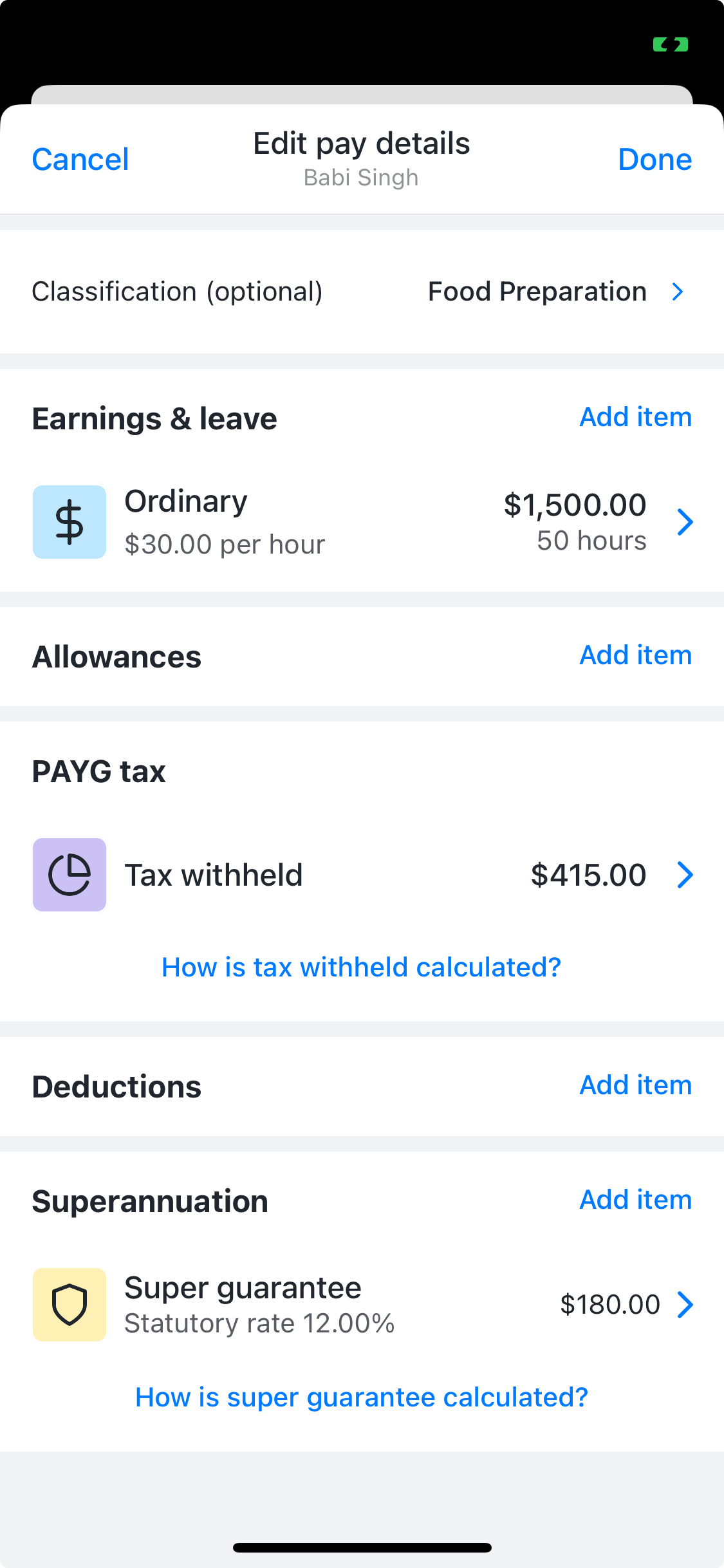
- Select the employee then tap Edit.
- In the Classification (optional) field, tap and select from the list of classifications.
- Tap Done to save.
Assign or override an earnings or allowance pay item classification
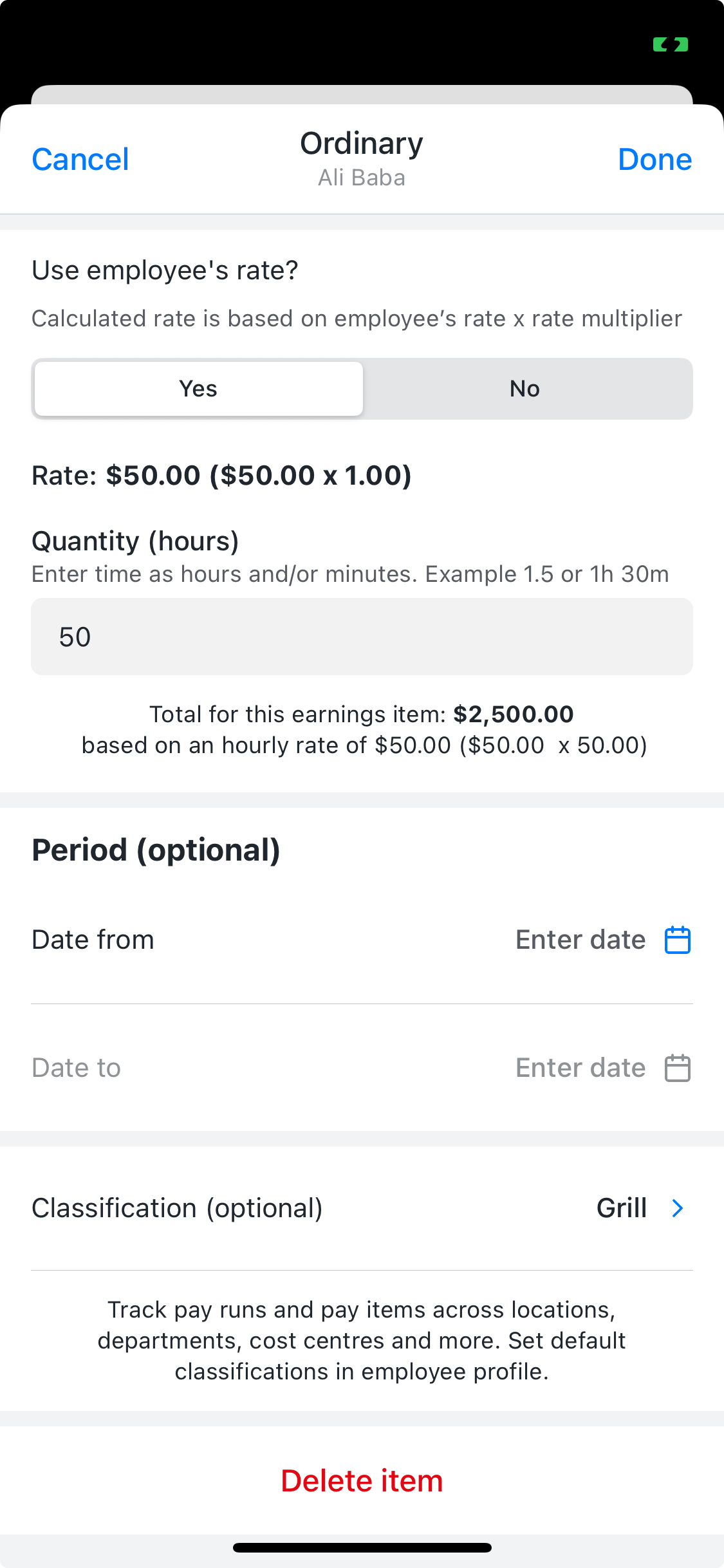
If a classification has been assigned to a pay run, any existing Earnings & leave and Allowances pay items within the pay run will, by default, have the same classification. You can override this and assign different classifications to earnings, allowance and leave pay items within the pay run. This is useful when an employee's earnings need to be split across multiple classifications.
- Tap on Pay runs icon on the footer navigator.
- Add a new pay run, or select an existing pay run.
- Select the employee who are in this pay run to view then tap Edit.
- Select the relevant pay item in the Earnings & leave or Allowances section.
- Update the classification.
- Select Done.