Table of Contents
Search and filter transactions in fast coding in Reckon One
Learn how to search and filter to find bank transactions in the fast coding screen in Reckon One, so you can match and code them.
Search for transactions
You can search for transactions that match certain criteria:
- In the Banking menu, select Fast coding.
- Select the relevant Reckon One bank account in the Account dropdown menu.
- In the Transaction search field, enter text or numbers to display transactions that match. Use it to search within the following fields:
- Date
- Description
- Money out
- Money in
- Account (including searching for invoice and bill details that would appear as a match, and within split transactions)
You need to enter a minimum of 3 characters to perform a search, and you can use wildcards to enable you to find transactions where the description is a string of text (such as VISA-ReckonLTD-3201-SwanHill-AU)
Some examples:
- If you enter 'Reckon', only transactions that contain Reckon in the Description column will display.
- If you enter '100.50', only transactions with 100.50 in Money in, Money out, or Description will appear display.
- If you enter 'Consulting Income', only transactions coded to Consulting Income will display.
Filter transactions
You can filter transactions by their matching or coding status:
- In the Banking menu, select Fast coding.
- Select the relevant Reckon One bank account in the Account dropdown menu.
- Click on the filter icon in the top left. When a filter is applied, the icon will appear blue.
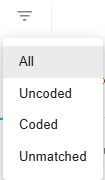
Filter name | Shows |
All | All transactions |
Uncoded | Transactions that have not been matched or coded. |
Coded | Transactions that have been coded (including transactions coded in the Bank transactions screen) |
Unmatched | Transactions that have a potential match, but where the match has not been accepted or declined. |
