Table of Contents
Invite an employee to self-onboard to Reckon One
Learn how to invite a new employee to self-onboard in the Reckon Mate app. From Reckon One, invite new employees to fill out their details on the Reckon Mate app. These details will be populated in Reckon One, where you can complete the onboarding process.
You can also invite employees from the payroll mobile application to self-onboard.
Before you invite an employee to self-onboard
Before you invite an employee to self-onboard, set up a default super fund. You will not be able to invite your employee until this is done, as it’s required for superannuation fund selection during onboarding.
Invite an employee to self-onboard
- Go to Quick add in the top right hand corner of the screen, scroll down and select Self-onboard employee, or in the Payroll menu, select Invite to self onboard.
- Enter the employee’s First name and Last name.
- A Display name will be populated and can be overridden. This is the name used in the Employees and Pay runs screens.
- Enter the employee’s Email address.
- Enter the employee's Start date.
- This is all the information required to send the invitation. If you'd like to include additional details—such as the Employee number, Job title, and Standard hours worked per week, you can select Yes. Otherwise, you can enter this information later, after the employee has completed the onboarding process.
- Select Send invitation.
- An incomplete employee profile will be created in Reckon One, and the employee will receive an email invitation to set up their account and enter their details in the Reckon Mate app. A banner will also be displayed in the employee profile, confirming that the self-onboarding invitation has been sent.
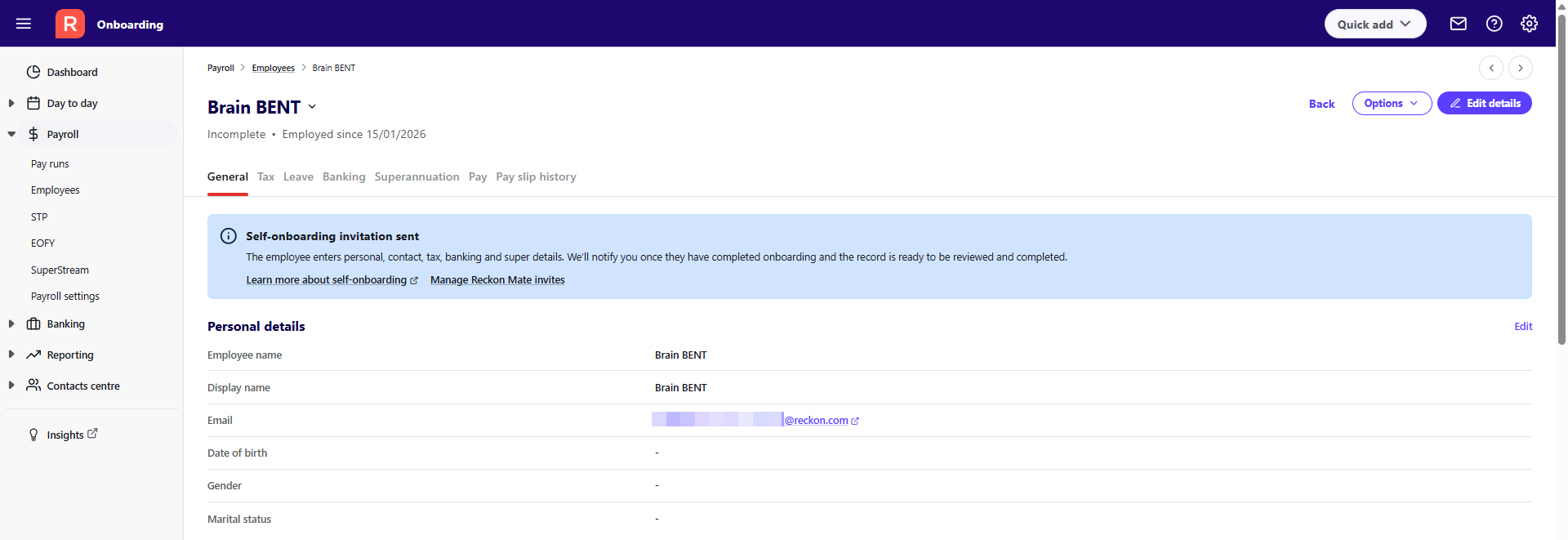
Once self-onboarding has been completed
You'll receive an email notifying you when the employee has submitted their self-onboarding. To complete the employee onboarding process in Reckon One:
- Go to Payroll, then Employees.
- Select the employee from the list on the left hand side.
- A banner will be displayed advising that the employee has completed self-onboarding. Select the Review and complete employee details link.
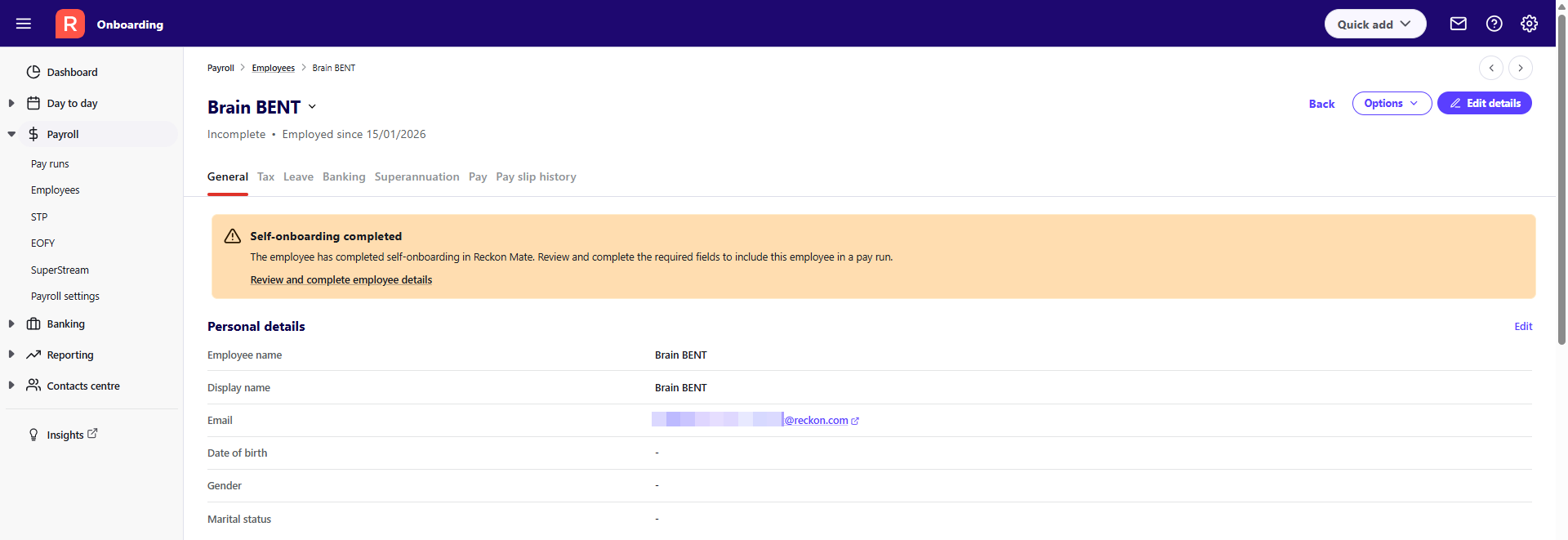
- Review all the pre-filled details carefully (noting that if you have already entered information into the employee profile, it may have been overridden by the employee), and add in necessary details to complete your employee setup.
If your employee wishes to change their details
Your employee will be able to edit their general and banking details in the Reckon Mate app. If they wish to change employment, tax or superannuation information, they'll need to contact you to do this for them in Reckon One.
Read more
- Watch a video of the self-onboarding process on the Reckon Online Community
- Employees can learn more about how to self-onboard in Reckon Mate
- Learn how to view and manage Reckon Mate invitations
