Reckon Accounts Hosted - Locating and downloading verify_rebuild_data.log (QBWIN.LOG)
When performing a Verify Data or a Rebuild Data operation, the results are entered into a troubleshooting document stored on your Hosted account.
That document is located in the Q:\Log folder and is named verify_rebuild_data.log.
Every time you log on to the Hosted platform a new log file will be created and the previous log file renamed.
The current one will always be named verify_rebuild_data.log and older copies will be renamed with .old1, .old2 etc. added to the file extension.
How to perform a data file verification (Verify Data) in Reckon Accounts Hosted - Reckon Community
To view the verify_rebuild_data.log file you will need to download it from the Hosted platform onto your local computer.
1. Click on the My Files icon and browse to My Live (Q drive) then the Log folder. Q:\log

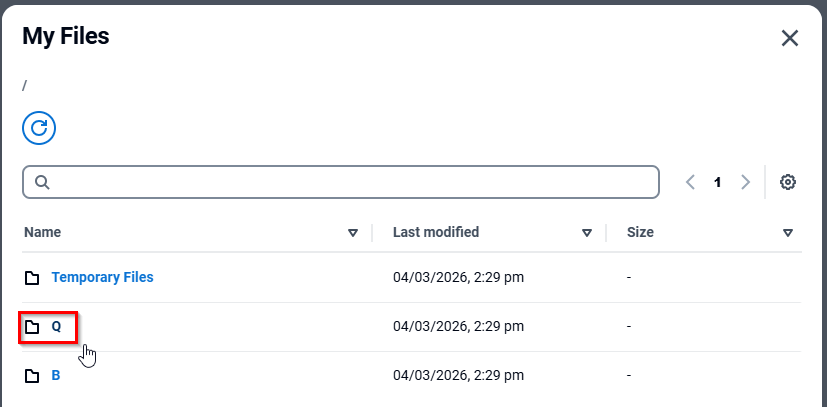
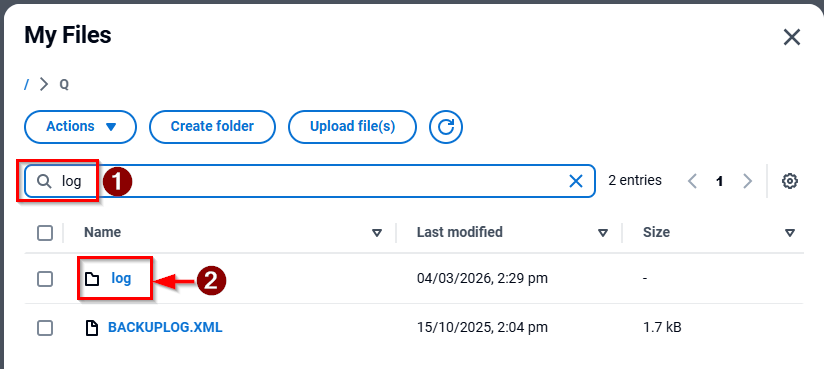
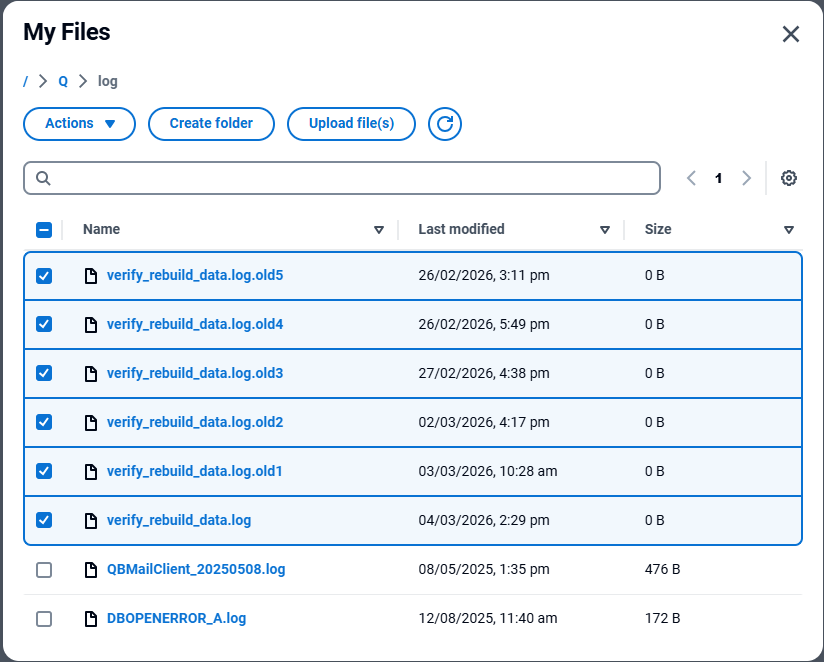
2. Locate and download the log files
verify_rebuild_data.log
You can also download the previous log files
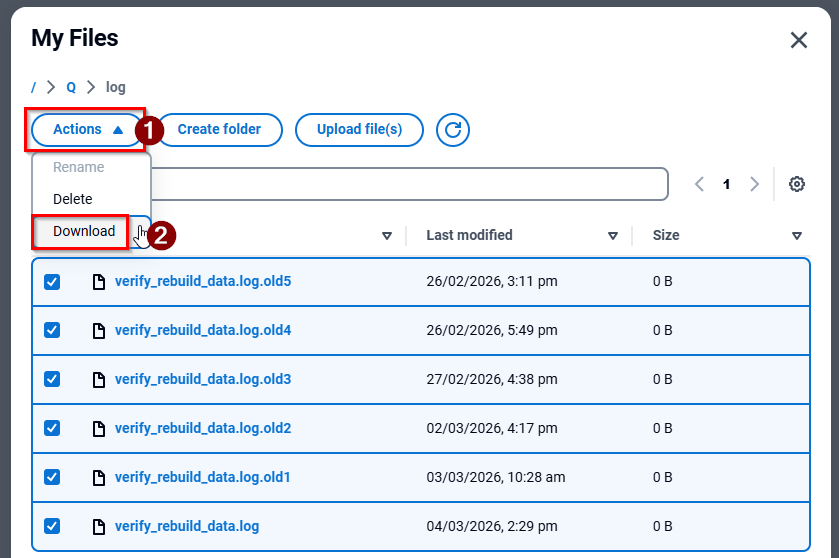
You may see a message like the one below if you choose more than one file to download.
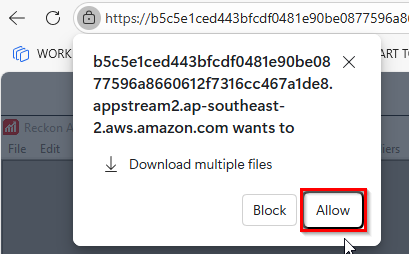
3. Once the log files have been downloaded to your local computer, you can open them with the Windows Notepad or other text viewer application.
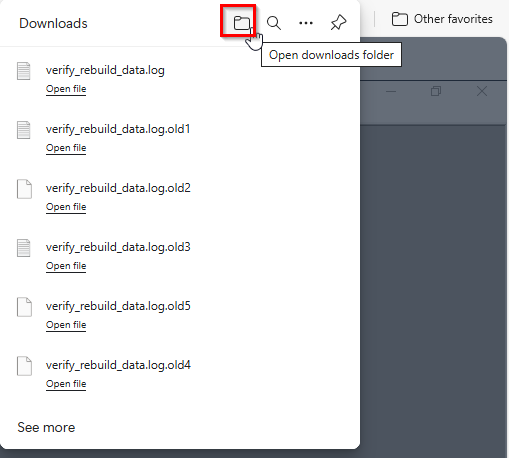
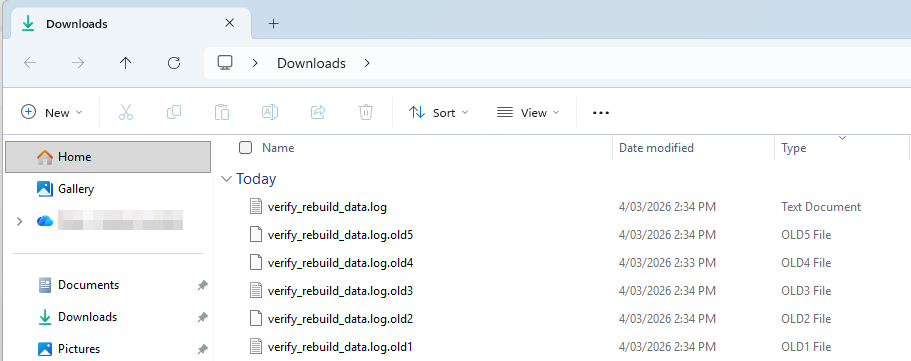
Note: Before opening the file, in some cases it the file extension ".log" may not yet be associated with a specific application to open it, so it may be necessary to rename the file so that its file extension is ".txt" OR right-click on the file, select "Open with" and then choose an application such as "Notepad".
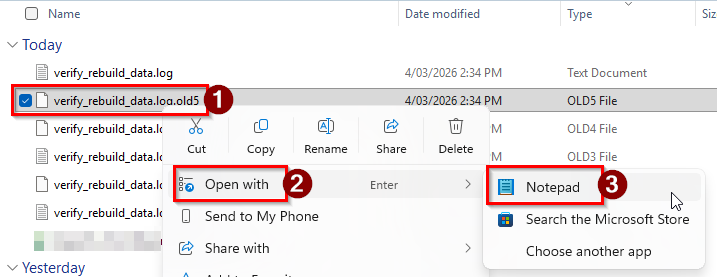
Example:
verify_rebuild_data.log --> verify_rebuild_data.log.txt
verify_rebuild_data.log.old1 --> verify_rebuild_data.old1.txt
verify_rebuild_data.log.old1 --> verify_rebuild_data.old2.txt
