Add time to an invoice in Reckon One
Learn how to add timesheet data into an invoice as you're creating it in Reckon One.
This feature is available on all accounting and Reckon Ultimate plans.
Add time to an invoice
- Click on the Quick add menu in the top right corner, then select Invoice, or:
- Go to Day to Day (Money in section), then select Invoices
- Click on Add.
If there are chargeable time entries for this customer (by selecting Billable in the timesheet), you will see a blue box that will prompt you to review and add them to invoice.

- Click on Review and add to invoice.
- Select the time entries to add to the invoice. If there are multiple selected time entries with the same item, they will be combined when added to the invoice, unless you specify otherwise in Settings.
- (Optional) To have multiple entries combined into a single entry on the final invoice (regardless of whether they have the same item), click Options, then select the Group selected time entries on the customer invoice checkbox. You can choose a Tax code to use for the grouped entries.
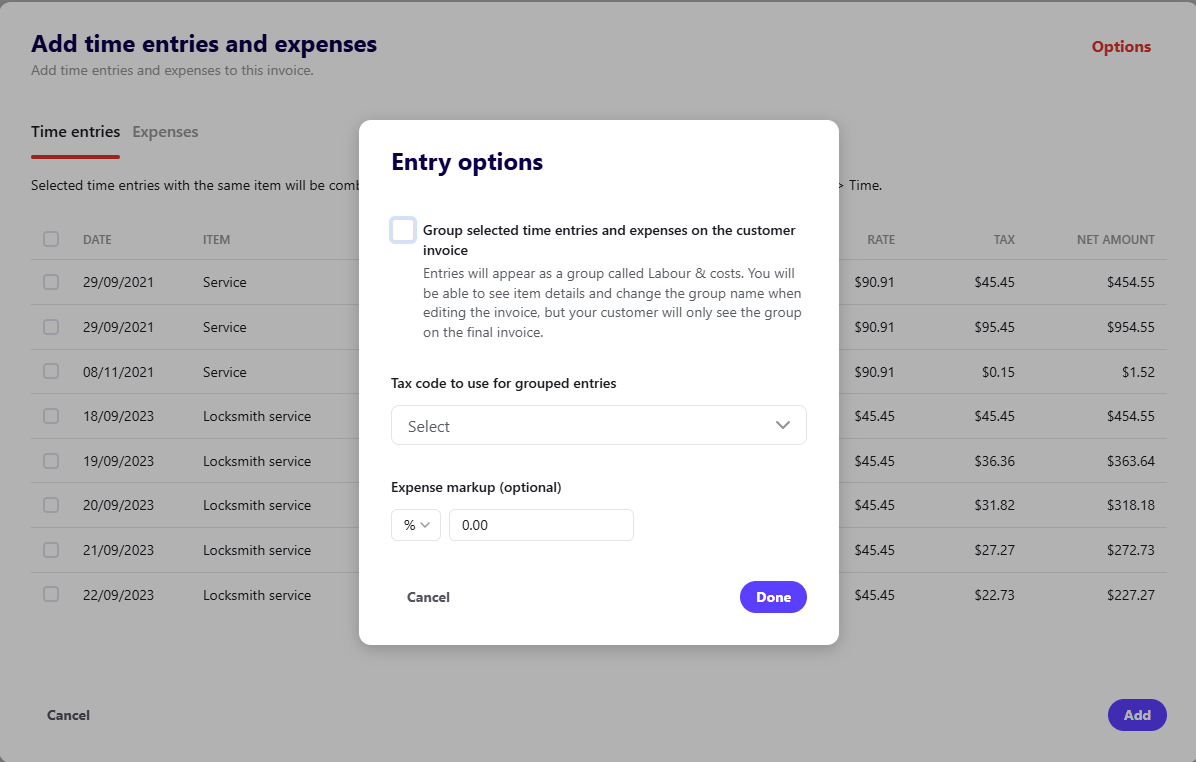
You will be able to see item details and change the group name when editing the invoice, but your customer will not see individual items, only the group.

Read more
- Learn how to add expenses to an invoice
