Use SAFF files for SuperStream in Reckon One
Learn how to use SAFF files for SuperStream in Reckon One, so you can pay your employee superannuation contributions.
Ways to use a SAFF file for SuperStream in Reckon One
There are 2 ways to use a SAFF file for SuperStream in Reckon One. You can:
- create the batch and download the SAFF file directly from the pay run, in one quick step (best for those who don't need to review the batch before downloading the SAFF file)
- create a draft batch first, so you can review the batch in detail before downloading the SAFF file.
Option 1: Create batch and download SAFF file in one step from the pay run
You can create a SuperStream batch and download the SAFF file in one quick step, directly from the pay run. This option is best for those who don't need to review the batch before downloading the SAFF file. Creating and downloading the SAFF file directly from the pay run will also mark the SuperStream batch as Lodged.
To create and download in one step:
- In the Payroll menu, click on Pay runs.
- Click on a pay run with a status of Paid or Done.
- Click on Create SAFF file for SuperStream.
- (Optional) Change the batch description.
- Click on Create batch & download SAFF.
- The batch will download and the batch will be marked as Lodged. To review the lodged batch, go to SuperStream in the Payroll menu.
Option 2: Create and review draft batch before downloading SAFF file
This option allows you to create a draft SuperStream batch and review the batch in detail before downloading the SAFF file and marking the batch as Lodged.
Create the draft SuperStream batch
- Create the draft batch from the pay run or from the SuperStream screen in Reckon One:
- To create from the pay run: In the Payroll menu, go to Pay runs, select the pay run you wish to create the batch for, then click on the dropdown next to Create SAFF file for SuperStream and select Create draft SuperStream.
- To create from the SuperStream screen:
- In the Payroll menu, go to SuperStream.
- Select Add.
- Enter a From date and To date. Superannuation contributions from pay runs with pay dates falling between these dates will be included in the batch.
- Enter a unique Description.
- Select Add SuperStream batch. A SuperStream batch will be created.
View the figures in the batch
A SuperStream batch includes any superannuation contribution values that:
- are in a pay run that has been marked as paid (where the pay run pay date falls in the dates selected for the batch)
- have not been included in any other SuperStream batch
- are due to a pay run being reverted after a contribution has already been lodged via SuperStream, where the changes to the pay run increased the amount of superannuation that was owed. If the changes to the pay run decrease the amount of superannuation owed, this will not show as a value in in the batch. If either of these scenarios occurs, you can view the details (the amount originally contributed, new amount owed, and adjusted amount) in the batch history.
Download the SAFF file
The next step is to download a SAFF file containing the superannuation contributions to be paid.
To download the SAFF file:
- In the Payroll menu, go to SuperStream.
- Click on the batch to open it.
- Select Batch options, then Create SAFF.
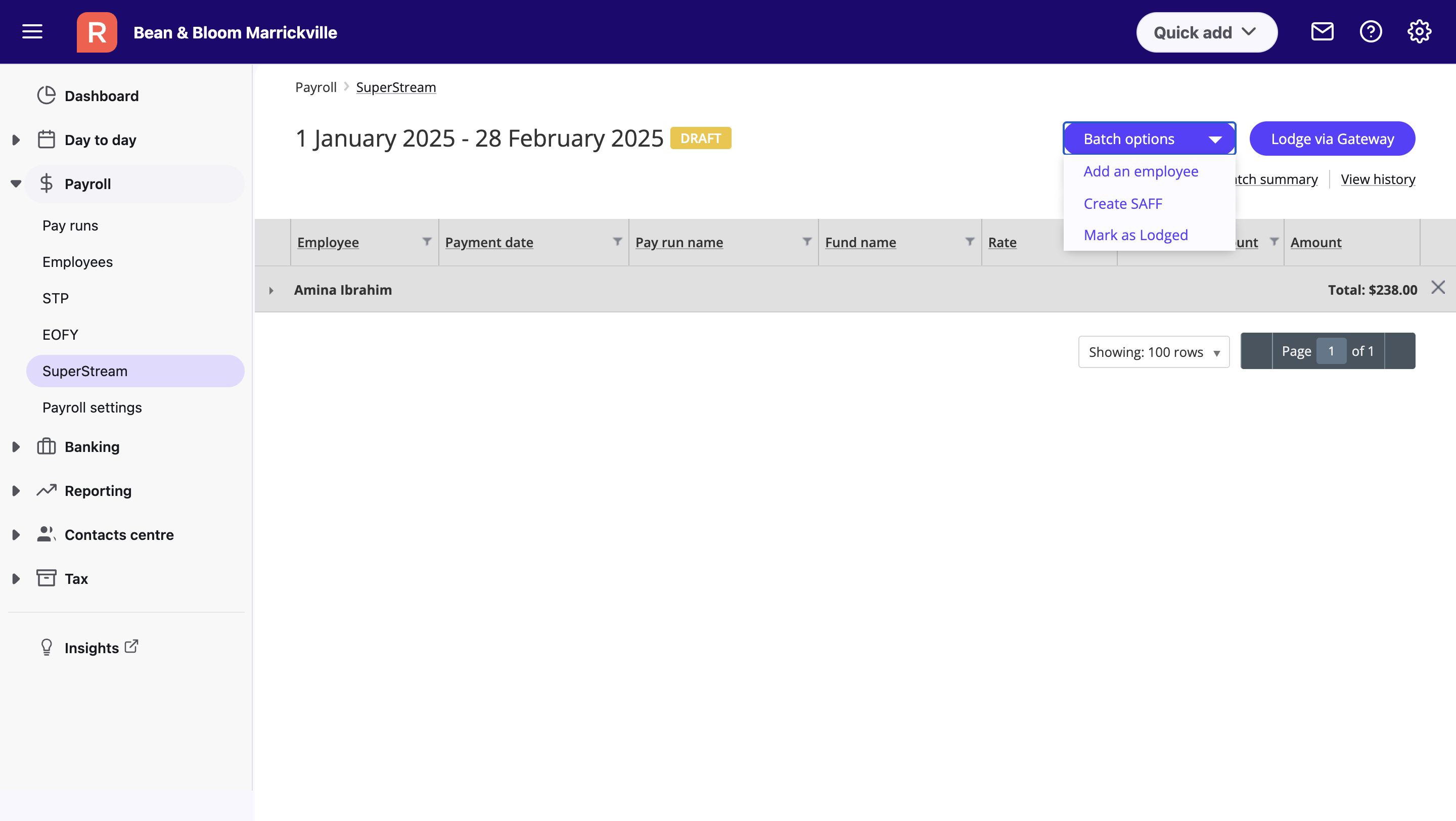
- The SAFF file will be downloaded for you to send to your gateway, fund, or clearing house.
- To mark the batch as lodged, select Batch options, then Mark as lodged.
Create payment transactions in Reckon One
Record payment of super contributions in Reckon One
You need to create a record of superannuation contributions in Reckon One, so that your records in Reckon One reflect the actual payments made to the super funds. Learn how to create a payment transaction in Reckon One for each superannuation fund paid.
