Table of Contents
Set up pay run preferences in Reckon One
Learn how to set default behaviours for pay runs, so that key settings are applied automatically each time you process a payrun. This reduces manual adjustments and makes it quicker to process your payroll.
About pay run preferences
Pay run preferences control how certain elements behave when you create a new pay run. Once set, these preferences apply by default to future pay runs, although you can still make changes within individual pay runs if needed. Setting up pay run preferences is especially useful if your payroll process follows the same rules each pay period, as it can save time and reduce the risk of errors.
Choose how pay items are added to a new pay run
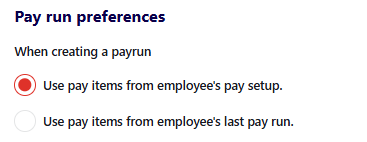
You can control which pay items are added by default when you create a new pay run. There are two options:
- Use pay items from the employee’s pay setup
Creates the pay run using the default pay items configured in each employee’s pay setup. - Copy pay items from the last pay run
Copies the pay items used in the employee’s most recent pay run into the new pay run.
To set a preference:
- In the Payroll menu, select Payroll settings.
- In General settings, under Pay run preferences, select your preferred option for When creating a pay run:
- Scroll down and click Save changes.
Automatically reduce ordinary earnings hours when leave is entered
You can choose whether ordinary earnings hours are automatically reduced when leave is entered in a pay run.
How it works
- It applies to full and part time employees only.
- If multiple ordinary earnings pay items exist in the pay run, the first item is the one that will have its hours reduced.
- If there are not enough hours available to reduce, the ordinary hours for that item are set to 0.
- If you change an existing leave item in a pay run, ordinary earnings hours are not recalculated. You'll need to manually update them to reflect the change.
- Ordinary earnings hours are not reduced when:
- the pay run is a termination pay
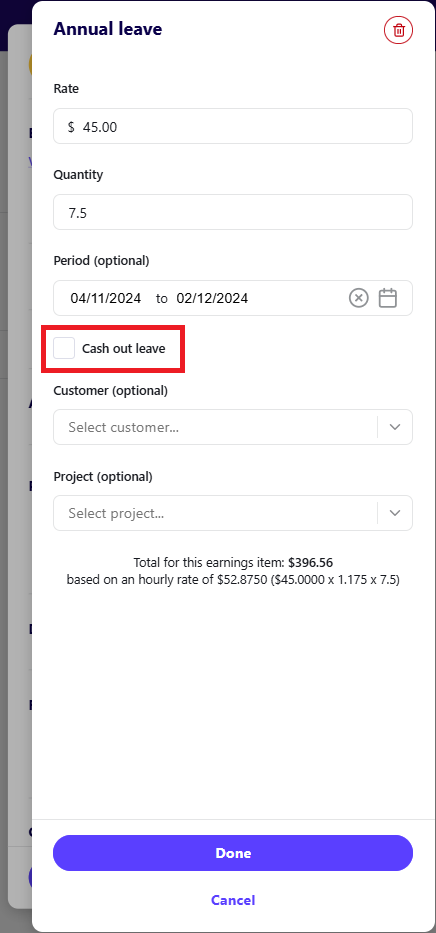
- the Cash out option is selected for a leave item
Automatically reduce ordinary earnings hours when leave is entered
- In the Payroll menu, select Payroll settings.
- In General settings, under Pay run preferences, select the Automatically reduce ordinary hours by the hours of leave checkbox.
- Scroll down and click Save changes.
Read more
- Learn how to have payment transactions automatically created for pay runs
