Create Other leave items in Reckon One
Learn how to set up an Other leave item in Reckon One, so you can correctly pay leave types like parental leave and workers compensation.
About Other leave items
Use Other leave items for leave that doesn’t fit Annual, Personal or Long service leave – for example, Paid Parental Leave, Workers Compensation, or Ancillary and Defence Leave. Unlike other leave types, an Other leave item doesn’t have to accrue. You can also mark an Other leave item as Leave Without Pay so it always pays at a $0.00 rate. Learn more about setting up a leave without pay item.
Create an Other leave item
- In the Settings menu, select Pay items.
- Click Create pay item.
- Select Leave.
- In the Leave type field, select Other.
- In the Leave sub-type field, select the relevant sub-type: Paid Parental Leave (PPL), Workers Compensation (WC), Ancillary and Defence Leave (ADL), Time off in Lieu, or Other.
- Enter a name for the item in the Leave item name field.
- (Optional) Enter a Description.
- Select an account in the Expense field.
- (Optional) Select Report as qualifying earnings if the item should be reported as qualifying earnings for Payday Super.
- Under Record accruals for this leave item, select Yes or No.
- Select Yes if you want Reckon One to keep a leave balance for this item once it’s added to an employee’s leave entitlements.
- Select No if you don’t want to record a leave balance for this item at all.
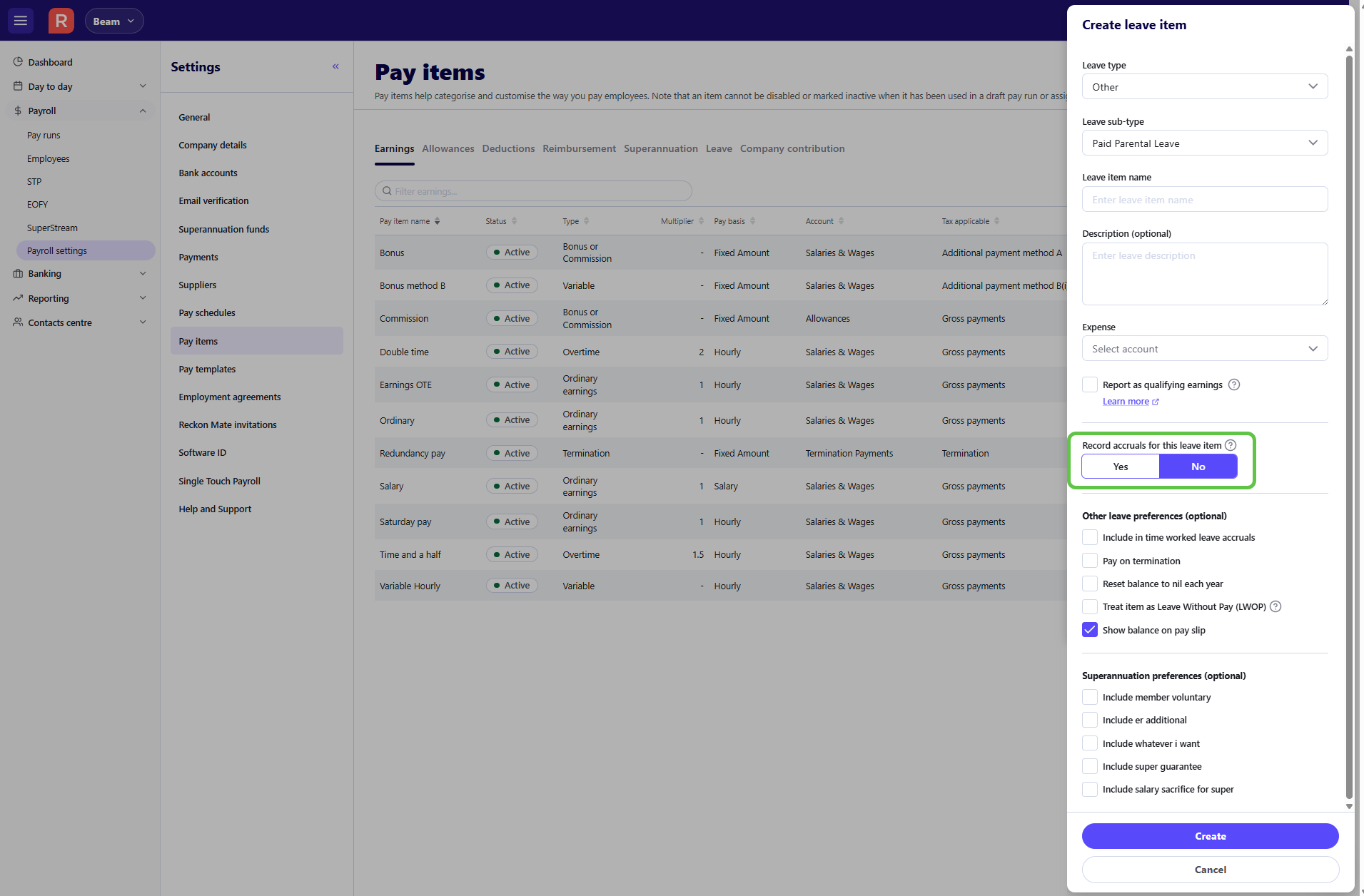
Record accrual details for the item
If you select Yes at step 10, complete the fields that appear under How item is accrued by default:
- Select an Accrual period – this determines how the item builds up:
- Per time worked – the employee accrues leave based on the hours they’re paid in each pay run, so the amount varies with hours worked.
- Per pay – the employee accrues a fixed amount of leave every pay run, regardless of hours worked.
- Per annum – the employee receives their full annual entitlement in one go, rather than building up gradually.
- Enter the Annual entitlement (hours) – the number of hours the employee is entitled to accrue for this leave item each year. This should reflect the employee's actual annual leave entitlement and can be modified on the employee record if their entitlement differs from the default value. It is not automatically derived from the employee's FTE or hours worked.
- (Optional) Enter a Maximum accumulation (hours) – caps the leave balance, so the item won’t accrue past this amount.
If you select No, these fields are hidden and no accrual details are recorded for the item.
Set other leave preferences
Under Other leave preferences (optional), select any of the following that apply:
- Include in time worked leave accruals – select this so that time taken as this leave type still counts as time worked when calculating accruals for other leave items set to Per time worked.
- Pay on termination – select this so any unused balance for this leave item is paid out to the employee when they’re terminated.
- Reset balance to nil each year – select this so the balance for this leave item resets to zero at the start of each new leave year (based on the employee's leave start date) instead of carrying over.
- Show balance on pay slip – select this so the employee’s running balance for this leave item appears on their pay slip.
If you want the item to always pay at a $0.00 rate, learn more about setting up a leave without pay item.
Set superannuation preferences for the item
Under Superannuation preferences (optional), select the super pay items you want this leave item’s hours included in when Reckon calculates superannuation.
Once you’re done, click Create leave item.
Turn off accruals for an existing Other leave item
- In the Settings menu, select Pay items.
- In the tab list, select Leave.
- Next to the leave item, click the edit icon.
- Under Record accruals for this leave item, select No.
- Click Save and Close.
If the item is already assigned to employees, a message asks you to confirm you want to stop accruals. If you continue, employee balances for this item are no longer kept – though historical data remains available in reports.
