Getting ready for Payday Super and Qualifying Earnings in Reckon Accounts
This guide outlines what you need to do after upgrading Reckon Accounts and before processing your first pay for the 2026–27 financial year to ensure you are ready for Payday Super (Qualifying Earnings).
From 1 July 2026, all submissions to the ATO will include Qualifying Earnings (QE). It is important that your payroll setup is reviewed before your first pay run in the 2026 / 2027 financial year.
Before you start
We recommend reviewing:
- What payments are qualifying earnings - ATO (external link)
If you are unsure how QE applies to your business, speak with your accountant or payroll advisor.
Step 1: Review your Payroll Items
- From the top menu, go to:
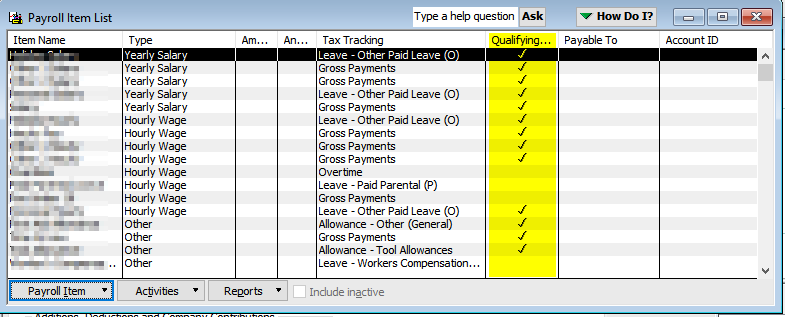
Lists → Payroll Item List - A new QE column is now available
- This indicates whether a payroll item is included as Qualifying Earnings
- Review each wage category to ensure it has been correctly assigned
Default QE values have been applied based on the Tax Tracking Type. Check that each item has a Super account associated with it; othewise, incorrect reporting to the ATO may occur. (A full reference table is provided at the end of this article.)
Step 2: Update QE settings (if required)
If a payroll item needs to be updated:
If you have multiple payroll items for similar earnings, consider adding “QE” to the item name to make them easier to identify
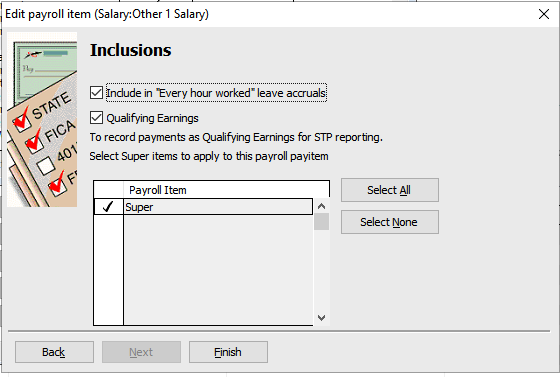
- Double‑click the payroll item to edit
- Click Next until you reach the Inclusions screen
- Tick or untick Qualifying Earnings (QE) as required
- Click Finish
Important notes
- The QE setting is based on the Tax Tracking Type
- Some payroll items cannot be edited (for example, certain termination or lump sum categories)
- If you are unsure whether a payroll item should be included as QE, speak with your accountant or payroll advisor.
Step 3: Review employee payroll setup
After updating your payroll items, review employee records to ensure everything is set up correctly.
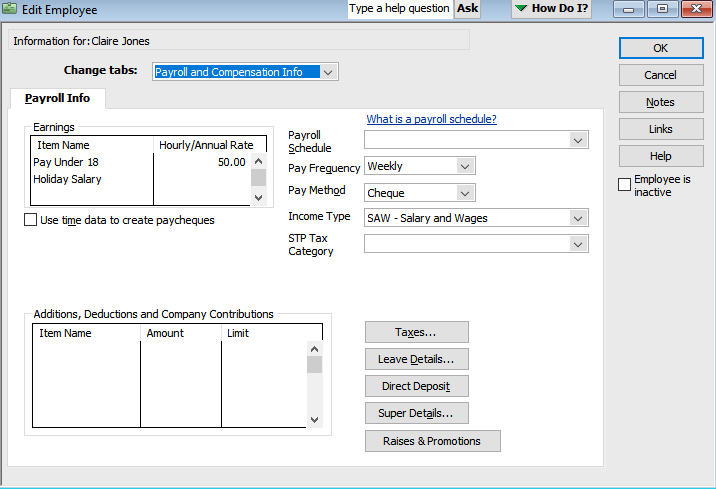
- Open the Employee Cenre
- Edit each employee
- Select the Payroll and Compensation Info tab
- Check the pay items under Earnings
Default QE settings reference
| Tax Tracking Type | Default QE |
|---|---|
| Gross Payments | Yes |
| Overtime | No |
| Bonus and Commissions | Yes |
| Directors' Fees | Yes |
| Leave – Ordinary (Sick, Annual, etc.) | Yes |
| Leave – Cash Out (non-termination) | No |
| Leave – Unused on Termination | No |
| Leave – Paid Parental | No |
| Allowance – Allowance (not reimbursement) | Yes |
| Allowance – Reimbursement (travel, fares, etc.) | No |
| Allowance – Overtime Meal | No |
| Salary Sacrifice – Super (S) | No |
| Salary Sacrifice – Other (O) | No |
| Lump Sum A (T/R) | No |
| Lump Sum B | No |
| Lump Sum D | No |
| Lump Sum E | Yes |
| Lump Sum W | Yes |
| Fringe Benefits | No |
| Exempt Foreign Employment Income | No |
| Deductions (Union, Workplace Giving) | No |
