What's New: Reckon Accounts Hosted 2026 (AU)
QE reporting and the 2026/27 PAYG tax scales will only apply to pays from 1 July 2026 onwards.
Upgrading early gives you time to review and update your payroll setup ahead of the Payday Super changes.
Payday Super (Qualifying Earnings) – Overview
From 1 July 2026, all superannuation contributions reported to the ATO must include Qualifying Earnings (QE) information.
To support this requirement, Reckon Accounts has been updated to allow you to identify qualifying earnings and include QE information in submissions made to the ATO.
For more information:
- Preparing Reckon Accounts for Payday Super
- What payments are qualifying earnings - ATO (external link)
Payroll updates to support Payday Super
Qualifying Earnings (QE) flag for pay items
You can now mark eligible wage categories as Qualifying Earnings (QE).
This allows Reckon Accounts to correctly identify which earnings are included when generating QE information for ATO submissions.
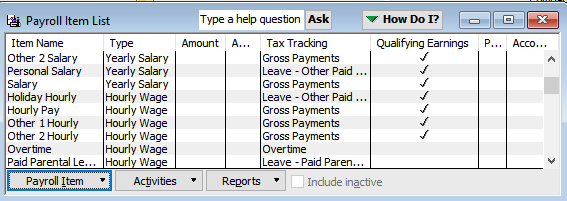
Adding the Qualifying Earnings column
- Open the Payroll Item List from the menu (List => Payroll Item List)
- Open the Payroll Item button
- Click on Customise Columns
- Find the Qualifying Earnings column in the left list and click Add >>
- Click Ok
Under‑18 age alert during pay processing
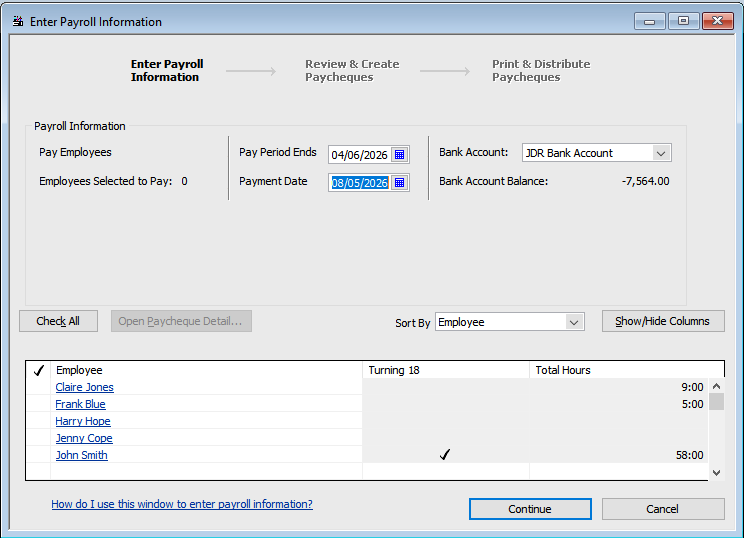
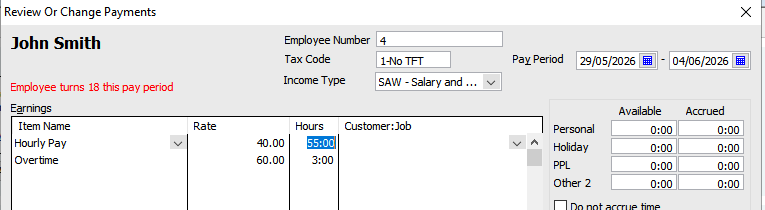
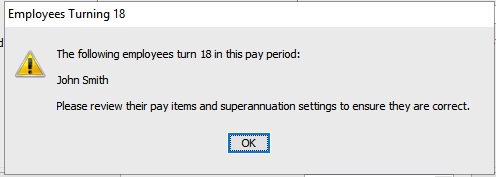
A new alert has been added for employees who turn 18 during the selected pay period, as superannuation obligations may change from that date. The alert will only appear for employees turning 18 in the selected pay period.
This alert appears in three places:
- In the employee list during pay processing
- On the employee pay details screen
- Selecting Continue from the Payroll Information screen
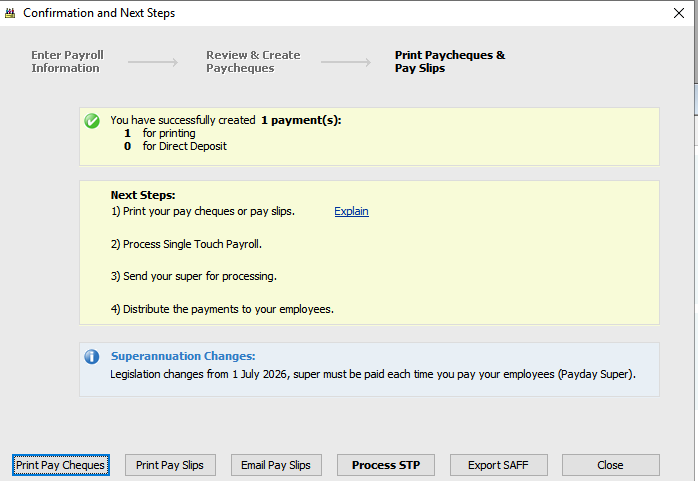
Updated Print Paycheques & Pay Slips screen
The Print Paycheques & Pay Slips window has been improved to streamline the process:
- The screen now remains open after selecting Process STP
- You can access the Export SAFF from this screen, with pre selected dates
This makes it easier to complete Payday Super reporting steps without interruption
Lodge Super via the CFS Clearing House in Reckon Accounts Hosted
You can lodge your super contributions without leaving Reckon Accounts Hosted.
After completing your pay run:
- From the Confirmation and Next Steps or Process STP screen, click Export SAFF
- Save the SAFF file when prompted
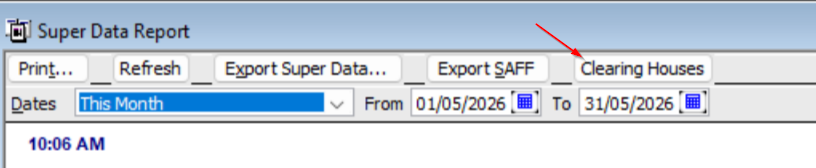
- Click the Clearing Houses button (see screenshot below)
- A browser will open, allowing you to select from the clearing houses available within Hosted
Other changes
Date fix
- Resolved an issue where an incorrect system date could cause the Online Banking Centre to not function as expected.
26/27 Tax rates
- This new build includes the latest 26/27 tax rates
Read more
- Preparing Reckon Accounts for Payday Super – setup steps and required actions
- What payments are qualifying earnings - ATO (external link)
