Adjust employee leave balances in Reckon One
Learn how to adjust employee leave balances in Reckon One payroll.
Create a leave adjustment
You can adjust any type of leave, as long as it is one of the leave entitlements you've added to the employee's profile in Reckon One. To create a leave adjustment:
- In the Payroll menu, select Employees, then select the employee.
- Select the Leave tab.
- Scroll to the relevant leave item and click Adjust balance.Instead, you can click on the Edit details button, then in Step 4 (Other details), next to the relevant leave item, click Adjust balance.
- On the Leave adjustments screen, enter a Date for the adjustment.This date is for reference and audit purposes only. It does not impact leave balance calculations, reports, or pay slips
- Select the Leave item you want to adjust. Only leave entitlements that have been added to the employee's record will show here.
- In the Adjustment balance field, enter the number of hours you wish to change the balance by. Use positive numbers to increase the leave balance, and negative numbers to decrease the leave balance.
- Enter an Effective date (this is when the adjustment should take effect).
The effective date controls how the adjustment is reflected in reports and pay slips.
- Adjustments will only appear in reports and pay slips from this date onward
- Using a past effective date will update historical balances in reports
- Using a future effective date will delay when the adjustment is reflected
- Adjustments will only appear in reports and pay slips from this date onward
- Using a past effective date will update historical balances in reports
- Using a future effective date will delay when the adjustment is reflected
- (Optional) To add another adjustment row, click on Add adjustment.
- When finished, click Save.
Edit a leave adjustment
You can change the Adjustment balance and/or Effective date of a leave adjustment:
- In the Payroll menu, select Employees, then select the employee.
- Select the Leave tab.
- Scroll to the relevant leave item and click Adjust balance.Instead, you can click on the Edit details button, then in Step 4 (Other details), next to the relevant leave item, click Adjust balance.
- Change the Adjustment balance and/or Effective date for the adjustment you wish to edit.
- Click Save.
The leave balance and/or effective date will be adjusted.
Delete a leave adjustment
- In the Payroll menu, select Employees, then select the employee.
- Select the Leave tab.
- Scroll to the relevant leave item and click Adjust balance.Instead, you can click on the Edit details button, then in Step 4 (Other details), next to the relevant leave item, click Adjust balance.
- Click on the Delete icon (a circle with a dash through it) for the adjustment you wish to delete.
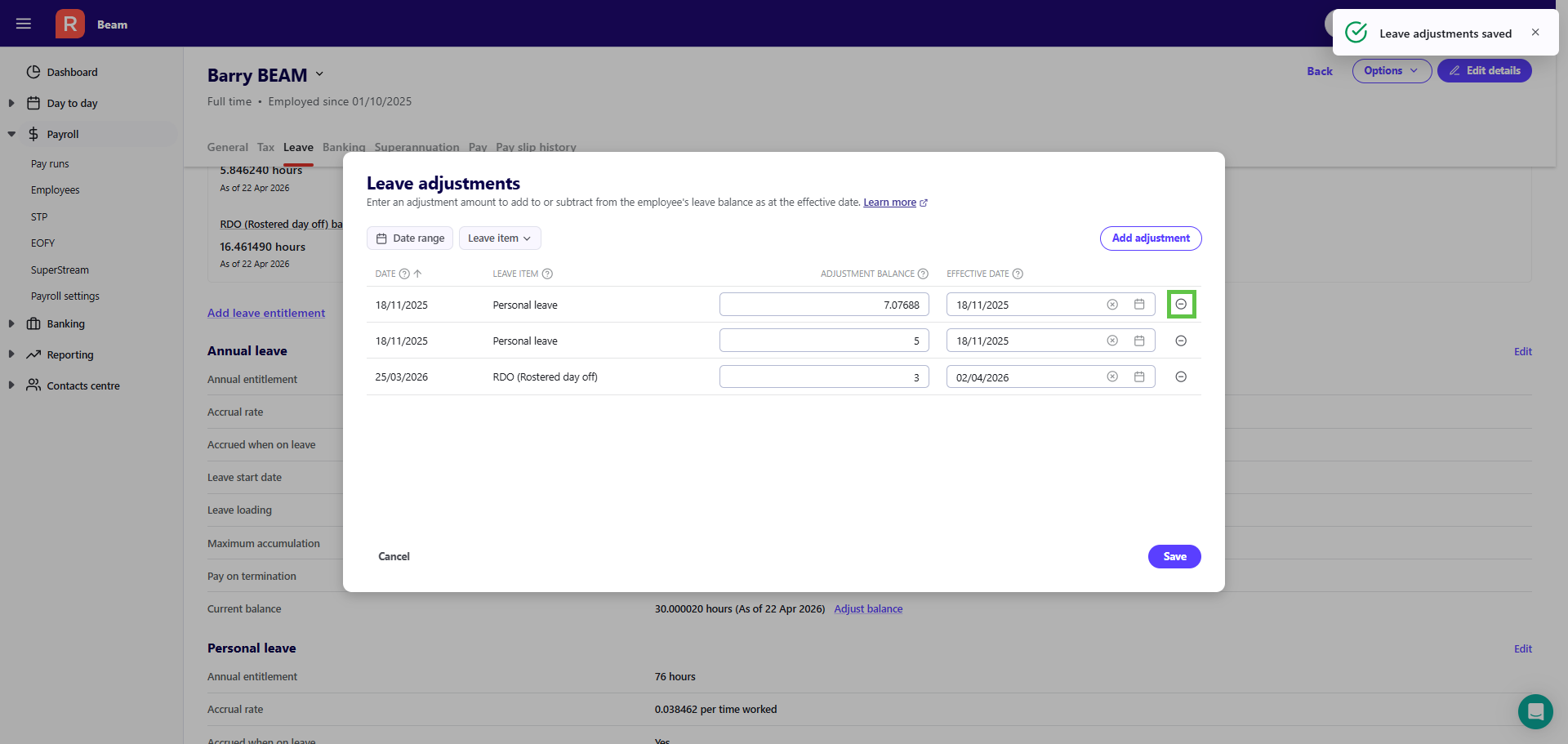
Click Save or Cancel to exit the Leave adjustments screen.
The leave balance will be recalculated.
View leave adjustment history
- In the Payroll menu, select Employees, then select the employee.
- Select the Leave tab.
- Scroll to the relevant leave item and click Adjust balance.
- (Optional) Click on Date range to filter leave adjustments by date, or click on Leave item to filter by leave item type.
- Click Cancel to exit.
Read more
- Learn how to edit an employee in Reckon One payroll
