Table of Contents
Log in to Reckon One after a Reckon Accounts migration
Learn how to access Reckon One after migrating from Reckon Accounts Hosted or Desktop.
Things to know
- You'll access Reckon One through an internet browser.
- Use the same login you used or created when you first started the migration with our team. You may know it as your Reckon Customer Portal or GovConnect login, or you may know it as the place where you submitted STP or managed bank feeds for Reckon Accounts or Reckon Accounts Hosted.
- There's help available if you can't remember your login.
Log in to Reckon One
To log in to Reckon One:
- Click in the address bar of your chosen internet browser (e.g. Google Chrome, Microsoft Edge).

- Type in the login address: https://id.reckon.com/login/.
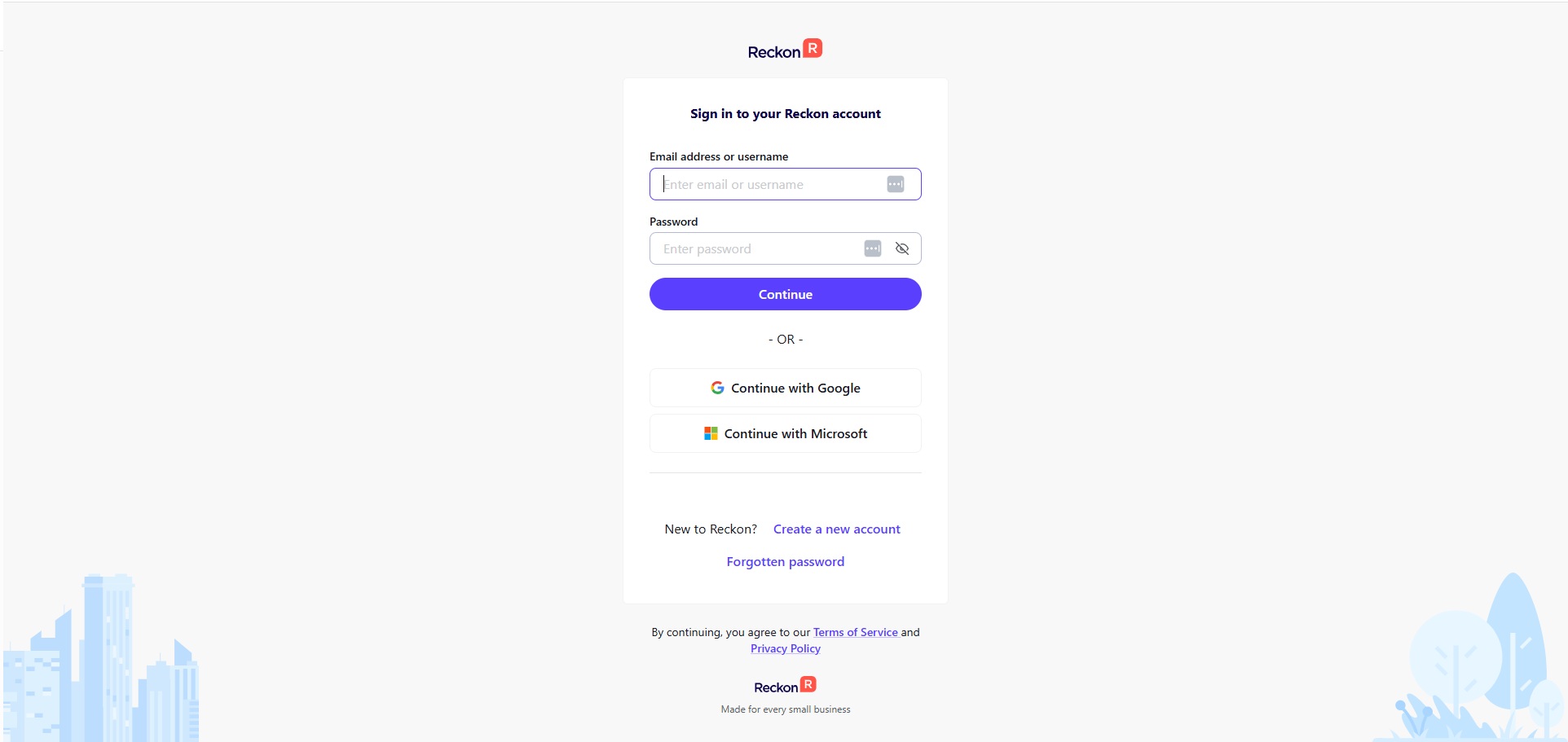
- On the login screen in the Email address or username field, enter your email or username.
- Enter your password in the Password field.
- Click Continue.
What you'll see once you log in
What you see first will depend on whether you have previously subscribed to a Reckon One book, and if you have, the number of books you're subscribed to.
If you have one book
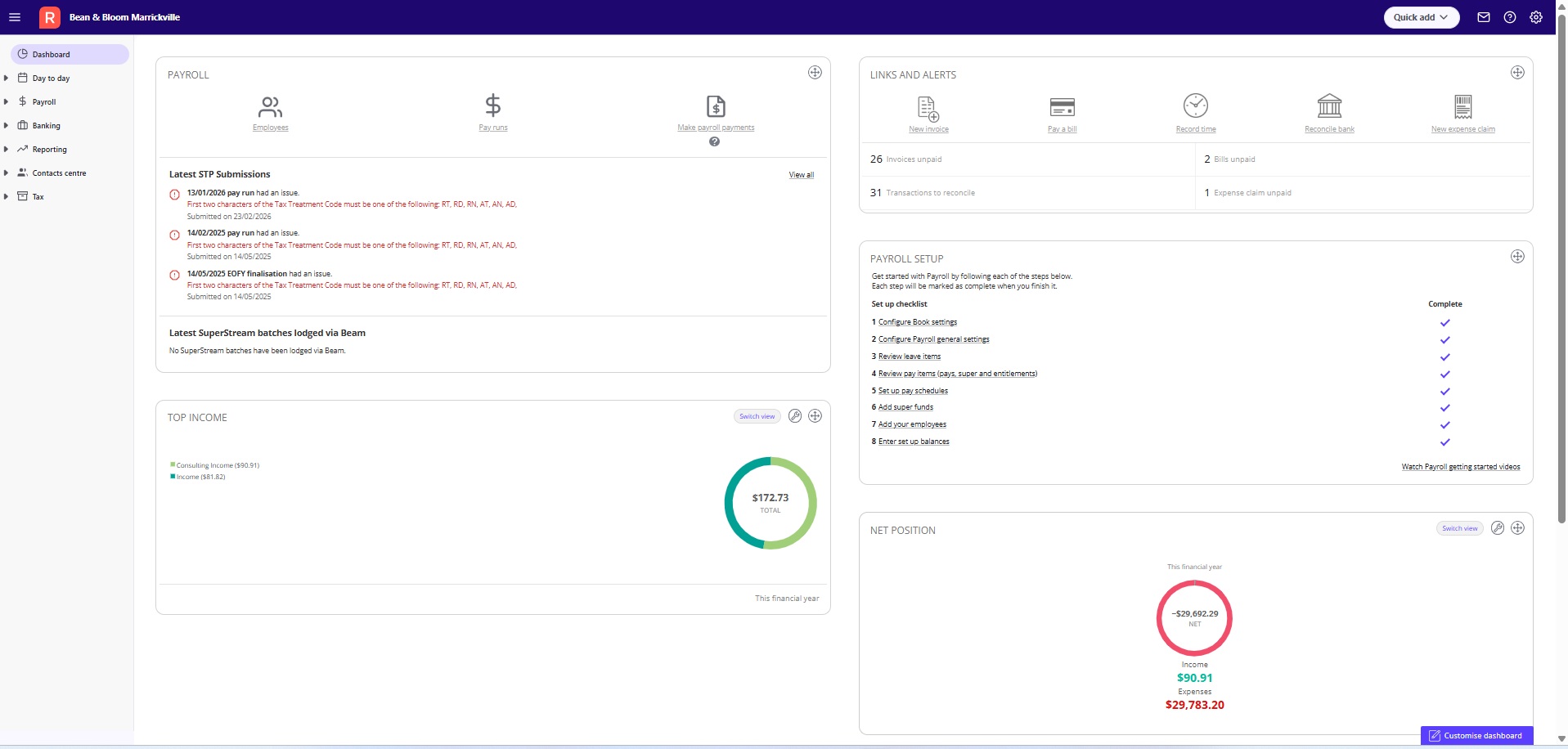
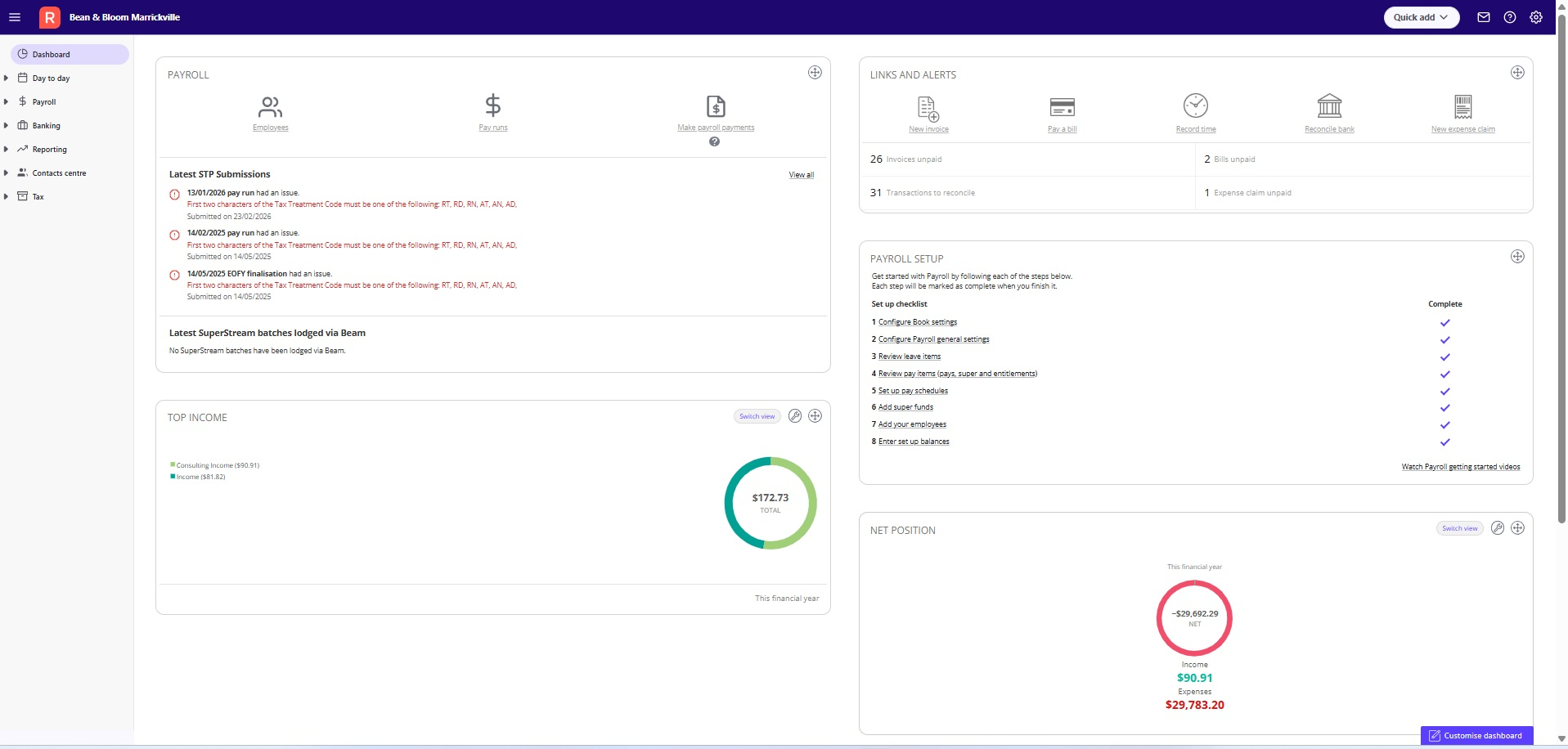
If you have just one Reckon One book, you'll land straight in your book once you login. The image below shows a typical book.
You may see a pop-up message in your book the first time you log in too. Learn more about pop up messages.
If you have more than one book
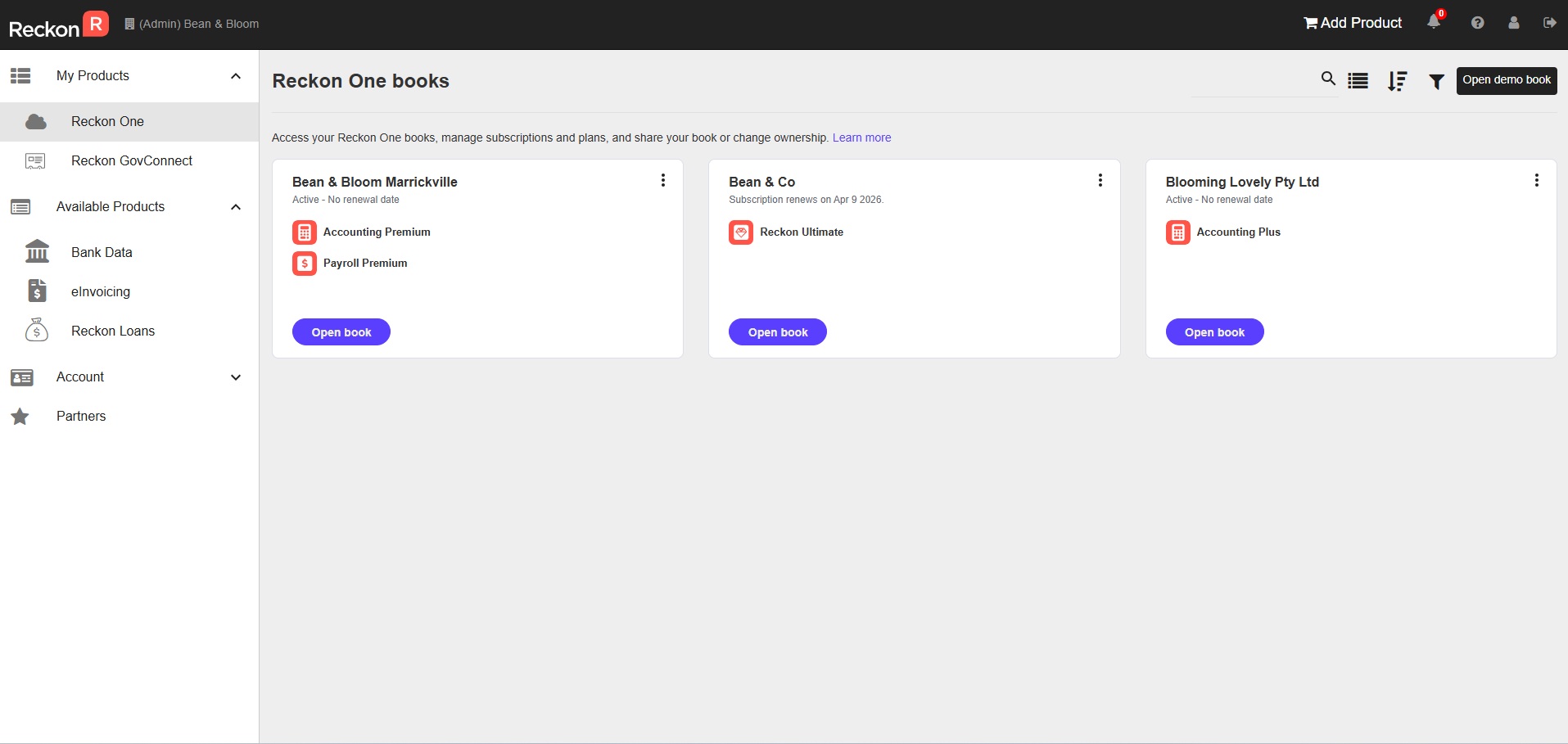
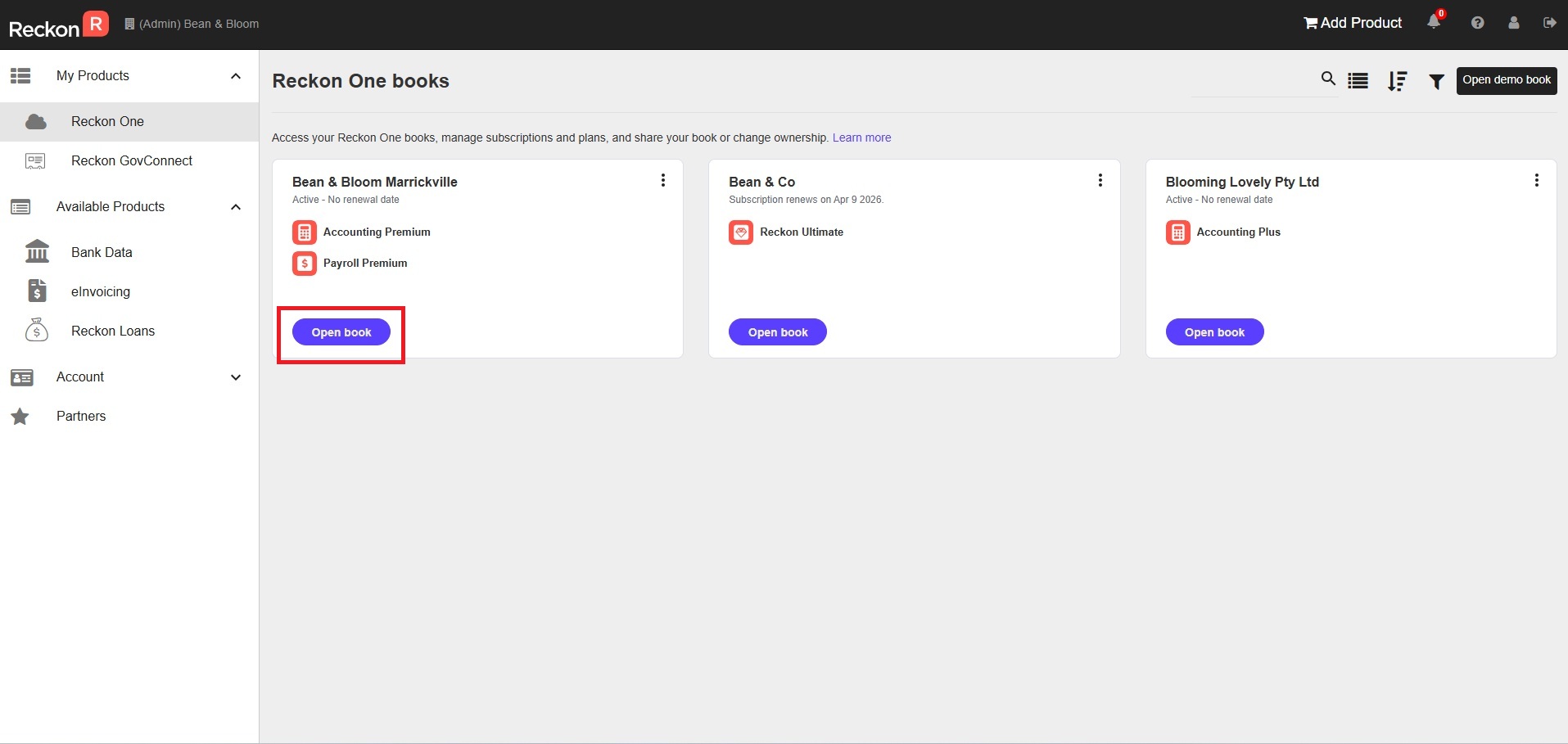
If you have more than one book, you'll land in the Reckon One area of the Reckon Customer Portal. Learn more about what you can do in the Reckon Customer Portal.
To access a book
To access a book, click Open book.
Then you will be in your Reckon One book.
You may see a pop-up message in your book the first time you log in too. Learn more about pop up messages.
To change between books
Learn how to find and switch between many Reckon One books.
A pop-up message to point out help resources
The first time you land in your Reckon One book, you may see a pop-up message. If you're having data migrated, it may tell you not to enter any information in your book until data migration is complete.
If your book has been set up and data has been migrated (or you aren't having any data migrated), you'll get a welcome message inviting you to take a short tour to see the resources available to you to learn about Reckon One.
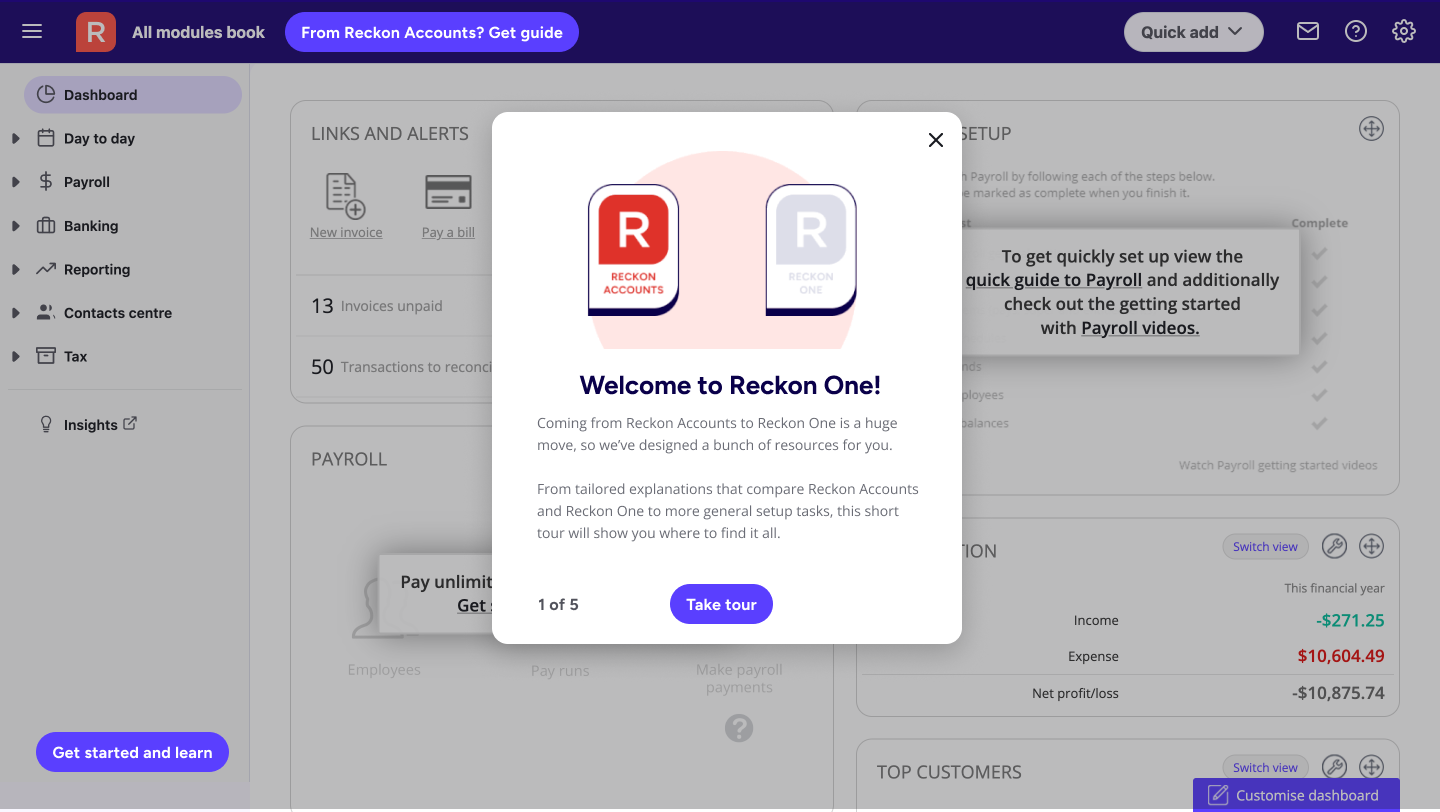
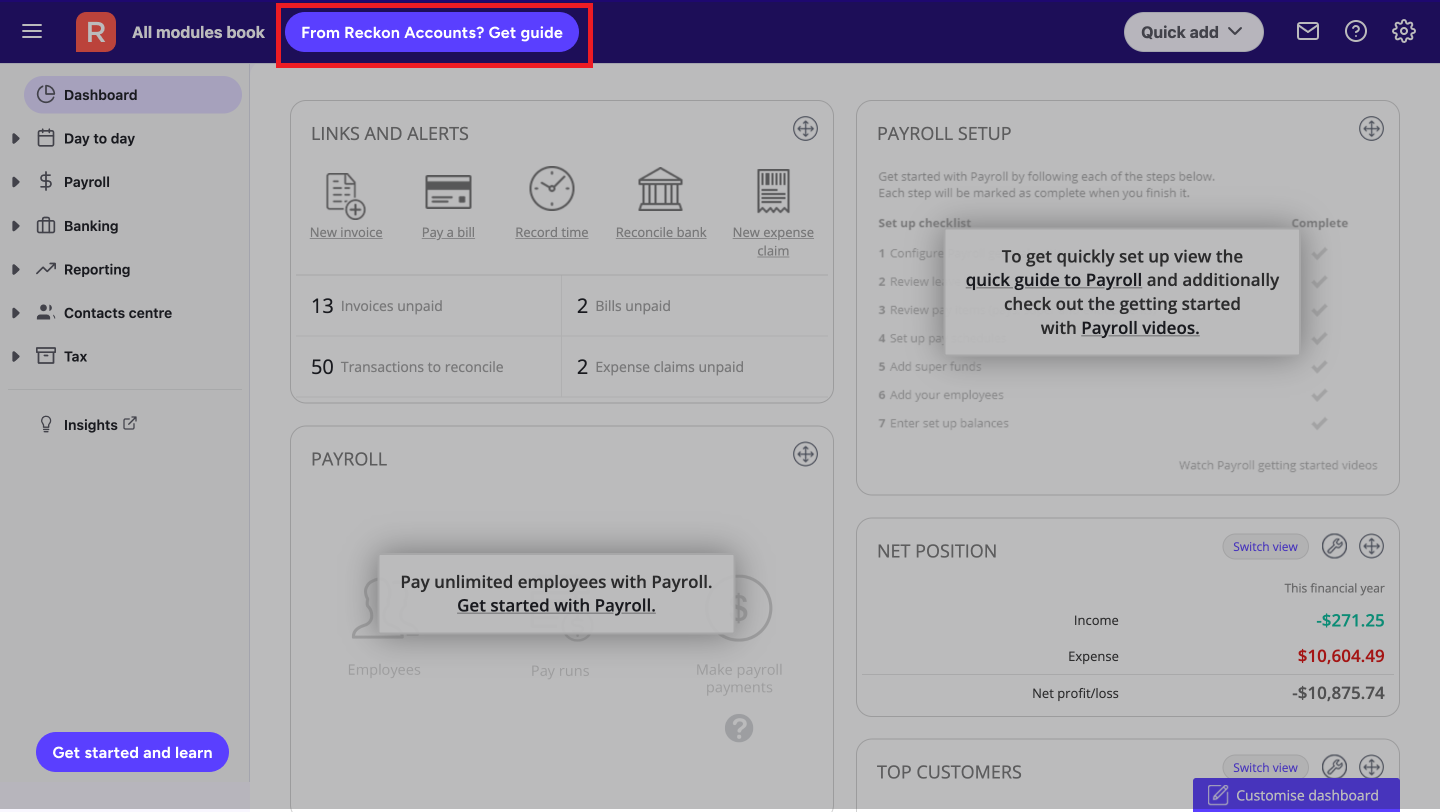
Make sure to check out our special guide that we created just for you. Once you finish the welcome tour, click on the button at the top that says From Reckon Accounts? Get guide.