Table of Contents
Update your company details in the Reckon Customer Portal
Learn how to change your company name and business address in the Reckon Customer Portal. Your business address appears on the invoices Reckon sends you, so it's worth getting the unit, level or building right if you're in a larger building.
Update your company name
- Sign in to the Reckon Customer Portal.
- In the Account menu, select Billing.
- In the Company Details section, click Edit.
- Update the Name field.
- Click Save.
Update your business address
- Sign in to the Reckon Customer Portal.
- In the Account menu, select Billing.
- In the Company Details section, click Edit.
- Add your address to the Address field. Either:
- Start typing your address and select the correct address from the list of suggestions.
- Click Enter address manually and enter your Street address, Suburb / City, State / Province, Postcode and Country.
- Click Save.
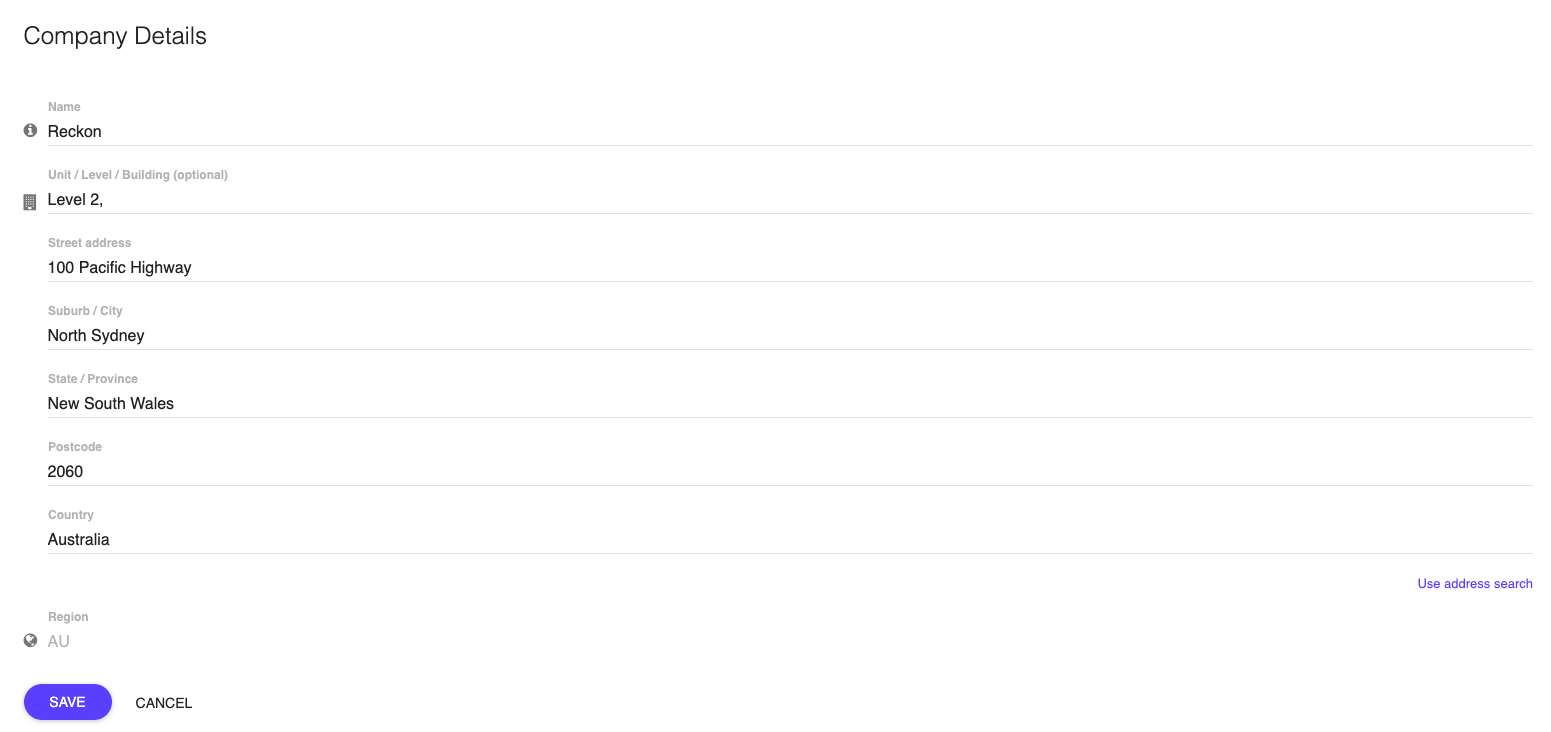
If your address includes a unit, level or building, type it in front of your street number. It's kept with the rest of your address when you select a suggestion. If you enter your address manually, add your unit, level or building to the optional field.
Read more
- Learn how to change your Reckon One book name.
- Learn how to create a Reckon account.
