Table of Contents
View your billing history in the Reckon Customer Portal
Learn how to find the billing history for your Reckon subscriptions in the Reckon Customer Portal so you can view what each one costs, when you last paid, and when it renews next.
View your billing history
- Sign in to the Reckon Customer Portal.
- In the Account menu, select Billing.
- Scroll down to Billing History.
Your most recent payment is at the top of the list. A line above the table tells you what you're looking at and how it's ordered. For example, All 11 subscriptions, sorted by last invoice paid, newest first. This line will change depending on how you sort this list.
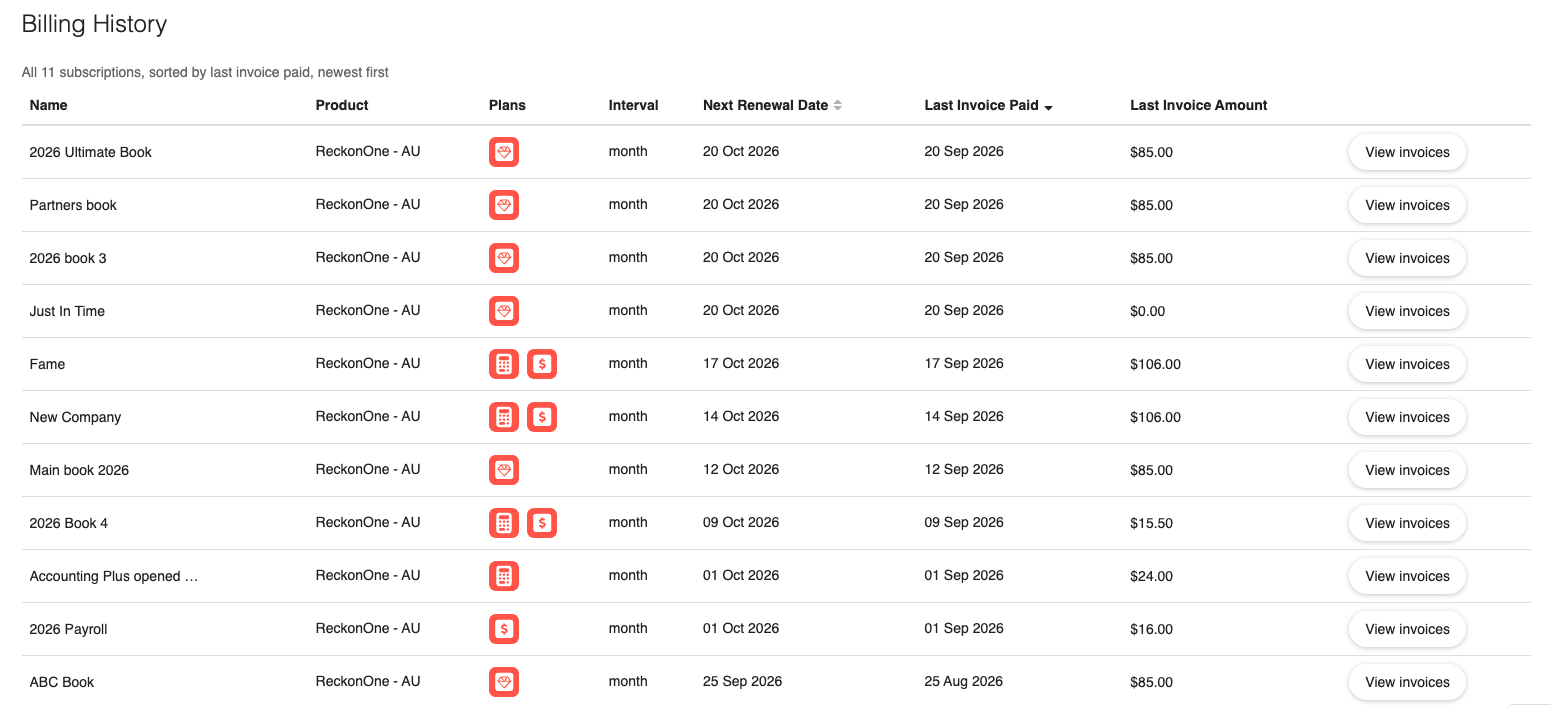
Column | Description |
Name | The name of the book or store the subscription pays for. |
Product | The Reckon product and the region it's subscribed in. |
Plans | An icon for each plan on the subscription. Hover over an icon to see the plan name. A subscription can carry more than one plan – an accounting plan and a payroll plan, for example. |
Interval | How often the subscription is billed, either month or year. |
Next Renewal Date | The date the subscription renews next, and the date you'll next be charged for it. |
Last Invoice Paid | The date your most recent invoice for that subscription was paid. This is the same date shown as Paid on against that invoice when you click View invoices. If a subscription is new and hasn't been invoiced yet, this reads No invoices yet. If we can't retrieve the invoice details, it reads Unavailable. |
Last Invoice Amount | The amount you were charged on the most recent invoice, including discounts, not the current price of the plan. An amount of $0.00 means nothing was charged on that invoice, which usually happens during a free trial or when a coupon covers the full amount. |
Subscriptions without dates or amounts
Cancelled subscriptions, and subscriptions belonging to a company you're not an admin of, show placeholders instead of dates and amounts, with the subscription's status in place of the interval. These appear at the end of the list.
Sort your subscriptions
The Next Renewal Date and Last Invoice Paid columns can both be sorted, so you can order the list by what's coming up rather than by what you last paid.
- Sign in to the Reckon Customer Portal.
- In the Account menu, select Billing.
- Click on Next Renewal Date or Last Invoice Paid.
- (Optional) Click the same heading again to reverse the order.
The first click sorts newest first. Clicking again sorts oldest first. Only one column is sorted at a time, and an arrow next to the heading shows you which one it is and which way it's ordered.
Subscriptions without a date in the column you're sorting on stay at the bottom of the list whichever way you sort, and cancelled subscriptions stay at the end.
Your choice sticks while you're working in the portal, including when you open and close View invoices. Next time you sign in, the list opens on the most recent payment again.
