Table of Contents
Sign up a new employee to your Colonial First State default fund in Reckon One
Learn how to sign a new employee up to your Colonial First State (CFS) default super fund as you're adding the employee in Reckon One. Their details are sent to CFS automatically, so there’s no member number to chase down later.
Before you start
You can only sign up new employees to Colonial First State (CFS) if:
- CFS has been signed up to as the book's integrated super fund provider and default super fund (as part of selecting a default super fund in Reckon One)
- you're adding a new employee. If you’re editing an existing employee’s super details, you won’t be able to sign them up to CFS.
Add your employee’s superannuation details
- Start by adding a new employee.
- In the Other details step, in the Superannuation section, click Enter details.
- In the Use default fund? field, select Yes.
- Check the default fund shown is correct. If CFS has been signed up to as the book's integrated super fund provider and default super fund, you'll see a message underneath the fund telling you that you are about to start the process of signing the employee up to CFS.
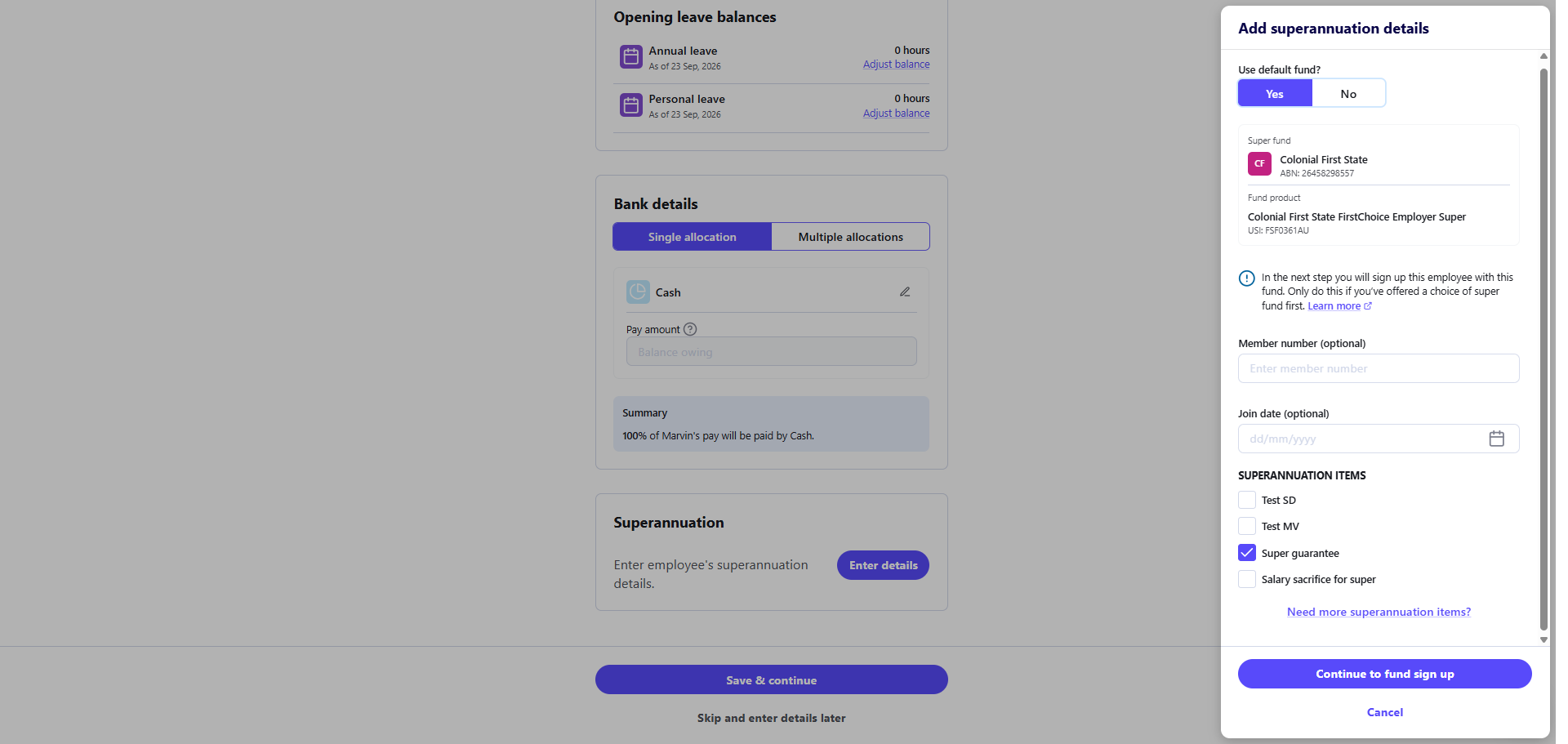
- (Optional) Enter a Join date.
- (Optional) Select any Superannuation items that apply to this employee, such as Super guarantee or Salary sacrifice for super. If the item you need isn’t listed, click Need more superannuation items?.
- Click Continue to fund sign up.
Review and submit the employee’s details
- Check the details Reckon One has pulled through from the employee’s profile: first name, last name, gender, date of birth, tax file number (TFN), email address, mobile number and address.
- If any details are missing or don’t meet Colonial First State’s requirements, you’ll see a message explaining what to fix (for example, that the fund needs a gender of male or female, or a mobile number).
- To fix any details, click Edit. Update the employee’s details, contact details and address details as needed, then click Save. Any changes you make here also update the employee’s profile.
- Once everything looks right, click Submit.
If Reckon One can’t add the fund straight away, you’ll see a message letting you know the sign-up couldn’t go ahead. Click Retry, or Cancel to return and choose a different super fund for this employee instead.
Check the sign-up status
Once you submit, you’ll see a confirmation that the request went to Colonial First State, and the fund appears on the employee’s Superannuation tab with one of these statuses:
- Sign-up pending: Colonial First State is still processing the registration. You don’t need to do anything at this stage.
- Verification needed: Colonial First State has accepted the registration and added the employee’s member number. Click Request verification on the employee’s Superannuation tab to complete verification, the same as you would for any other employee super fund verification.
- Sign-up rejected: Colonial First State has declined the registration, and the reason is shown alongside the status. Once you’ve fixed the issue, click Resubmit sign-up to super fund on the employee’s Superannuation tab to try again.
Employee super issues in a pay run
If you try to mark a pay run as paid while one or more employees have an unresolved CFS sign-up (pending, needing verification, or rejected), Reckon One shows a warning listing the affected employees and their status. Go to each employee’s Superannuation tab to request verification, resubmit the sign-up or fix any errors, then return to your pay run. If you’d rather deal with it later, click Continue to mark as paid to proceed anyway.
