Table of Contents
Add a bank account in Reckon One
Learn how to create a bank account in Reckon One so you can record and track transactions against the correct account. Bank accounts can represent real bank accounts (debit or credit accounts), or be used as cash or clearing accounts.
The steps outlined in this article are for customers with accounting plans. If you have a payroll plan, we recommend you manage your bank accounts in Payroll settings.
About default bank accounts
When you first create a book in Reckon One, some bank accounts are already set up for you:
- My bank account – a generic bank account
- Petty cash – a cash account
You can edit these accounts to suit your needs. The petty cash account is only suitable for use as a cash or clearing account, and can't be linked to a bank feed.
Create a new bank account
To create a bank account in your book:
- In the Banking menu, select Bank accounts.
- Click Add account.
- Enter an Account display name. This is the name used for the account throughout your book.
- Choose a Bank or financial institution from the drop-down list (the list of banks is split into 2 sections, with popular banks appearing at the top, and all banks appearing below), or if you’re using the account as a cash or clearing account (and do not want to link it to a bank feed), select the Use as a cash or clearing account (not linked to a bank) checkbox.
If you select the Use as a cash or clearing account (not linked to a bank) checkbox, some of the following steps may not be applicable.
- Select the Account type:
- Bank account (an asset account, such as a savings or transaction account)
- Credit account (a liability account, such as a credit card or loan account)
- Under Do you have an ABN?, select Yes or No. This impacts which bank feeds you're able to connect to.
- Under Is this a company, trust, or partnership (business account with a non‑individual account holder)?, select Yes or No. This impacts the process you'll need to follow if setting up a bank feed. If in doubt, select Yes.
- (Optional) Under Optional settings, enter a Chart of accounts code for the bank account.
- (Optional) under Optional settings, make selections to allow you to generate ABA files or batch payments (called Bank payments) in Reckon One:
- If your bank needs a balancing transaction (or self-balancing transaction for ABA files, select the Include balancing transaction checkbox.
- Enter your APCA ID (also called a Direct Entry User ID), which you can get from your bank.
- Click Next.
- (Optional) If available, you'll be prompted to choose a bank feed. Learn about the different bank feed options and the steps to setting them up, or select Skip & go to account details to go to the next step.
- (Optional, and if you skipped setting up a bank feed) Enter some more details about your bank account:
- Enter an Account name.
- Enter a BSB.
- Enter an Account number.
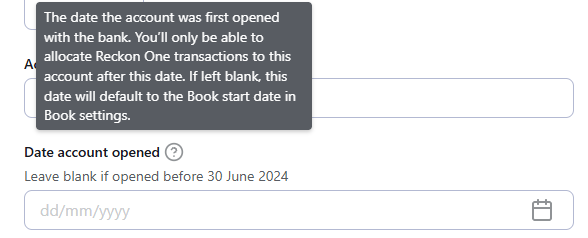
- Enter a Date account opened. This is the date the account was first opened with the bank, and you will only be able to allocate Reckon One transactions (like payments or receipts) to this bank account after this date. If the account was opened before the Book start date in Book settings (which will be shown above the Date account opened field), leave it blank and it will default to the Book start date.
- Enter an Opening balance as at the date shown.
- Click Save & finish.
Read more
- Learn more about choosing a bank feed
- Learn how to manually upload bank transactions instead
