Table of Contents
Understand the bank accounts screen in Reckon One
Learn about the bank accounts screen in Reckon One and how to use it.
About the bank accounts screen in Reckon One
The bank accounts screen is where you see and manage all your bank accounts and bank feeds in Reckon One. To get there, select Bank accounts in the Banking menu.
From this screen, you can:
- see key information about each account, including bank feed status and progress towards allocating bank transactions from the account to Reckon One transactions (such as payments and receipts)
- manage bank accounts (edit account details, upload transactions, and lock off accounts)
- add new bank accounts
- set the order for which bank accounts appear when selecting them across Reckon One
- connect and manage bank feeds
Find bank accounts
To search for bank accounts, use the search bar to search by account name, bank name or bank details.
Closed accounts are not shown by default. To show closed accounts, select the Show closed accounts checkbox at the top of the screen.
See bank account information
For each bank account, you can see account details (such as BSB and account number), bank feed status, and progress towards allocating bank transactions from the account.
Account details
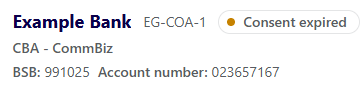
You can see the bank account name, bank, BSB, Account number, and, if used, the Account code from the Chart of accounts.
Bank feed status
You can see whether a bank feed is linked to the account and it's connection status.
Status | Example | What it means |
Not connected |  | Account does not have a bank feed linked to it. |
Active |  | There is an active bank feed linked to the account. |
Awaiting form (direct feeds only) |  | A direct bank feed has been linked to the account, but you need to complete and send the authorisation form to start receiving transactions. The form is available for download on the manage bank feeds page, accessible on the top right of the bank accounts screen. |
Awaiting bank (direct feeds only) |  | A direct bank feed has been linked to the account and the authorisation form has been sent to the bank, but the bank has not yet connected the feed to start receiving transactions. |
Form rejected (direct feeds only) |  | A direct bank feed has been linked to the account and the authorisation form has been sent to the bank, but the bank has rejected the form. Upload a new form to connect the feed. |
Consent expiring (Open Banking only) |  | Your consent for the feed expires in less than 30 days. Re-consent before the expiry date to keep receiving transactions. |
Consent expired (Open banking only) |  | Your consent for the feed has expired. Re-consent to begin receiving transactions again. |
Re-authentication required (Yodlee feed only) |  | Yodlee does not have authentication to access your bank anymore. Re-authenticate to begin receiving transactions again. |
Feed error |  | There is an issue with the bank feed and transactions are not being received. Come back later and if the problem persists, call our technical support team. |
Allocation progress
Overall allocation progress
You can see overall progress towards allocating bank transactions from the account to Reckon One transactions (such as payments and receipts), by viewing the Book balance, Bank balance and Difference for the account:
- Book balance is the total of bank transactions from the account that have been allocated to Reckon One transactions
- Bank balance is the most recent balance received from your bank feed for this account.
- Difference is the difference between the Book balance and Bank balance, showing how much is left to allocate for the account.

Month-by-month progress
You can also view the month-by-month progress towards allocation and reconciliation, from your last reconciled month through to the current month.
Each month will show a status:
- Allocate - there are transactions left to allocate. Clicking on the month will take you to the Bank transactions screen, filtered by month.
- Reconcile - all transactions for the month have been allocated but not reconciled. Clicking on the month will take you to the Bank reconciliation screen.
- Reconciled - all transactions for the month have been reconciled.
- Locked - the account was locked for the duration of the month.
- N/A - there are no bank transactions for the month.
Read more
- Learn about the default accounts that come with your book and how to add a bank account
- Learn about bank feeds
