Table of Contents
Set up pay schedules in Reckon One
Learn how to create pay schedules to streamline the pay run process.
Overview
Pay schedules allow you create pay runs more efficiently and reduce any potential mistakes with selecting dates or employees.
Pay schedules give you the ability to create pay run templates that can be selected in new pay runs. A pay schedule will populate the pay run period (either weekly, fortnightly or monthly), the pay run pay date, and which employees to include in the pay run.
Create a new pay schedule
- Go to Payroll, Payroll Settings, then Pay schedules.
- Click the Create Pay Schedule button.
- The Create Pay Schedule form will appear. Select a pay frequency (weekly, fortnightly or monthly) then enter a name for the schedule. Select the first pay period start date. This is the start date for the first pay run in the schedule. Select the first pay date you want to use for this schedule. Once you start using the schedule in pay runs the period & pay date will automatically increment based on the selected frequency.
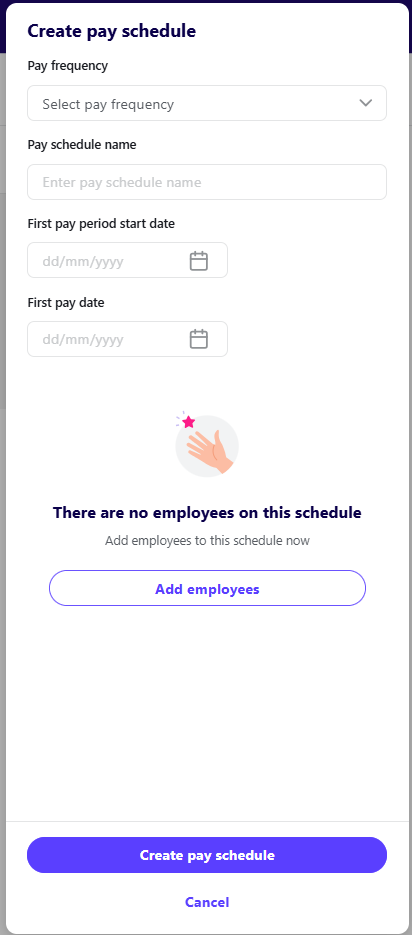
- (Optional) Add employees:
- Select Add employees.
- Select the employees you want to assign to the pay schedule then click Done.
- Select Create pay schedule to save the schedule.
- The new pay schedule will appear in the list after saving. You can also click on the ellipsis menu button to edit or delete the pay schedule.

Assign pay schedule to employee
- Go to Payroll, then Employees.
- Select the employee then in the General tab, next to the Employment Details section, select Edit.
- Select Done.
Using a pay schedule to create pay runs
Creating a pay run using pay schedule is quick and easy. The date periods are pre-filled and employees who are part of the pay schedule will be selected when you choose a pay schedule.
- Go to Payroll, then Pay runs and click Add new pay run, or select the Quick add menu from the top right hand corner of the screen, scroll down and select Pay run.
- Select the Pay schedule from the list menu. The pay date, period and employees will be selected. You can also select other employees to add to the pay run.Note that you cannot change the pay period of a pay schedule. If you are creating an out of cycle pay run, then select Unscheduled pay schedule.
Need more help?
Ask the Reckon Community at: https://community.reckon.com/categories/reckonone
Or log a Support Ticket: https://www.reckon.com/au/support/
