Table of Contents
Statement of cash flows report in Reckon One
Learn how to use and customise the Statement of cash flows report in Reckon One, so you can understand how your cash position from various activities.
About the Statement of cash flows report
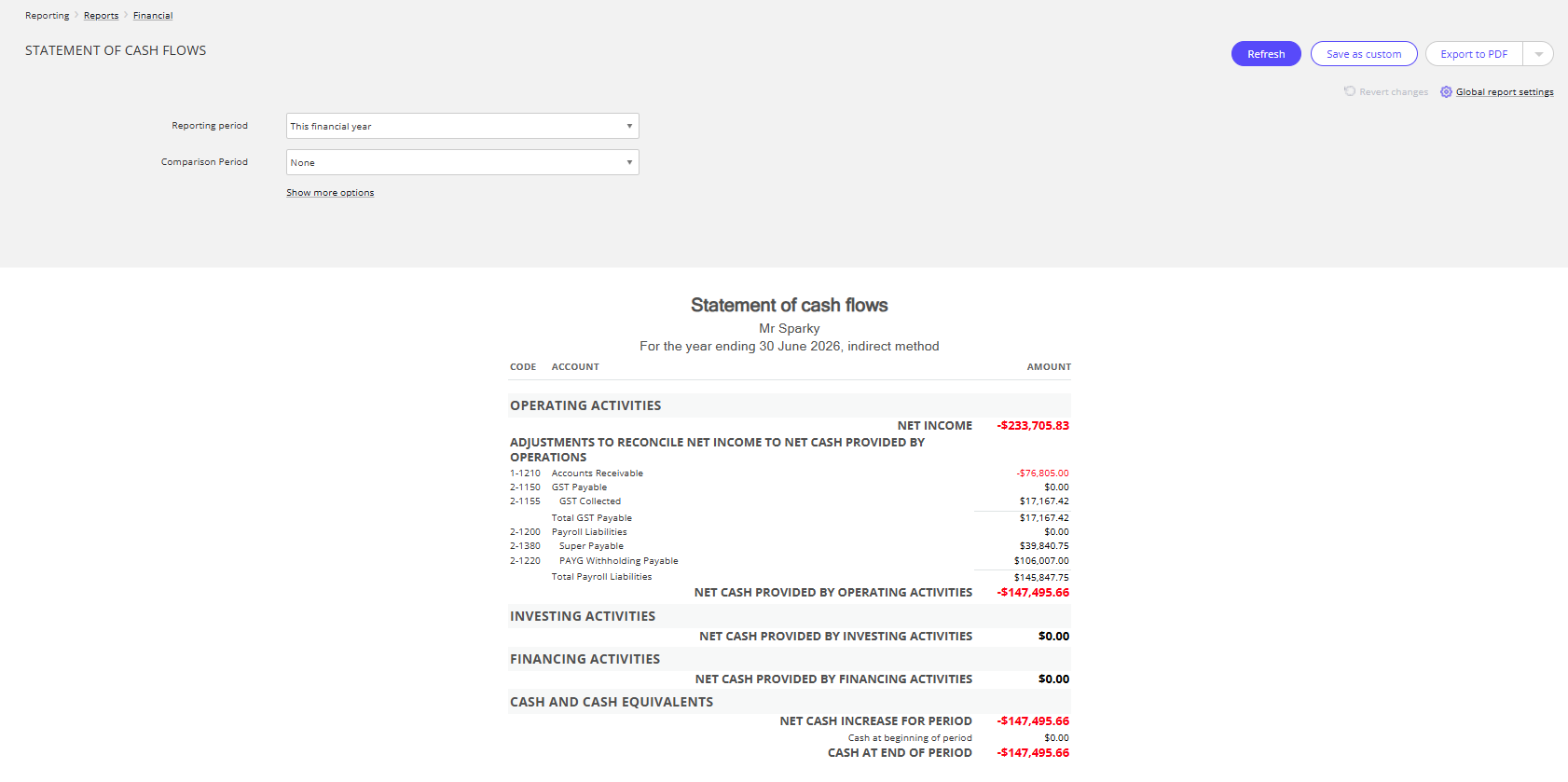
The Statement of cash flows report tracks cash flowing in and out of your business over a specific period, and can be used to assess a company's ability to generate cash, pay its debts, and make investments. It shows cash flow for three areas of business activity:
- Operating activities - daily operations such as selling products or services.
- Investing activities - buying or selling assets such as property or equipment.
- Financing activities - such as issuing debt, repaying loans, and paying dividends.
Use this report to help track and show your company's financial health, identify potential problems such as cash shortages or overspending, and make financial decisions, such as when to invest or borrow money.
Run the report
- In the Reporting menu, select Reports.
- Click on the Statement of cash flows report (found in the Financial category).
- Select your Reporting period, the time range you wish to see data for. Select one of the the standard options or select The following dates to enter dates of your choosing.
- Select your Comparison period, which is the time range against which to compare the data in the Reporting period.
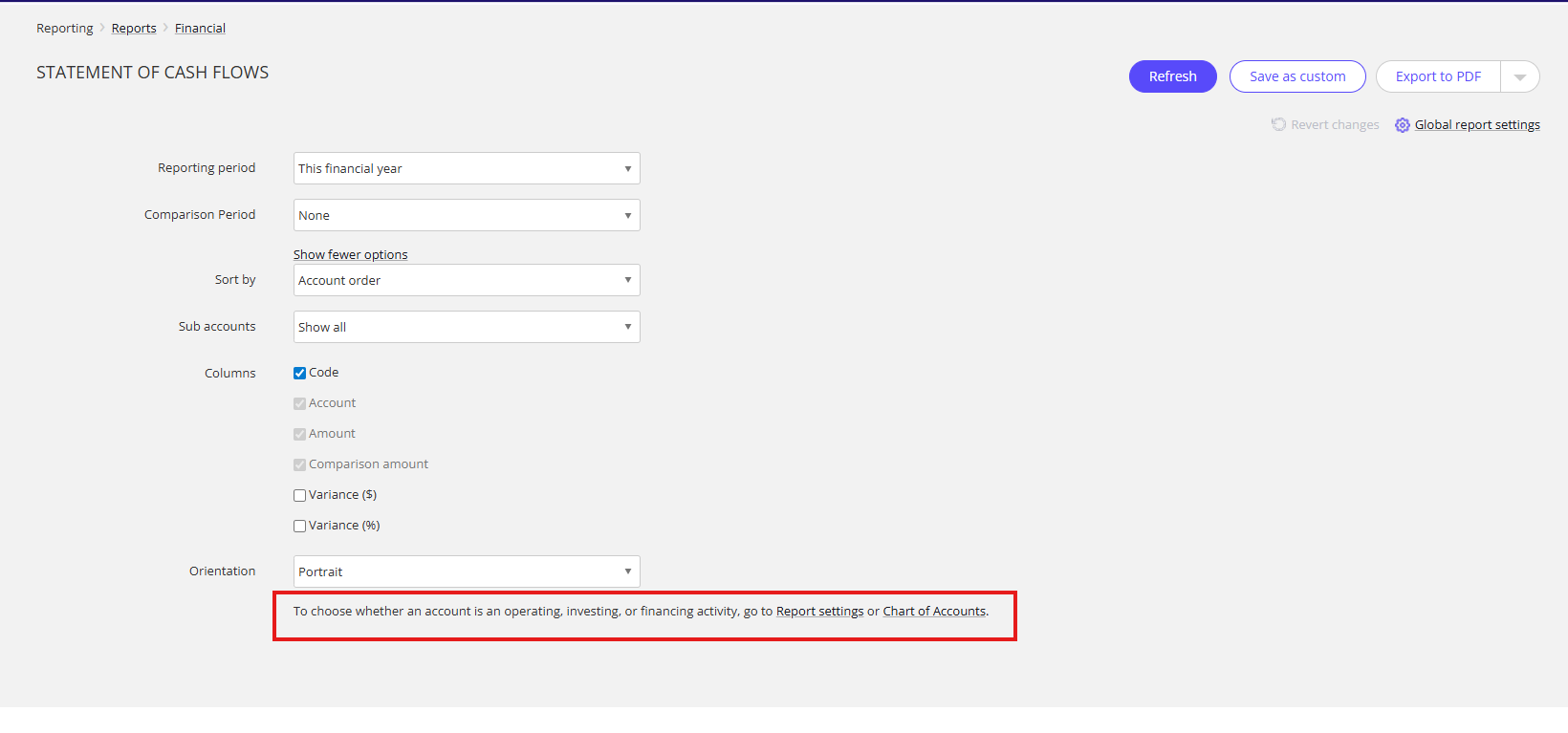
- (Optional) To customise the report further (including sorting, filtering and choosing data to show), click Show more options. Follow our detailed steps for customising your report.
- Click Refresh to update the report with your selections.
Customise your report
You can customise the information shown in your report and sort and filter data:
- In the Reporting menu, select Reports.
- Click on the Statement of cash flows report (found in the Financial category).
- Click Show more options.
- Once you've made your customisations, click Refresh to update the report.
Sort by account order, name, or code
To sort your data, select an option in the Sort by dropdown:
- Account order (to sort by your chart of accounts order)
- Account name (to sort alphabetically by account name)
- Account code (to sort numerically by account code)
Choose the level of sub accounts shown
To choose whether to show all sub accounts or select the level of sub accounts shown, use the Sub accounts dropdown.
Show or hide columns
To show or hide columns in the report:
- In Columns, select checkboxes against the columns you want to show.
Choose report orientation
- In Orientation, choose whether you wish the report to show in portrait or landscape (your selection will also apply when exporting the report).
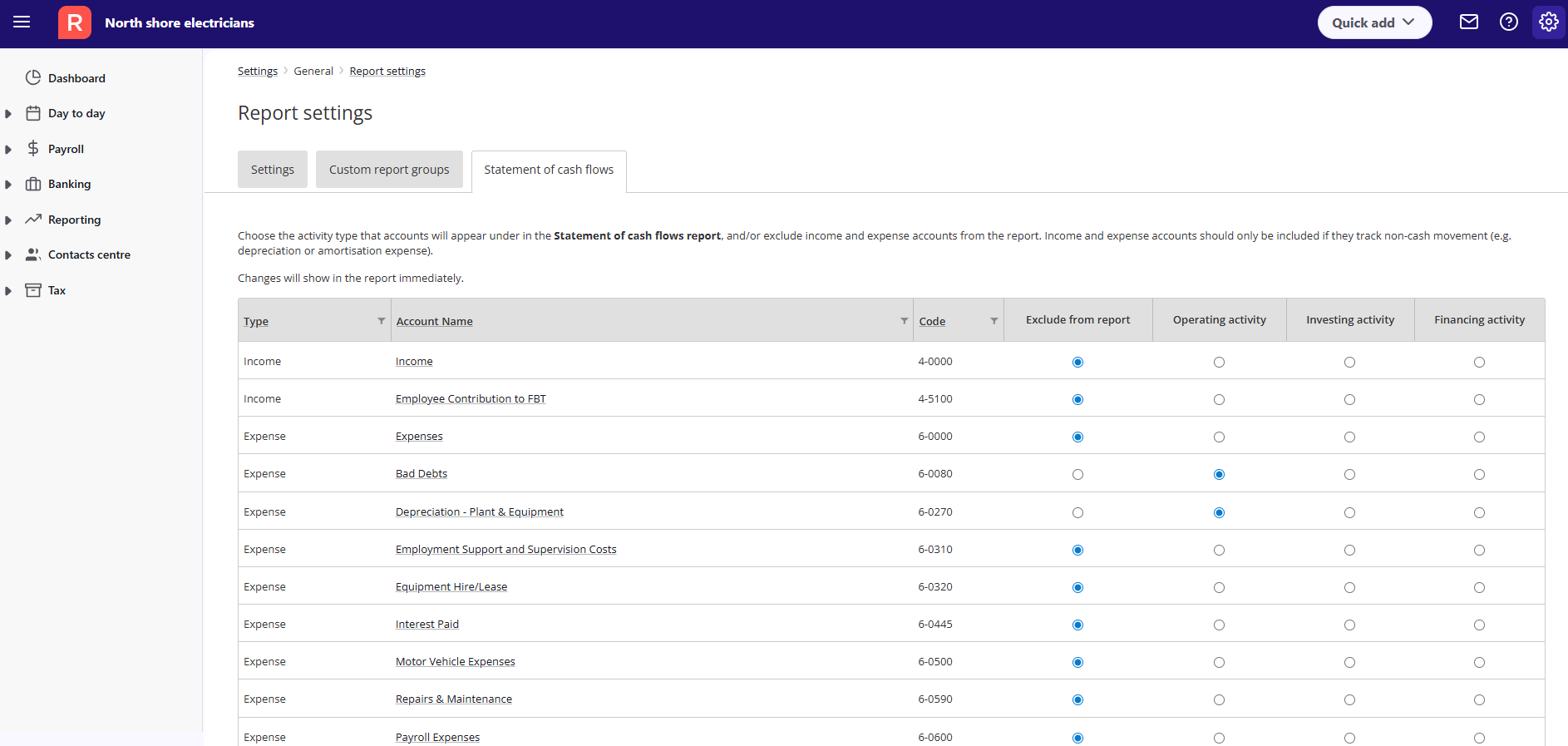
Choose whether an account is an operating, investing, or financing activity
To choose whether a ledger account appears on the report as an operating, investing, or financing activity:
- Click on the Settings menu (cogwheel icon), then select Settings.
- Under the General section, click on Report settings.
- Click on the Statement of cash flows tab.
- Click on the activity you want each ledger account to appear under. You can also exclude income and expense accounts from the report, by selecting the Exclude from report option. Typically, these types of accounts are only included on the Statement of cash flows report if they track non-cash movement (for example, depreciation or amorisation expense).
Read more
- Learn more about reports in Reckon One
