Table of Contents
Assign classifications in a pay run in Reckon One
Learn how to assign a classification in a pay run in Reckon One, including how to assign it to an employee, a pay run, and pay items within a pay run.
How classifications work in payroll
Classifications can be assigned to an employee, a pay run, or an Earnings & leave or Allowances pay item within a pay run.
When a classification is assigned to an employee, it will carry through to any pay run (and Earnings & leave and Allowances pay items within that pay run) that the employee is included in. You can change (override) this in a pay run, without affecting the employee profile.
When you assign or change a pay run's classification, the Earnings & leave and Allowances pay items within that pay run are automatically assigned the same classification. You can change the pay item classification at any time without affecting the classification assigned to the pay run. If you change the pay run classification, it will override any changes made to pay item classifications.
Before assigning a classification
Before assigning a classification in a pay run, you must have enabled classifications and created at least one classification.
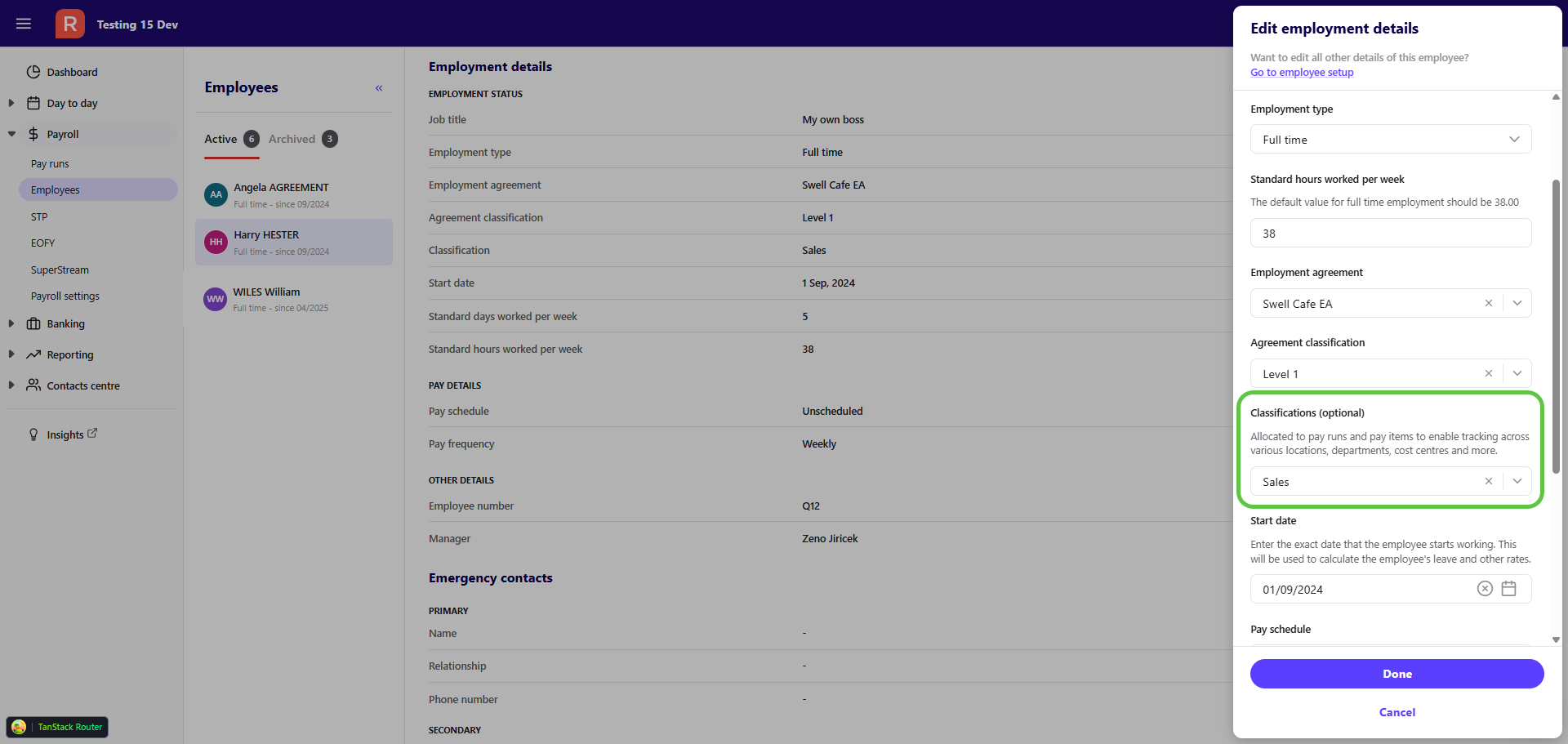
Assign a classification to an employee
When you assign a classification to an employee, it will automatically carry through to any future pay run the employee is included in (and Earnings & leave and Allowances items in that pay run). You can override the pay run and pay item classification when needed.
- Go to Payroll, then Employees.
- Select the employee from the list.
- Scroll to Employment details and select Edit.
- Within the Classification field, type the name of the classification or select from the drop down list.
- Select Done to save.
Assign or override a pay run classification
You can assign a classification for a pay run if the employee hasn't been assigned one, or override a pay run classification carried through from an employee profile. Overriding the pay run classification won't alter the employee's profile.
For example, imagine your pay run is assigned the classification of 'Cost centre A', and you've assigned the classification of 'Cost centre B' to one pay item in the pay run. If you then go and change the pay run classification to 'Cost centre C', the pay item's classification will be changed to 'Cost centre C' as well.
To assign or override a pay run classification:
- Go to Payroll, then Pay runs.
- Add a new pay run, or select an existing pay run by clicking on the relevant Pay date.
- Select an employee's name to edit their pay.
- In the classifications dropdown next to Pay items, select a pay run classification for the employee.
- Click Save.
Assign or override an earnings or allowance pay item classification
If a classification has been assigned to a pay run, any existing Earnings & leave and Allowances pay items within the pay run will, by default, have the same classification. You can override this and assign different classifications to earnings, allowance and leave pay items within the pay run. This is useful when an employee's earnings need to be split across multiple classifications.
- Go to Payroll, then Pay runs.
- Add a new pay run, or select an existing pay run by clicking on the relevant Pay date.
- Select an employee's name to edit their pay.
- Against the relevant pay item in the Earnings & leave or Allowances section, click into the Classifications column to select from the dropdown list.
- Click Save.
Read more
Need more help?
Ask the Reckon Community at: https://community.reckon.com/categories/reckonone
Or log a Support Ticket: https://www.reckon.com/au/support/
