Table of Contents
Include recorded leave in a pay run in Reckon One
Learn how to include recorded leave when you create a pay run in Reckon One, so employees get paid for their leave without you entering it again.
Before you start
When you create a pay run and select Include approved leave in this pay run, Reckon One looks for approved leave that falls within the pay period, as well as any approved leave from previous periods that hasn’t been fully paid yet.
Reckon One only checks leave for the employees you have included in that pay run.
Include leave when you create a pay run
- In the Payroll menu, select Pay runs.
- Click Add pay run.
- Fill in the pay run details as usual. Find out more about how to process a pay run in Reckon One.
- Make sure Include approved leave in this pay run is ticked (it’s ticked by default).
- Click Create.
Once you’ve entered the pay period, you’ll see how many leave records were found. This number can change if employees are added or removed from the pay run.
If there’s leave to pay, the Leave in pay run screen opens. If there isn’t, or you unticked Include approved leave in this pay run, you’ll go straight to your pay run as usual.
Review leave in the pay run
The Leave in pay run screen shows all the leave records included in this pay run. All leave is selected by default.
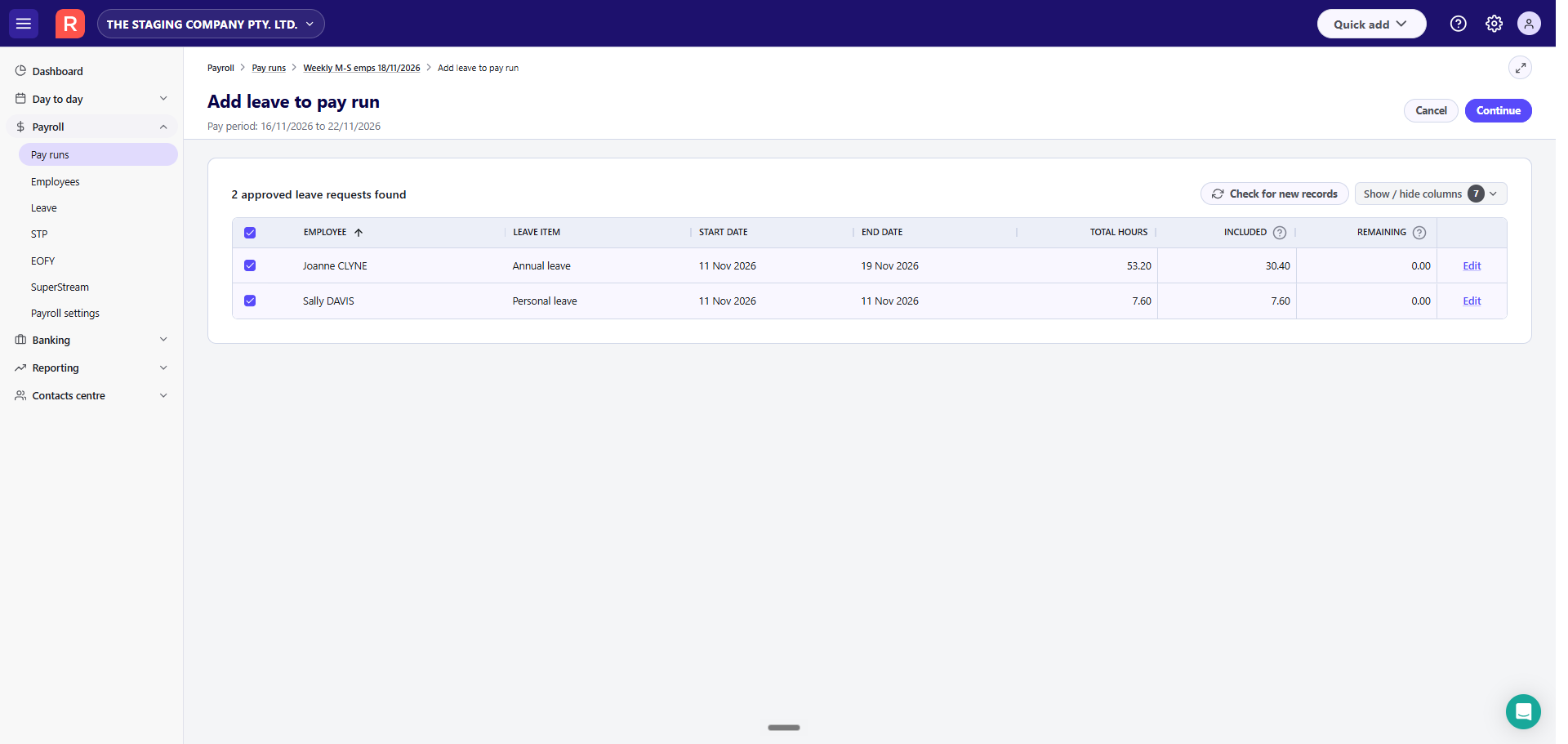
For each record you’ll see:
- Leave item – the leave type from the leave record.
- Leave dates – the start and end date. These are flagged when the leave goes outside this pay period.
- Total hours – the total hours on the leave record.
- Included – the hours being paid in this pay run.
- Remaining – the hours still to be paid after this pay run.
- Extras – shows if the leave request has any Attachments and Notes. To read a note, hover over it with your cursor.
You can also show Approved by, Customer, Classification, and Project. Click the Show / hide columns button to manage which columns are visible.
It is possible for new leave requests to be recorded after you created the pay run. To check for and add any new leave requests, click the Check for new records button. This won’t change any edits you’ve already made.
If any new request are found and added to the list, they wouldn't be selected by default. Make sure to tick them to add them to the pay run.
Adjust the hours paid in this pay run
On the Leave in pay run screen, the Included hours column is pre-filled based on the employee’s standard weekly hours as recorded in their profile.
This calculation assumes an employee works a full Monday-Friday week. Adjust the Included hours if an employee has worked a different amount of hours.
To adjust the hours paid in this pay run:
- Locate the leave request you want to adjust and select the Included field.
- Change the hours to what you want to pay. The Remaining hours update to match.
If an amount of leave hours will take an employee’s balance below zero, it’s highlighted. This will not stop you from paying the leave or completing the pay run.
Changing the Included hours only changes what’s paid in this pay run, not the total hours on the leave record.
Leave that spans more than one pay run
When leave runs past the end of the pay period, Reckon One only includes the weekdays that fall within this pay period. The rest is kept for your next pay run. The Included field is highlighted so you can check the hours.
- If you include more hours than the leave record has, Remaining shows as a negative number.
- If you include fewer hours than are due, the rest keeps showing up in later pay runs. If the employee won’t take those hours, update the leave record.
Edit or exclude a leave request
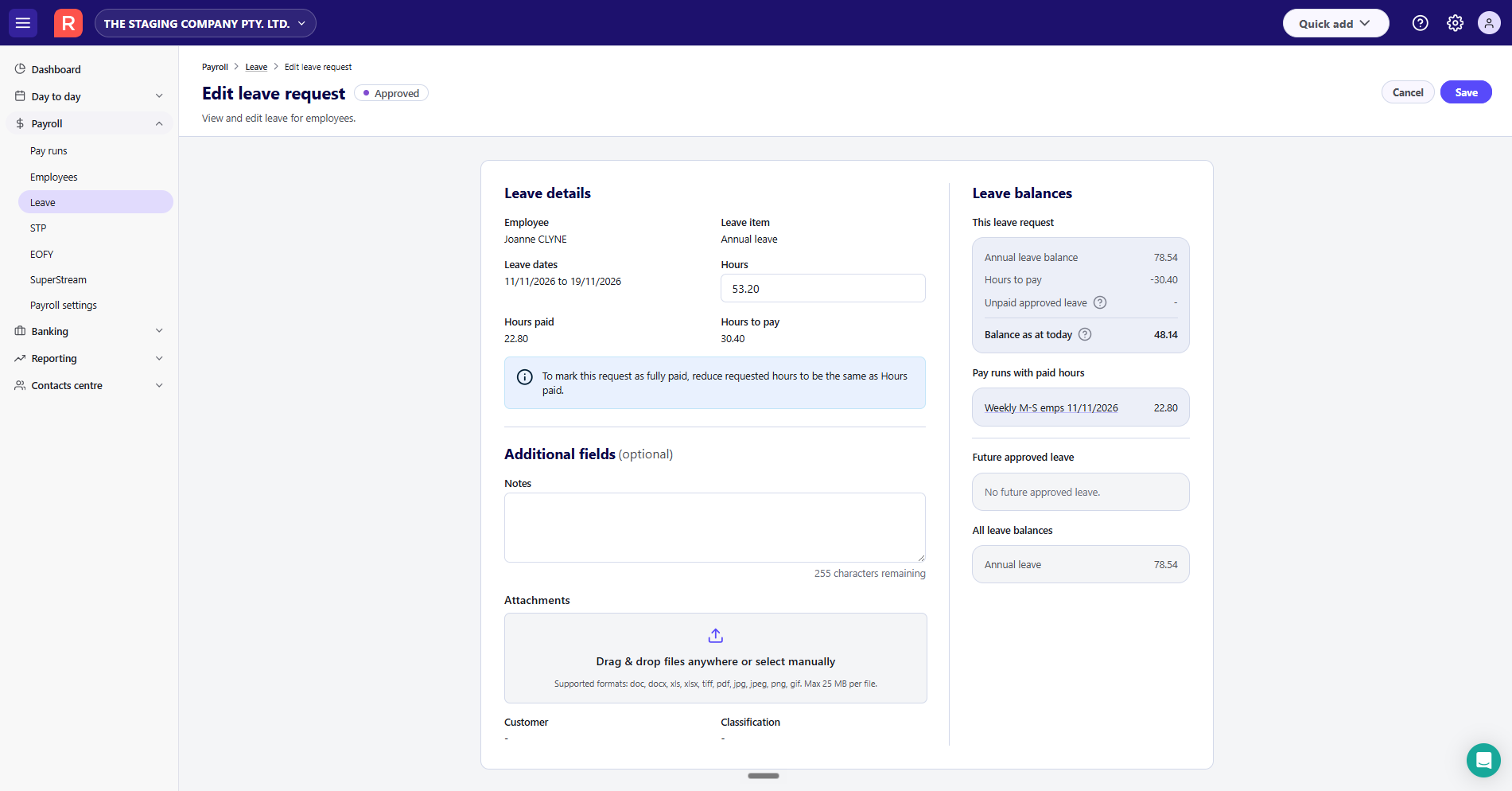
To edit the total hours of a leave request (or any other details) from the Leave in pay run screen:
- Click the Edit button at the end of the row. This will open the leave request.
- Make your changes and Save.
After saving, you are returned to the Leave in pay run screen. To learn more about editing leave request, read how to edit or delete leave in Reckon One.
To reset a leave request to its originally Included hours, untick its checkbox to exclude it, then re-tick its checkbox to re-include it. The Included hours are rest, along with any changes to the customer, classification fields. If you have edited the leave request itself through Edit, however, those changes will not be rest.
To exclude a leave request from this pay run, untick its checkbox. The leave request stays approved, so you can pay it in a later pay run.
Continue to the pay run
- Click Continue to pay run to save your changes and go to the pay run.
- Finish the pay run as usual.
To undo your changes, click Cancel. This won’t delete the pay run or change any leave records. If you come back to the Leave in pay run screen later, any changes you saved will still be there.
If you’ve turned on Automatically reduce ordinary earnings hours by the hours of leave in Payroll Settings (under General), an employee's ordinary hours will be reduced by the number of leave hours submitted. This only applies to full-time and part-time employees. If this setting has not been turned on, you will need to manually reduce the employee's ordinary hours to accurately reflect the hours they worked.
Change leave hours on an employee’s pay
If you change the leave hours on an employee’s pay, the new hours appear in the Hours in this pay run column on the Leave in pay run screen. The leave request itself doesn’t change. It keeps its original hours.
When you change the leave hours on an employee’s pay, the Quantity cell is highlighted. This shows that the hours from the leave request have been overridden for this pay run.
In the same way, if you change the hours in the Hours in this pay run column on the Leave in pay run screen, the cell is highlighted to show that the value has been overridden.
Changing hours on the employee’s pay or on the Leave in pay run screen only affects this pay run. Neither change updates the leave request. To change the actual hours on the leave request, edit the leave request.
Mark the pay run as paid
When you mark the pay run as paid, Reckon One checks for any leave recorded since you created the pay run. If it finds some, you’ll see how many records there are. You can then:
- click Continue to mark as paid to finish without that leave, or
- click View leave records to go back to the Leave in pay run screen and add it.
Remove an employee or delete a pay run
If you take an employee out of a pay run, or delete the pay run, their leave records stay put. Any hours paid in that pay run are reversed, and the leave becomes available for a future pay run.
Read more
- Learn how to process a pay run in Reckon One
- Learn how to record leave for an employee in Reckon One
- Learn how to edit or delete leave in Reckon One
- Leave how to manage leave items