Table of Contents
Verify employee super funds (member verification request) in Reckon One
Learn how and when to make member verification requests (MVR) in Reckon One, to check whether super funds can accept employee contributions.
About the member verification request (MVR)
The member verification request (MVR) allows you to confirm that funds can accept employee contributions, by using a clearing house to check that employee and fund details match to an active account.
In Reckon One, you can use our integrated SuperStream provider, Beam, to make verification requests. This makes it easier for you to meet your PayDay super obligations, as you can check that the new details match an active superannuation account before you process pays and lodge SuperStream.
How it works
Employee super funds will have a status of 'Verification needed' when a superannuation fund or fund product is added to an employee in Reckon One.
Updating employee details (first or last name, date of birth and tax file number) won't change the employee super fund status to 'Verification needed'. You should still request verification after updating any of these details. A warning will appear to remind you.
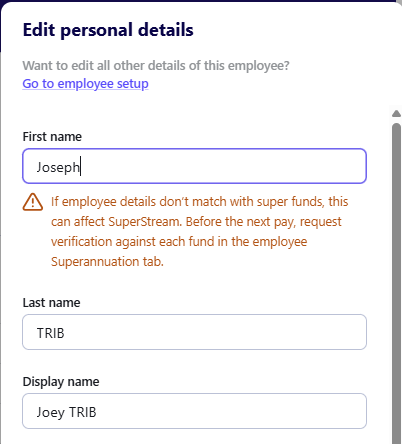
When you request verification with a fund, the status will change to 'Verification pending' for up to 48 hours before returning a result (Verified, Rejected, or Verification unavailable).
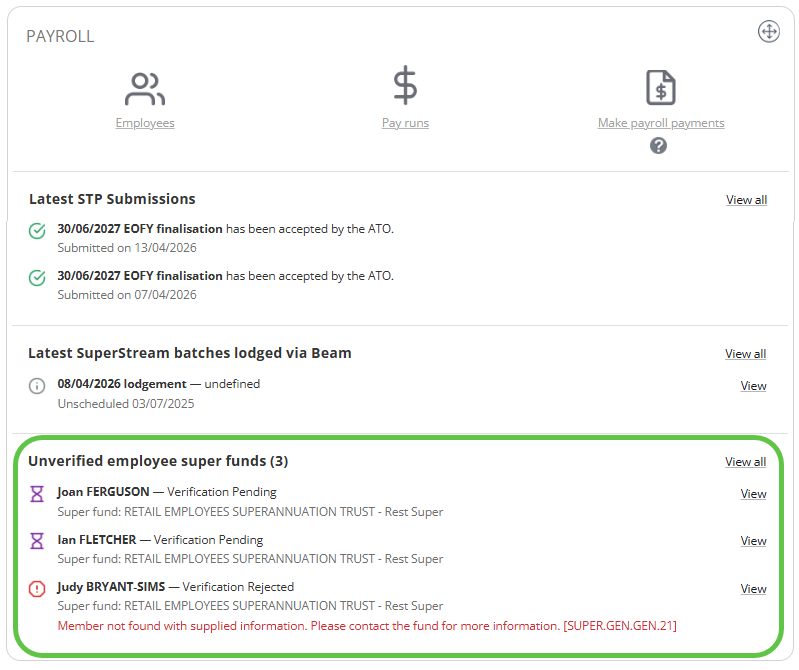
You'll see a list on your Reckon One dashboard of employees who need verification or have a pending or rejected verification request. If a pay run includes employees with these statuses, we'll also warn you before you mark it as paid.
Before you start
To use the MVR in Reckon One, you must first enable Beam.
Understand verification status
If you have enabled Beam, all employee super funds have a verification status.
Status | What it means | Action to take before submitting STP or SuperStream |
Verification needed | A superannuation fund or fund product has been added to the employee. | Request verification. |
Verification pending | A verification request has been made in the last 48 hours and we're awaiting a response from the fund. | Check back within 48 hours to see if the fund is verified. |
Rejected | The super fund cannot receive contributions because the employee and fund details do not match to an active account. Essentially, the fund has not been able to confirm that it can accept contributions for this employee. | See why the request was rejected, update details, then request verification again. |
Verification unknown | The employee was entered into Reckon One before the member verification request (MVR) was introduced, and has not had a verification since. It's likely that most employees with this status will have up-to-date super fund details and an active account with the super funds, but we can't tell you for sure. | Request verification if you've changed employee or super fund details since last SuperStream lodgement. |
Verified | The super fund has confirmed that the employee and fund details match to an active account, and the fund can receive contributions. | No action required unless you've changed employee details (name, tax file number, date of birth) since last SuperStream lodgement. |
Verification unavailable | The super fund does not yet support MVR. | No action required. |
Identify employees that need verification
On the Reckon One dashboard, you'll see an 'Unverified employee super funds' list. This is a list of employees who:
- need verification
- have a rejected or pending verification.
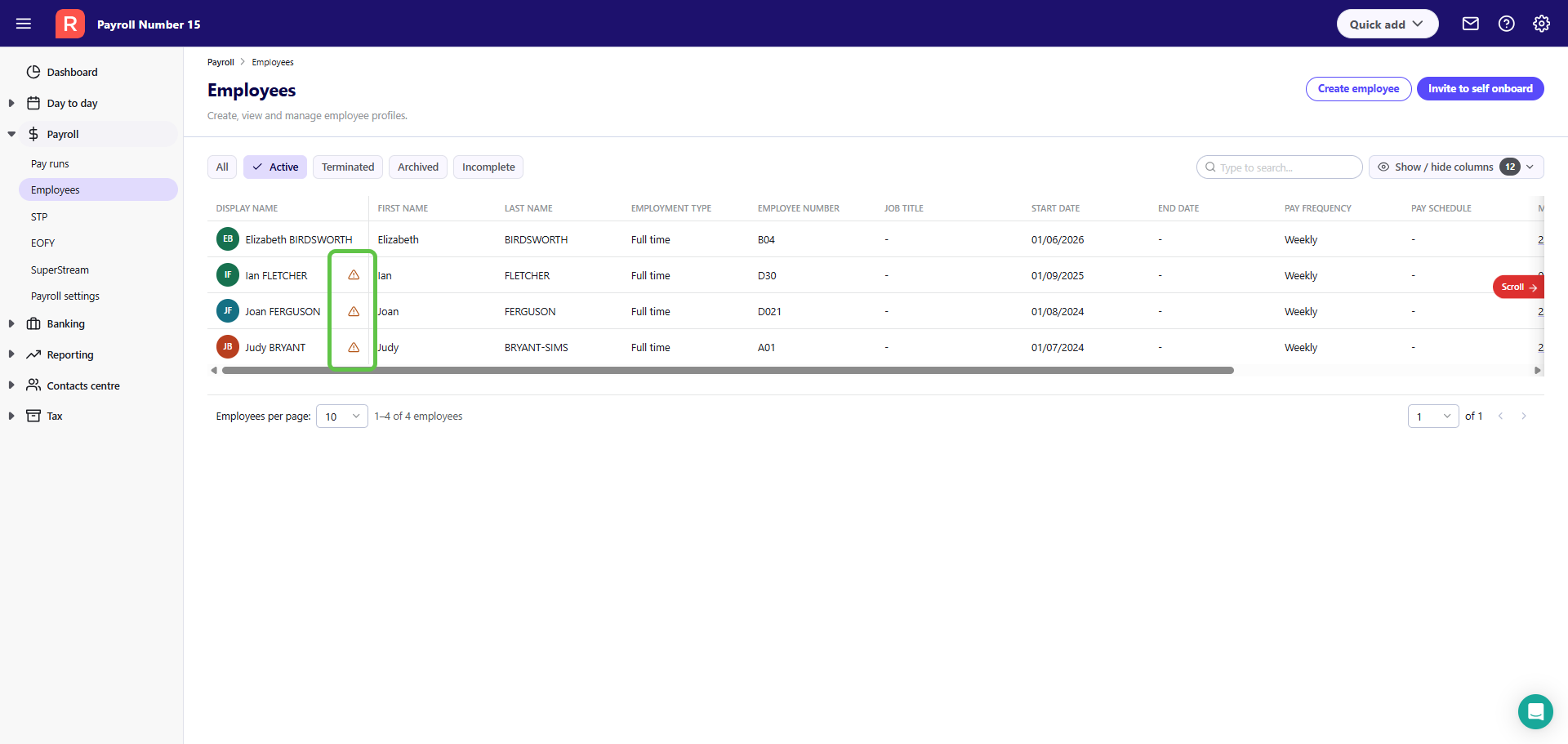
We also show icons on the employee list screen next to any employee that requires action from you. This is for funds with a status of Verification needed, or Rejected.
Request verification
You can request a MVR for the following statuses:
- Verification needed
- Verification unknown
- Verification unavailable
- Verified
- Rejected
The option to request is disabled when status is Verification pending or if the last submission was less then 48 hours ago.
To request verification:
- From the Reckon One dashboard 'Unverified employee super funds' list, click View next to the employee.
- Click on the Superannuation tab.
- Click on Request verification against the relevant super fund(s).
Fix a rejected verification
To fix a rejected verification:
- On the Reckon One dashboard 'Unverified employee super funds' list, look at the error under the employee with a Rejected status. You may need to update employee or super fund details to resolve the error, or you may need to contact your employee. Once you've resolved the error, you can request verification again:
- Click View next to the employee.
- Click on the Superannuation tab.
- Click on Request verification against the relevant super fund(s).
Read more
- Learn how to use Beam for SuperStream
