Reckon Accounts Business Range desktop - Start a new file with no transaction history using the Clean Up Company function
In some cases, it may be necessary to create a brand-new data file that does not include any historical transaction data.When This May Be Needed This is typically required when:
- The existing file has become very large, or
- You need a clean file to use as a template for a new company.
Recommended Approach One effective method is to use the built-in “Clean Up Company Data” function.This process will:
- Remove all transactions from the file
- Retain important data such as:
- Lists (e.g., Chart of Accounts, Items, Customers, Suppliers, Employees, Other Names)
- Price levels
- Preferences
- User list
- Memorised transactions and reports
What Gets Removed vs Retained
- Transactions removed: Bills, invoices, payments, purchase orders, sales orders, deposits, journals, pay cheques, and more
- Lists retained: Core records and setup information essential to your business structure
This allows you to effectively create a “fresh” file while keeping your key setup intact.
With all historical transactions removed, it can allow you to delete Lists records which you no longer require
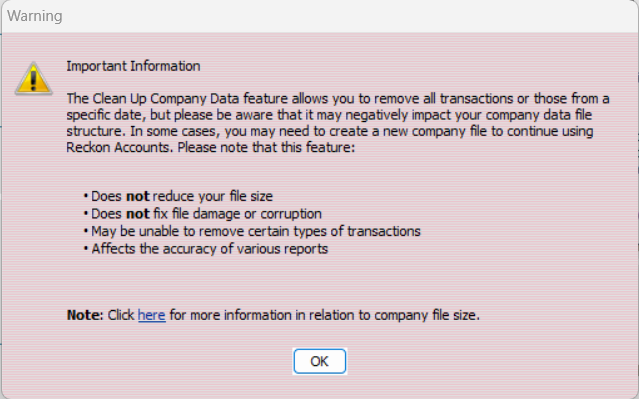
1. Open the data file (QBW) that you want to use as the basis for the new data file.
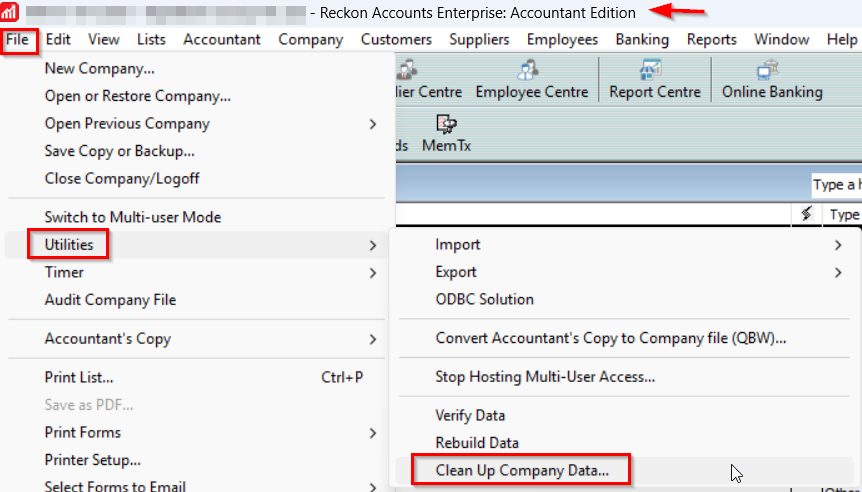
2. Click on the File menu
3. Then click on the Utilities menu
4. Then select the Clean Up Company Data menu
5. Choose the "Remove ALL transactions" option
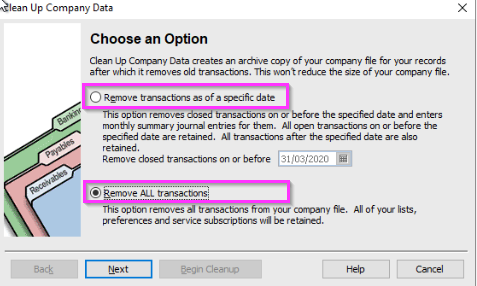
Proceeding with this process will result in a data file that retains your key setup information while removing historical transaction data.
What Will Be Retained
The new file will include:
- All existing Lists
- Price Levels
- Preferences
- Memorised Reports
- Memorised Transactions
Original File Preservation You will still retain a copy of your original data file, which includes all historical transaction data for reference.
Using the New File
The newly created file will be smaller and can be used as your day-to-day working file moving forward.
Important Next Steps
After the process is completed, a few actions will be required:
- Recreate Outstanding Transactions - such as Open Invoices, Unpaid Bills
- Adjust Account Balances - create general journal transactions
- Update Inventory Levels (if applicable) - create inventory adjustment transaction
