Verify employee super funds (member verification request) in Reckon Payroll app
Verify employee super funds (member verification request) in Reckon Payroll app
Learn how and when to make a member verification request (MVR) in the Reckon Payroll app, to check that an employee's super fund account can receive superannuation contributions.
About member verification requests (MVR)
The member verification request (MVR) feature allows you to check that an employee’s superannuation fund can accept contributions and that the employee’s details match an active account. Using MVR helps you:
reduce super contribution failures
avoid delays during the SuperStream lodgement process
ensure employee super details are valid before running payroll
Verification does not confirm contribution amounts. It only verifies whether the employee's details match an account with the selected super fund.
How it works
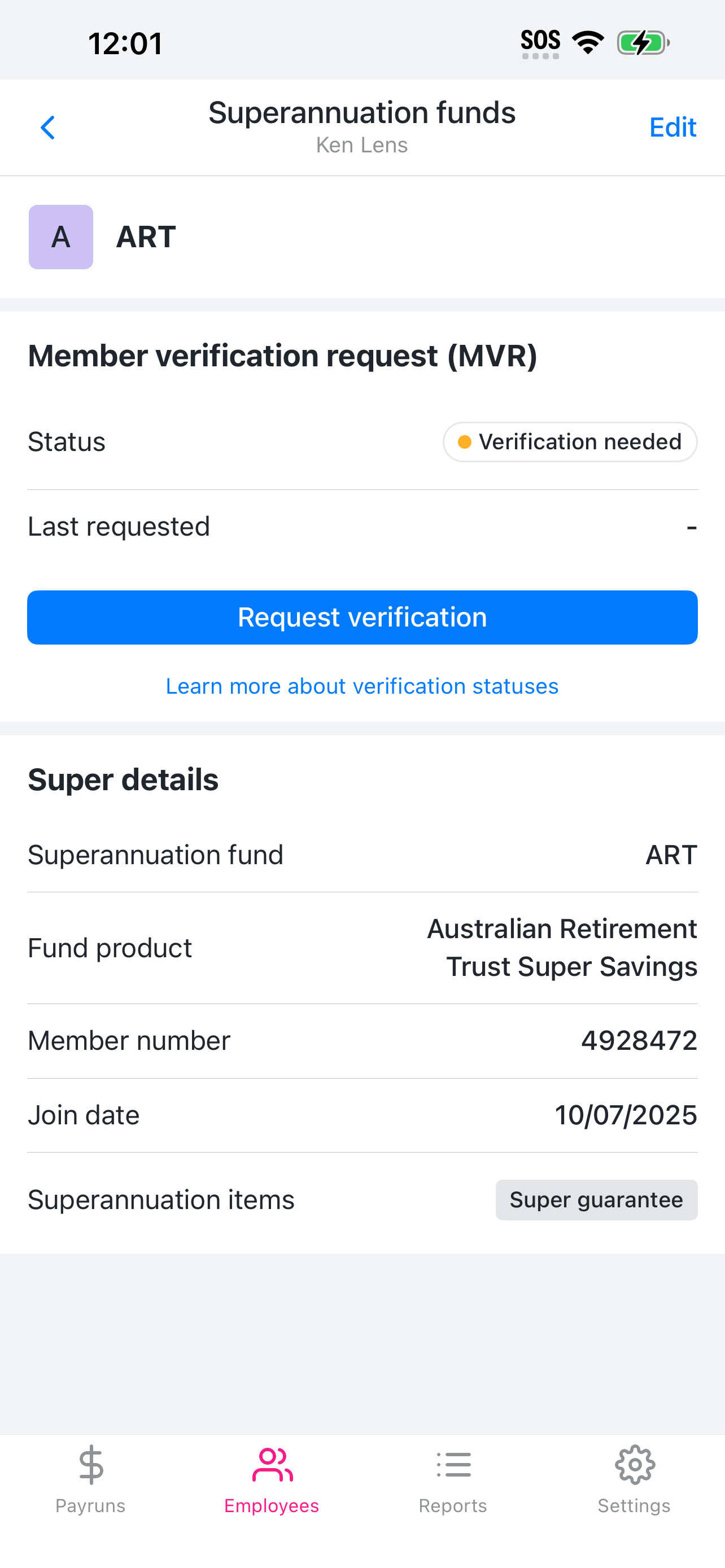
Employee super funds will have a status of 'Verification needed' when a superannuation fund or fund product is added to an employee.
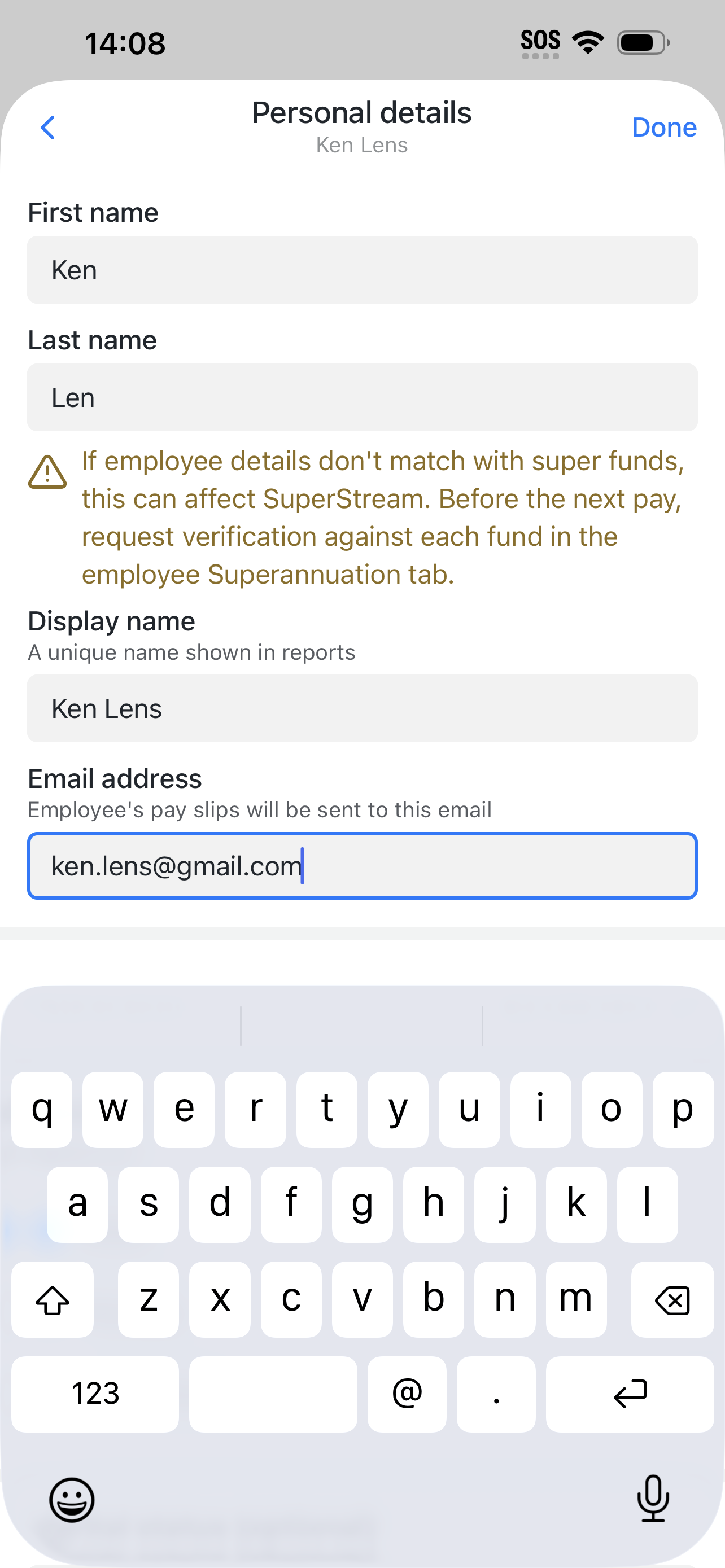
Updating particular employee details (first or last name, date of birth, or tax file number) won't change the employee super fund status to 'Verification needed'. You should still request verification after updating any of these details. A warning will appear to remind you.
The warning is a reminder only — it doesn't stop you saving your changes, doesn't automatically send a verification request, and doesn't change the current verification status. After changing any of these details, open the employee's Superannuation tab and request verification against each fund before your next pay run.
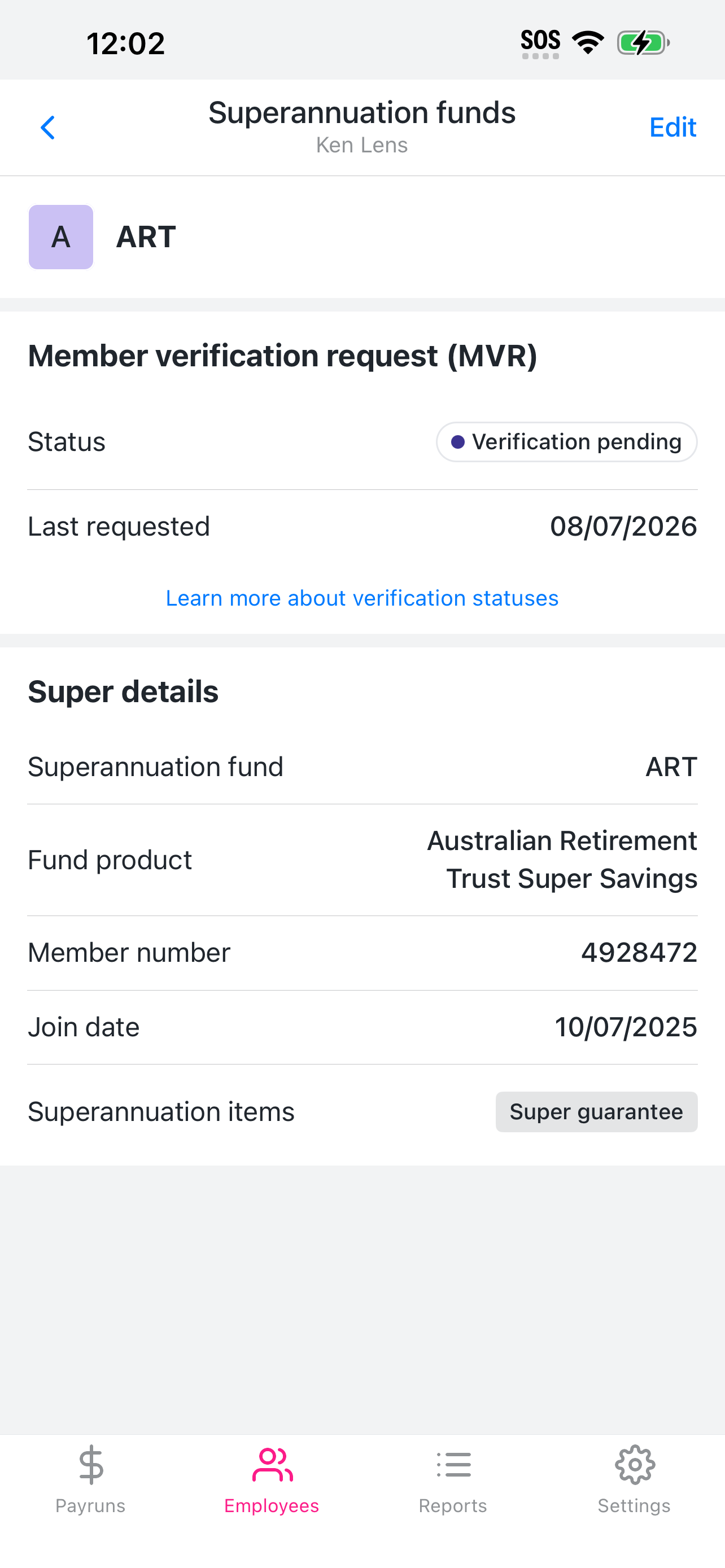
When you request verification with a fund, the status will change to 'Verification pending' for up to 48 hours before returning a result (Verified, Rejected, or Verification unavailable).
Before you start
Before requesting a member verification, you:
must have enabled Beam as your SuperStream service.
should confirm that the employee's details are accurate, including:
First name
Last name
Date of birth
Tax File Number (TFN)
Super fund account details
Verification statuses
Each employee super fund has a verification status.
Status
What it means
Action to take before submitting STP or SuperStream
Verification needed
A superannuation fund or fund product has been added to the employee.
Request verification.
Verification pending
A verification request has been made in the last 48 hours and we're awaiting a response from the fund.
Check back within 48 hours to see if the fund is verified.
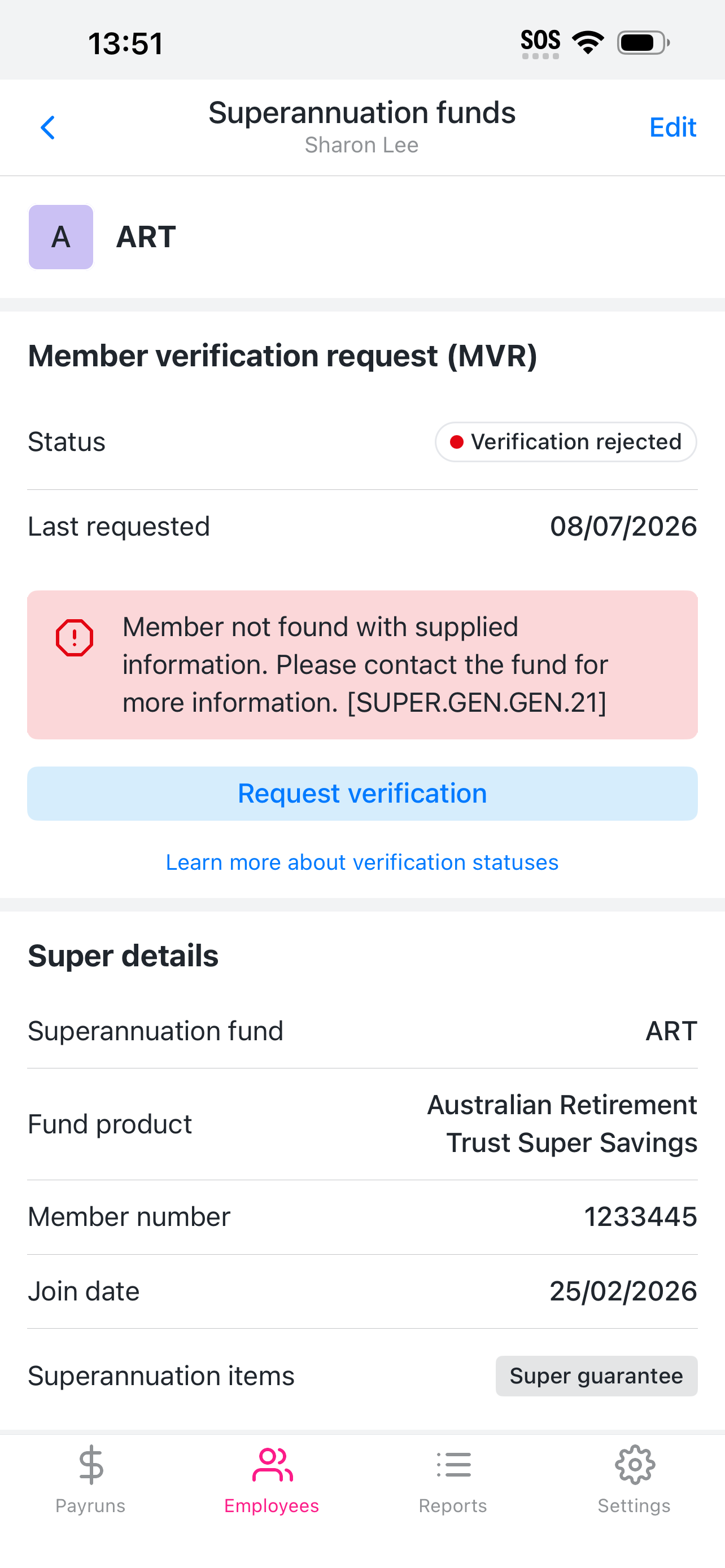
Rejected
The super fund cannot receive contributions because the employee and fund details do not match to an active account. Essentially, the fund has not been able to confirm that it can accept contributions for this employee.
See why the request was rejected, update details, then request verification again.
Verification unknown
The employee was entered into the app or Reckon One before the member verification request (MVR) was introduced, and has not had a verification since. It's likely that most employees with this status will have up-to-date super fund details and an active account with the super funds, but we can't tell you for sure.
Request verification if you've changed employee or super fund details since last SuperStream lodgement.
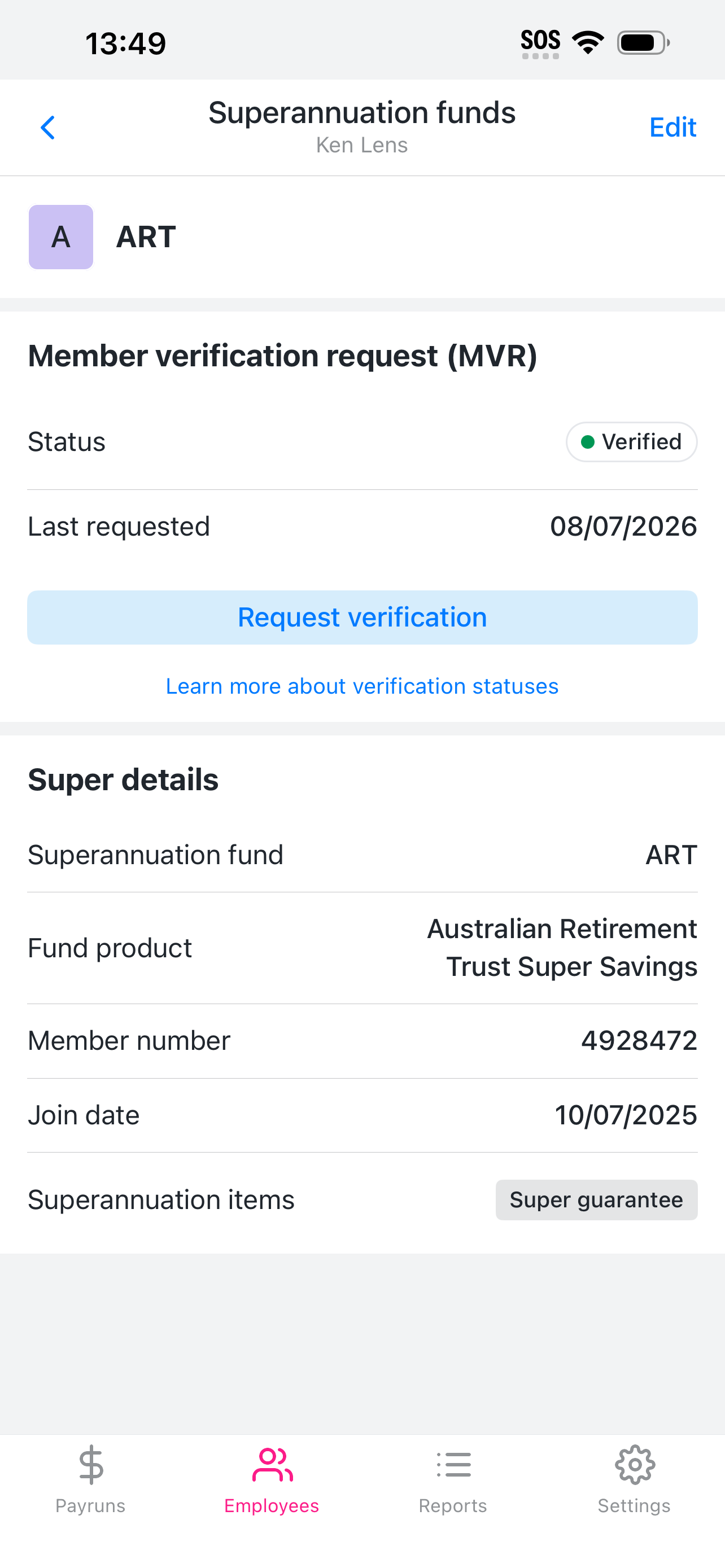
Verified
The super fund has confirmed that the employee and fund details match to an active account, and the fund can receive contributions.
No action required unless you've changed employee details (name, tax file number, date of birth) since last SuperStream lodgement.
Verification unavailable
The super fund does not yet support MVR.
No action required.
Verify an employee's super fund
To send a member verification request for an employee:
Tap on Employees in the footer navigation.
Select the employee whose super fund you want to verify.
A warning icon (⚠️) next to an employee's name in the employee list flags a super fund that needs your attention. For example, when a fund is Verification needed (verification hasn't been requested yet) or Rejected (the fund couldn't confirm the details). Open the employee's Superannuation tab to see which fund is affected and request verification.
Go to the employee's Superannuation tab.
A notification dot appears on the employee's Superannuation tab when a super fund needs your attention — specifically when the status is Verification needed or Rejected.
Tap Edit and review the fund details. Tap Request verification when ready.
The status changes to Verification pending while the request is sent to the fund through Beam.
When the fund responds, the status updates to Verified, Verification unknown, or Rejected.If the fund returns a Rejected, the app displays the message returned by Beam so you know what needs to be corrected. Common rejection causes include a mismatched member number, an incorrect USI/ABN, or personal details that don't match the fund's records. Double check the employee super details are correct before requesting verification again.

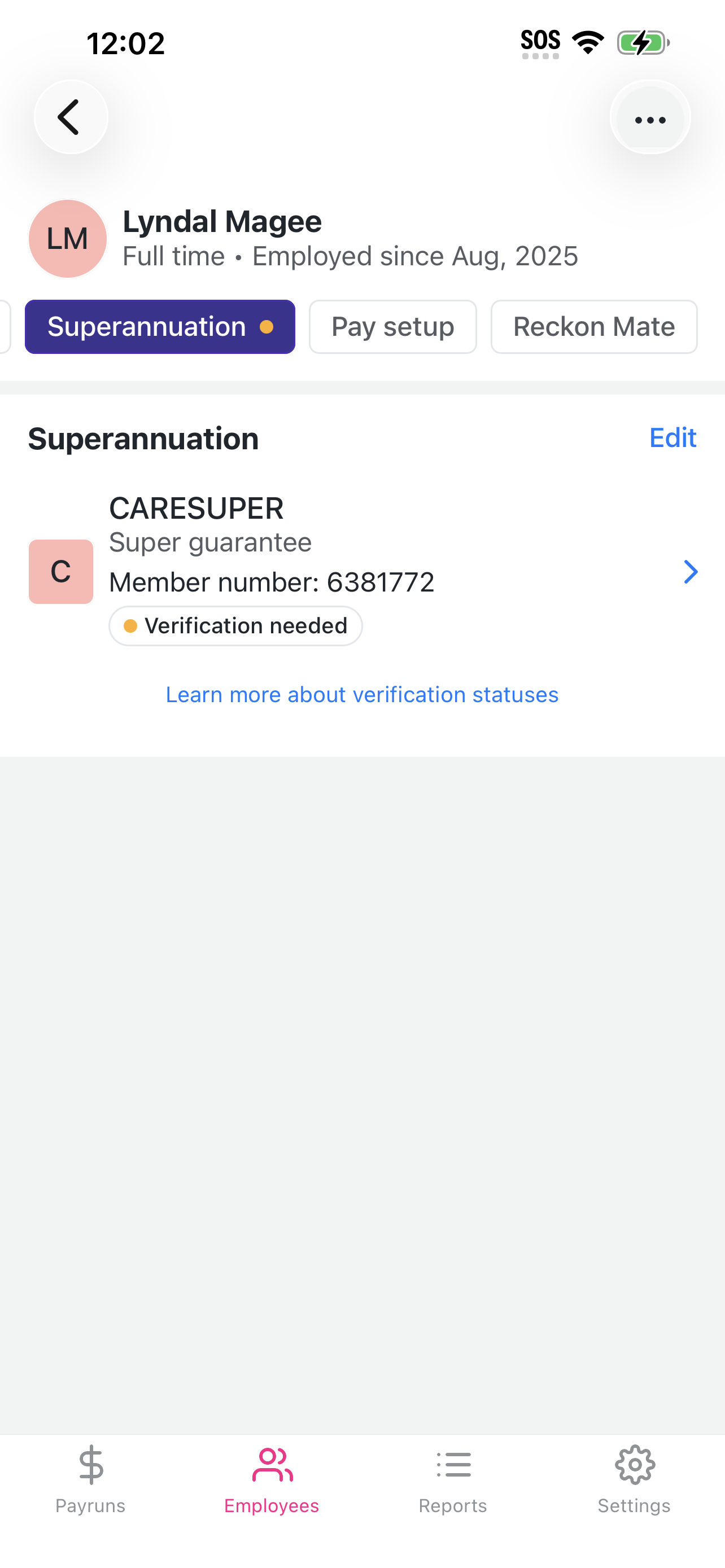 A notification dot appears on the employee's Superannuation tab when a super fund needs your attention — specifically when the status is Verification needed or Rejected.