Updating Reckon Accounts Desktop (v35): Replacing DLL Files to Enable QE on the "Post June 1983 Untaxed Element" Wage Type
Overview
We've identified a scenario where Qualifying Earnings (QE) was not being enabled on the Post June 1983 Untaxed Element (Low Rate Threshold) (O) wage type.
This wage type is used when processing a payment in lieu of notice, and payments in lieu of notice do attract QE. If you use this wage type, you'll need to apply a small update so QE is correctly applied.
The update is delivered as a self-extracting updater (an .exe file) that places the updated program files into your Reckon Accounts v35 installation folder for you. You'll need to run it as an administrator.
Before you begin: Check whether you need this update
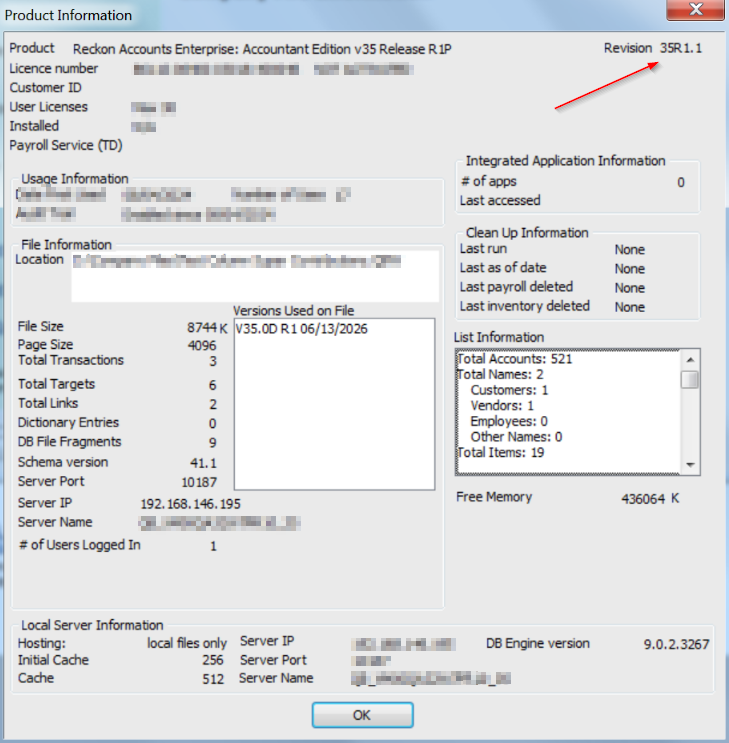
You only need to follow these steps if you are running a version earlier than v35 R1.1. The fix is already included in v35 R1.1 and later.
To check your version
- Open Reckon Accounts Desktop
- Press Ctrl + 1 to open the Product Information window.
- Look in the top-right corner for your version and release
How to apply the update
Step 1 - Close Reckon Accounts Desktop
- Fully close Reckon Accounts before you start. The DLL files are in use while the program is open and cannot be replaced until it is closed.
Step 2 - Locate your installation folder
- By default, Reckon Accounts v35 is installed here: C:\Program Files (x86)\Intuit\Reckon Accounts v35
Step 3 - Back up your existing files
Before replacing anything, make a backup of the current files so you can restore them if needed:
- Open your installation folder, using File Exporer
- Locate:
- Features.DLL
- paycore.DLL
- PAYRES.DLL.
- Copy these three files to a safe location (for example, a new folder on your Desktop named Reckon DLL Backup).
Step 4 - Download the updater
- Download the install files from the link provided
Step 5 - Run the updater
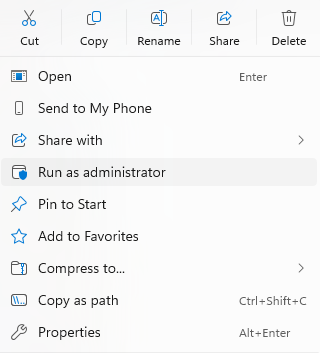
- Right-click the downloaded .exe file and choose Run as administrator.
- Click Yes to the message "Would you like to install now?
- If you installed to a different location, replace the Unzip to Folder path with the one you noted earlier.
- Click Unzip
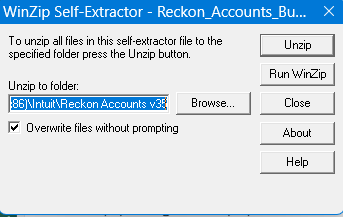
- If prompted to override files, click Confiom or Yes
Step 6 - Reopen and confirm
Reopen Reckon Accounts Desktop.
Open the Pay Items List
Add or Edit a Payitem, when the Post June 1983 Untaxed Element (Low Rate Threshold) (O) wage type is selected, the QE box will appear on the Inclusions screen.
