Table of Contents
Switch to the new reports experience in Reckon One
Learn how to switch to the new reports experience in Reckon One and why you'd want to.
About the new reports experience
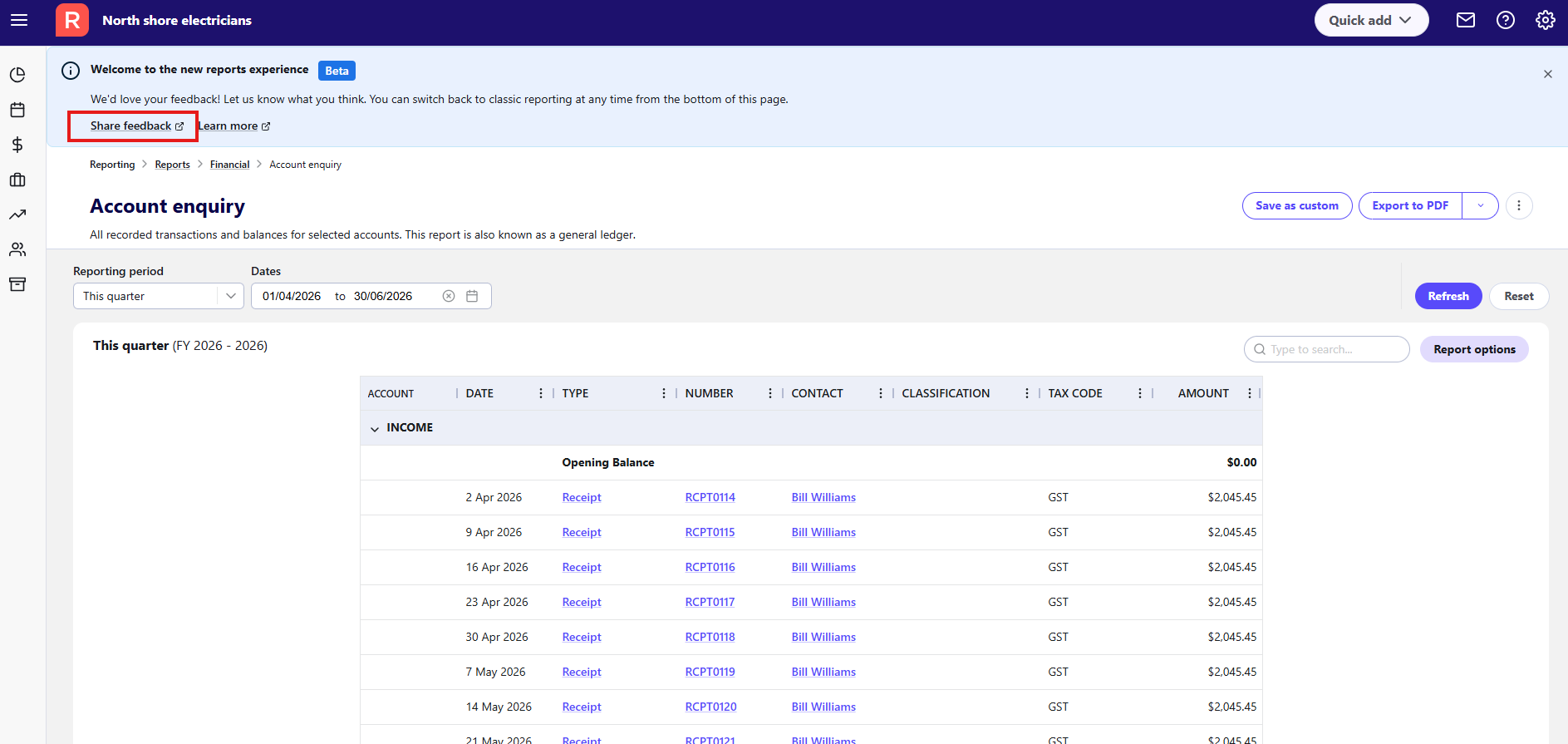
The new reports experience is designed to make it quicker and easier for you to find and view your data. It features:
- a new grid layout that makes it easier to read and compare data, with more interactive functionality like the ability to resize, move, and pin columns (so they stay on your screen as you scroll).
- expanded presentation options, such as the ability to add alternate line shading, adjust row line spacing, and include vertical lines. Columns can also be pinned.
- improved filtering and sorting capabilities:
- more easily add and remove general report filters
- filter and narrow down data in individual columns
- sort columns on the fly.
- the ability to search for specific data within reports.
The new experience is currently available for select reports in Reckon One. It's optional, and you can switch back at any time. We encourage you to give us feedback, as we look at refining the experience and expand it to more reports.
Switch to the new experience
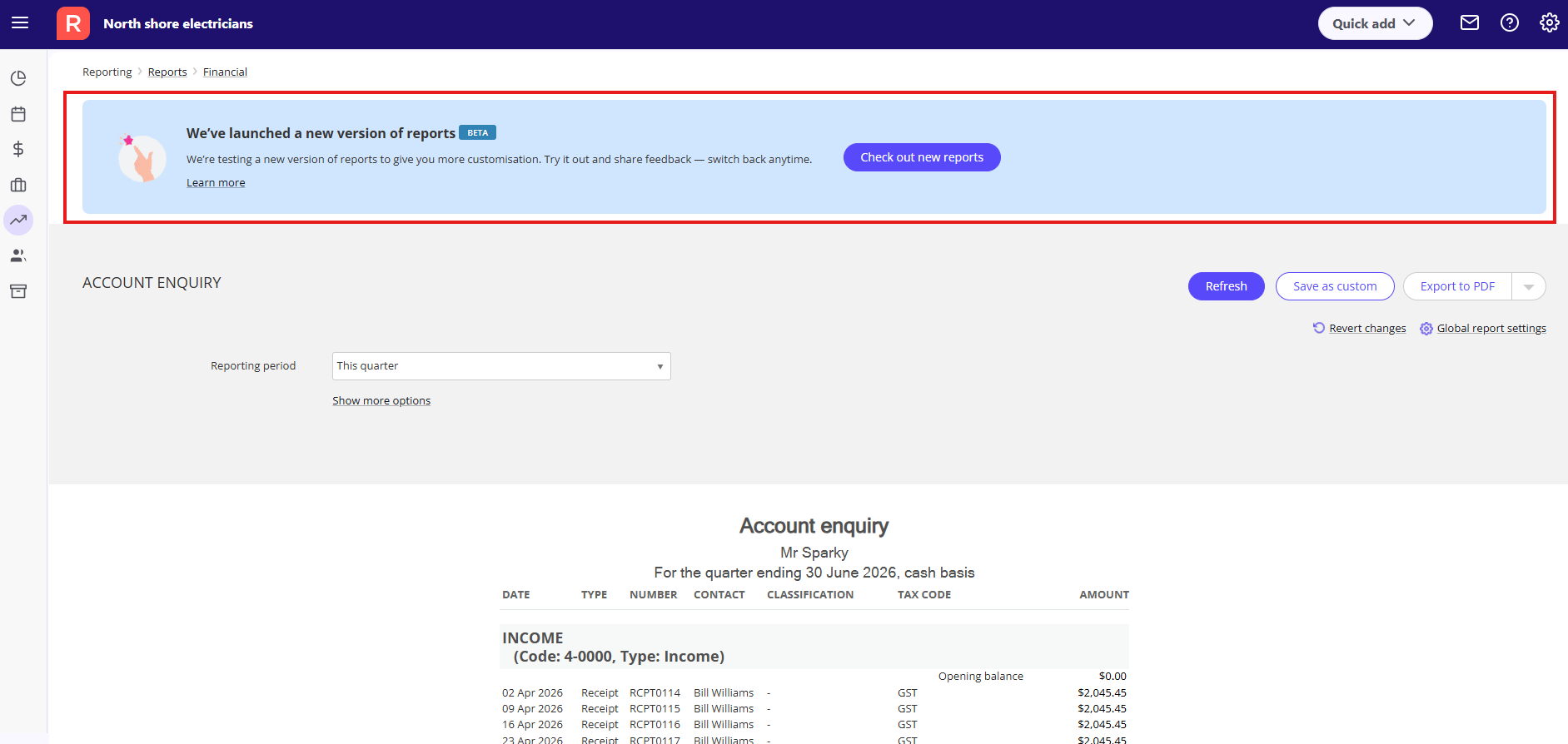
You can switch to the new experience from within any report in Reckon One. When you open a report, you'll see a banner inviting you to switch. Click on Check out new reports. Once you click this, every report will show in the new experience.
Switch back to the classic experience
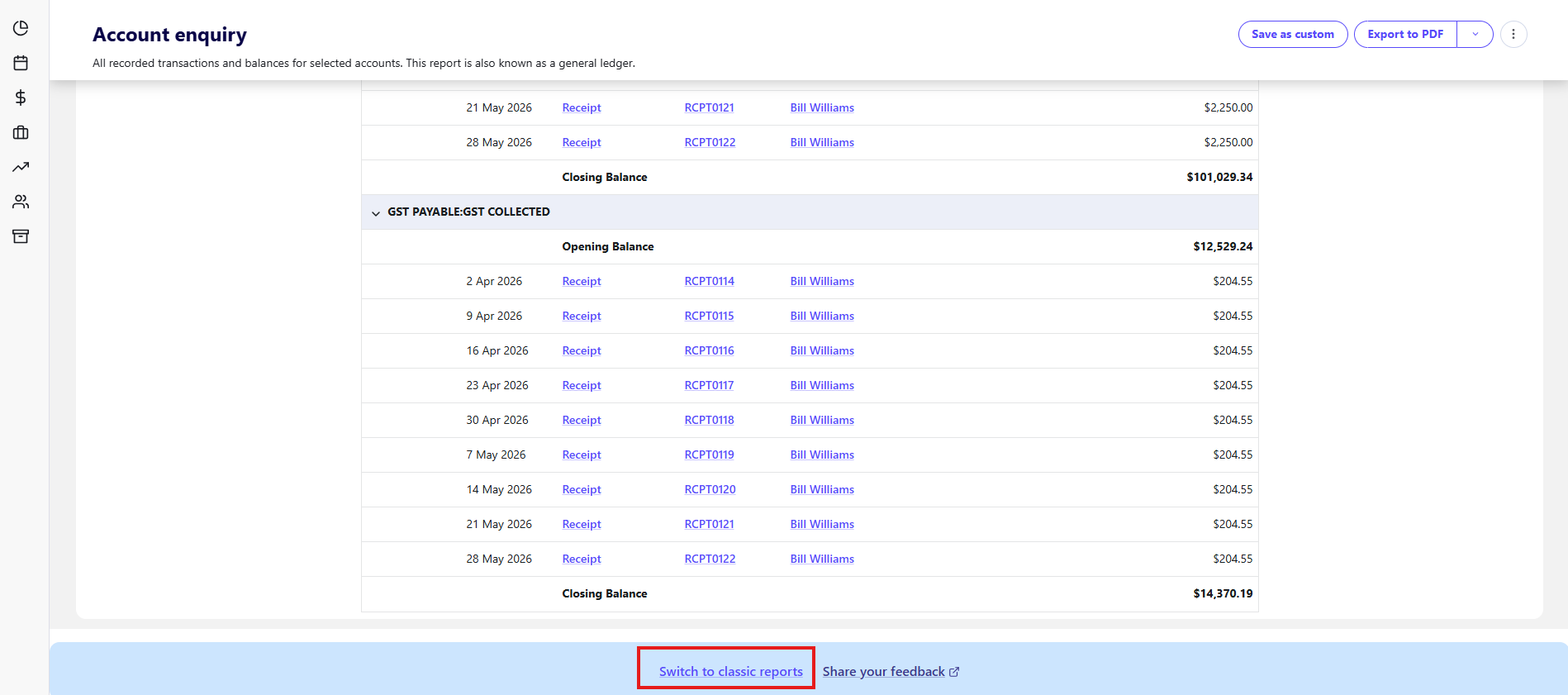
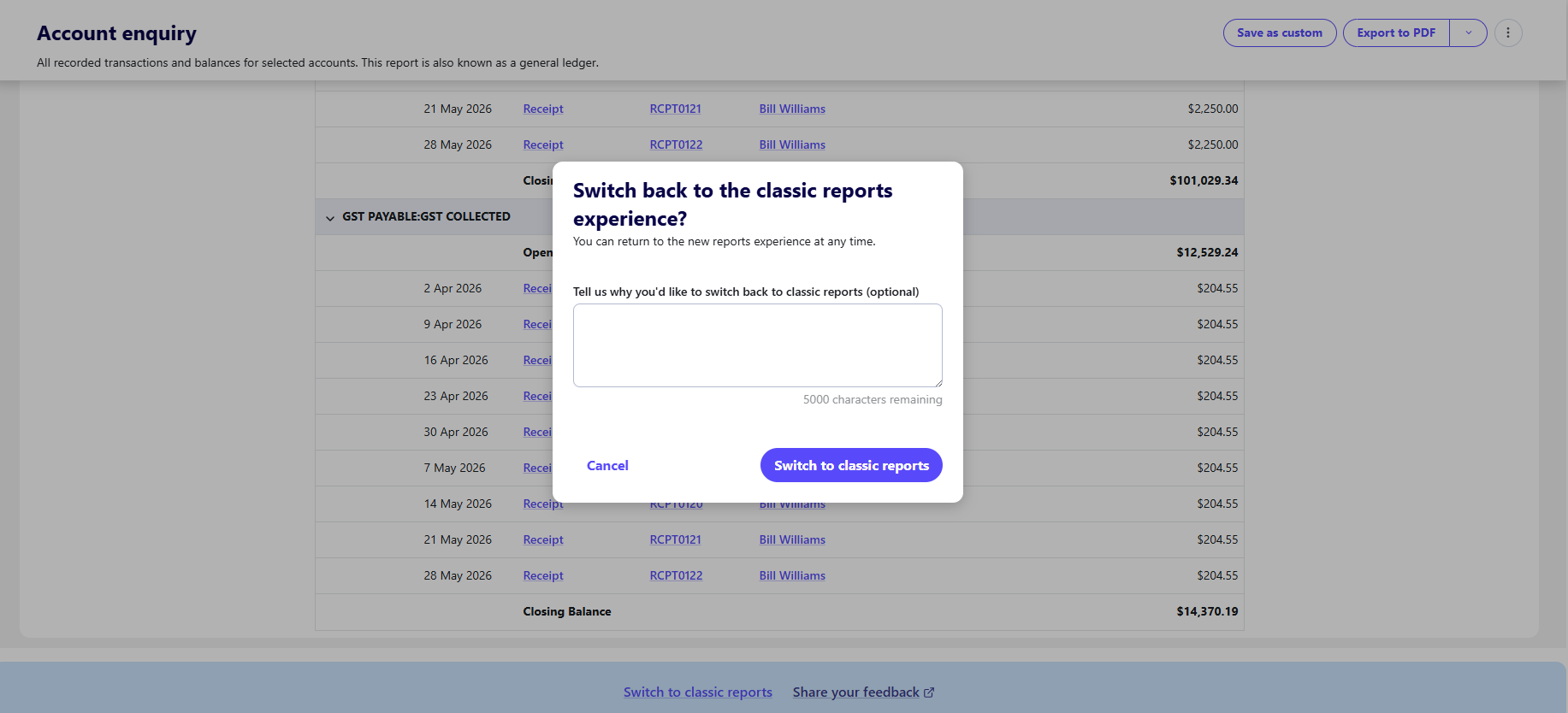
To switch back to the classic reports experience, scroll to the bottom of the report and click Switch to classic reports. When prompted, please consider leaving us your feedback on the new experience.
Give feedback
This improved experience has been designed and released as a response to customer feedback. We hope (and have a strong hunch) that we've gotten it right, but that's for you to decide. Please share your feedback - positive or constructive - to help us out as we further refine this new experience, and expand it to more reports.
You can give feedback from within the new experience by clicking on the Share your feedback link in the banner at the top of the screen. Or, if you do choose to switch back, you'll be given the option to leave your feedback via a form field when you click to switch back.