Table of Contents
Export reports in Reckon One
Learn how to export a report to PDF, CSV, or XLSX in Reckon One, so you can save, print or share it more broadly.
This article applies to the new reports experience.
Export the report
- In the menu, select Reporting, then select Reports.
- Select a report category (for example, Financial), then select the report you want.
- Once you’re viewing a report, you can export it straight away with its current settings, or if exporting to PDF, customise how it looks first.
- To export without customising, click Export to PDF, found at the top right of the report, or click on the arrow next to Export to PDF and select Export to CSV or Export to XLSX.
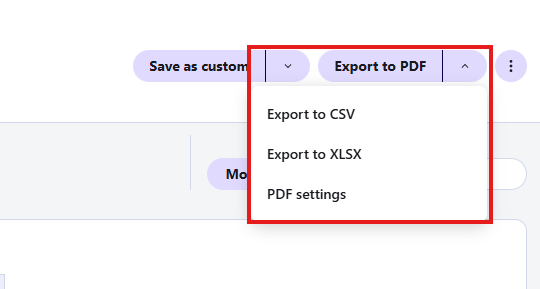
- To customise before exporting to PDF, click on the arrow next to Export to PDF and select PDF settings. See more about customising PDF settings for a report.
- To export without customising, click Export to PDF, found at the top right of the report, or click on the arrow next to Export to PDF and select Export to CSV or Export to XLSX.
Reckon One prepares your export. For reports with a lot of data, this can take up to a minute or more. Once it’s ready, the export downloads to your computer automatically.
Customise PDF settings for a report
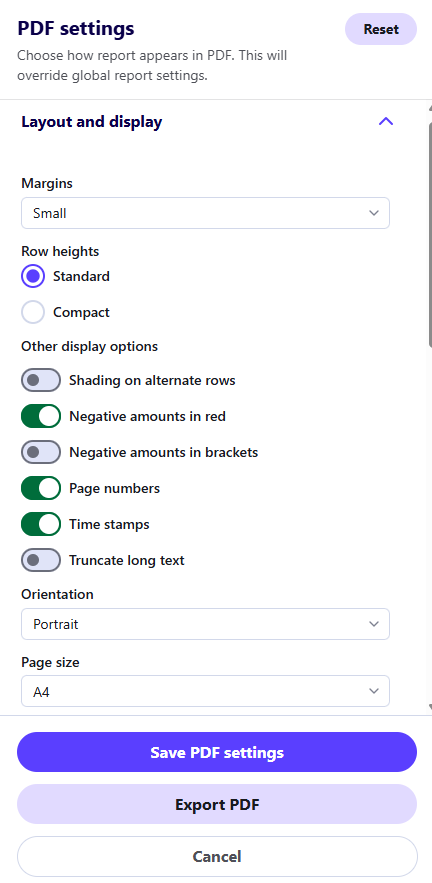
PDF settings let you change how a report looks when it’s exported to PDF. These settings apply only to this report’s exports, and override any global report settings.
- Click on the arrow next to Export to PDF and select PDF settings.
- Under Layout and display, set any of the following:
- Margins – how much white space appears around the edge of the page.
- Row heights – select Standard or Compact.
- Turn on or off Shading on alternate rows, Negative amounts in red, Negative amounts in brackets, Page numbers, Time stamps and Truncate long text, as needed.
- Orientation – for example, Portrait.
- Page size – for example, A4.
- Scaling – select Smart page breaks, Fit all columns on one page or No scaling.
- No scaling - the report will display without any automated scaling applied
- Fit all columns to page - the sizing of the report in the export will be automatically adjusted so that all of the columns fit to the page. This may shrink the font size to fit all the data into the page.
- Smart page breaks - key columns such date, account etc. may repeat across pages to provide the necessary context for the data on that page.
- Under Header, enter or update:
- Header text, which appears at the top of the page.
- Name of report (maximum 50 characters).
- Text under report name, which appears under the report name.
- Header alignment – for example, Middle.
- Under Footer, enter Footer text to appear at the bottom of each page.
- Click Export PDF to export the report using these settings, or click Save PDF settings to save them for next time without exporting now.
Quick search and conditional filter values are intended for on-screen analysis and are not included in PDF exports. If enabled they will show in the CSV and Excel exports.
Reset PDF settings
To clear your changes and restore the report’s global PDF settings, click Reset at the top of the PDF settings panel.
Read more
- Learn about the new reports experience in Reckon One
