Award Transport Payments
KB ID: HT6500
What is changing?
This guide outlines what you need to do in Reckon Accounts before your first pay run on or after 1 October 2026, following the ATO's changes to award transport payments.
From 1 October 2026, the PAYG withholding variation to nil for award transport payments ends. You must withhold PAYG from these payments, and you can no longer identify them separately in Single Touch Payroll as award transport payments (allowance type AD).
Before you start
We recommend reviewing:
- Changes to award transport payments - ATO (external link)
- Allowances - STP Phase 2 employer reporting guidelines - ATO (external link)
If you are unsure how this applies to your business, speak with your accountant or payroll advisor.
Key information
- Applies to employee payments to award transport payments (allowance type AD)
- 1 October 2026 - Stop recording payments to award transport payments
- Payments now reported as Allowance – Other (Transport/Fares) (OD > T1) or Allowance – Other (Private Vehicle) (OD > V1)
- 1 July 2027 - You can no longer lodge STP reporting that contains allowance type AD
Choosing a transition method
The ATO allows two ways to move across. Pick one before you run your first affected pay.
Cutover method (recommended)
Stop adding new amounts against the award transport payment classification and start reporting new amounts under the new classification. Amounts already reported as AD stay where they are. Use this any time before your first payment on or after 1 October 2026.
Zeroing out method
Lodge an STP update event that zeros the year to date amount for allowance type AD and adds those amounts to the new classification. Available until 31 December 2026. If you transition after 1 October 2026 you still need to be withholding correctly from that date.
Cutover method - Creating a new allowance type
We have created a step-by-step process in creating these new items in Reckon Accounts.
- Go to Lists.
- Select Payroll Item List.
- Create a New under Payroll Item.
- Select Addition under Payroll Item Type.
- Name it Transport Allowance or Private Vehicle Allowance
- Set it to your Payroll Expense account.
- Set the Tax Tracking Type as Allowance – Other (Transport/Fares) or Allowance – Other (Private Vehicle)
- In "Taxes", select PAYG (and State Payroll Tax if it applies)
- Under Calculate this item based on Hours select how you want it calculated
- Set the Default Rate if required
- Confirm the setup in Inclusions
- Select "Finish".
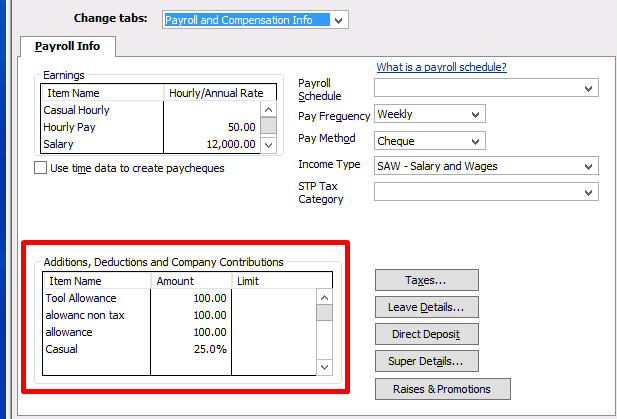
Once this item has been created, you can add it the Additions box located in the Employee's Payroll and Compensation info tab.
Need more help?
Ask the Reckon Community at: https://community.reckon.com/categories/reckonaccounts
Or Log a Support Ticket: https://www.reckon.com/au/support/
