Table of Contents
Payment Receipt
This feature is available from Reckon Accounts 2020 R1.
Desktop release date: Late March 2020
Hosted release date: Late June 2020
Desktop release date: Late March 2020
Hosted release date: Late June 2020
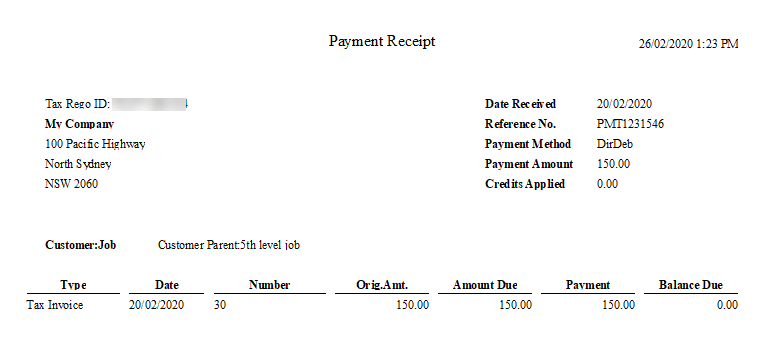
When a Customer pays for one or more Invoices, you can Email or Print a Payment Receipt in Reckon Accounts.
For existing Customer Payments
- Find the Customer Payment transaction and open it
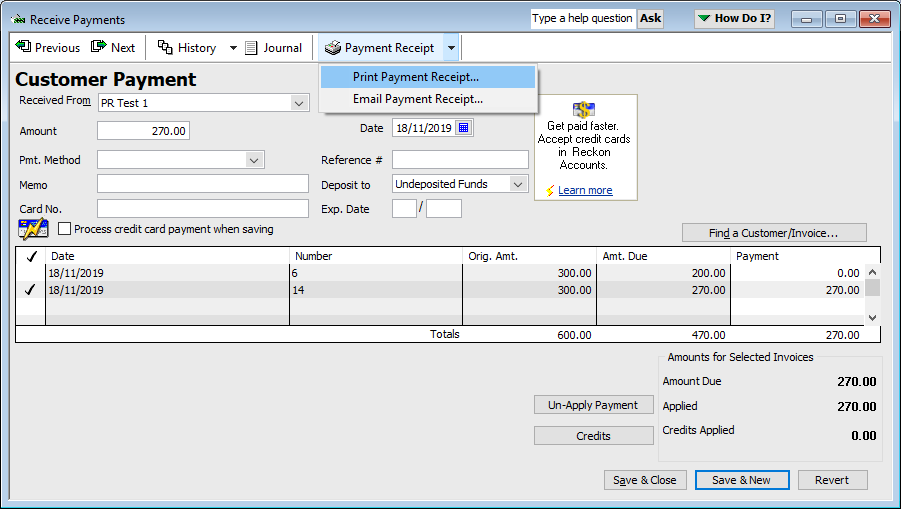
- Click on the Payment Receipt drop down and choose the appropriate method (Print/Email).If you click on the Payment Receipt button, it will print by default.
For new Customer Payment
- Go to Receive Payments (from Home or Customer Centre > New Transactions)
- Select your Customer
- Tick the Invoice(s) and add the amounts as required
- Optional: If credit applies to one or more Invoices, click on the Credits button and apply the Credits as required
If an Invoice is paid out using Credit/Adjustment Note, it will not show in your Payment Receipt unless part of it was paid via Cash/EFTPOS/Credit card etc.
- Click on the Payment Receipt drop down and choose the appropriate method (Print/Email).If you click on the Payment Receipt button, it will print by default.
Default email body of Payment Receipt
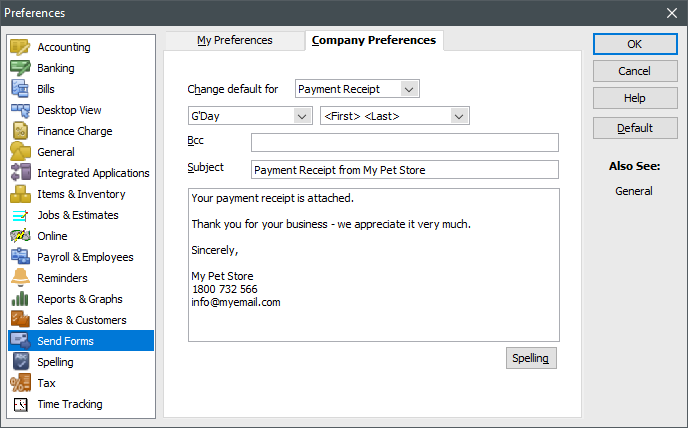
You can customise the default email message of a Payment Receipt.
- Go to Edit > Preferences > Send Forms > Company Preferences
- Choose Payment Receipt from the Change default for drop down