Table of Contents
Processing Jobkeeper payments in Reckon Accounts
How-to Video
Overview
Before you can process JobKeeper payments, you must have added the minimum 3 ATO mandated allowance pay items. Click here to find out how to add the JobKeeper allowance items.
Process the first JobKeeper Payment
- Go to Payroll Centre > Pay Employees
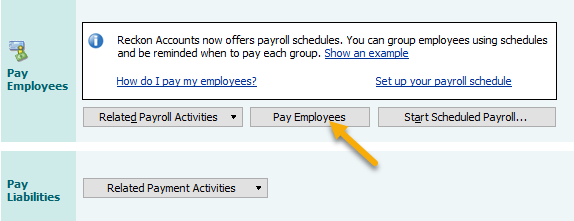
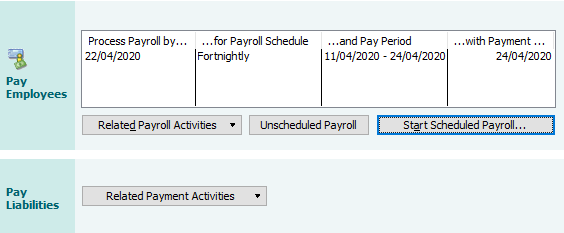
- If you have Scheduled Payroll enabled, choose the appropriate option
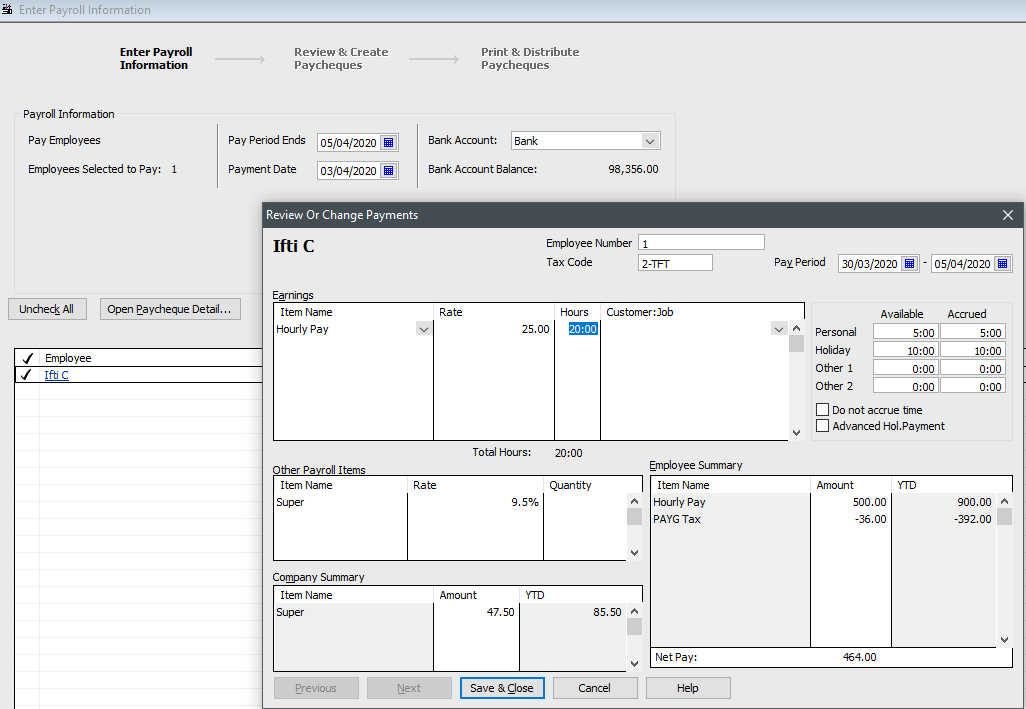
- Click on an employee name to open the paycheque details
- Under Other Payroll Items section, select the appropriate JOBKEEPER-START-FNXX or JK-ST-FNXX allowance item if the pay run is the first JobKeeper payment reporting period for the employee.The JOBKEEPER-START-FNXX/JK-ST-FNXX amount must be blank (or 0).JOBKEEPER-START-FNXX/JK-ST-FNXX allowance item is only used once per employee to notify the ATO that this is the first JobKeeper reporting start period for the employee.
If you want to show this payroll item on the Payslip, you will need to enter 1 cent (0.01) in the Rate field. You might want to offset the 1 cent by using a deduction item.You will need to place 'XX" accordingly to which JobKeeper fortnightly number the pay run date falls in. Click here to find out about the fortnightly number (FN).In the sample pay run below, the pay date is 12 Nov 2020 which falls in FN15 (12/10/2020 - 25/10/2020) period. `JOBKEEPER-START-FN15` allowance item is created and used on the first JobKeeper payment reporting. You can use eitherJOBKEEPER-START-FN15ORJK-ST-FN15. - On the next line select the JK-TIERX (either 1 or 2) allowance item. The "JK-TIERX" amount must be 0.00 (nil).
The "JK-TIERX" allowance item is only used once to notify the ATO that this is the payment tier the employee has been determined by the business to fall into.
In this example the employee is starting in Fortnight 15 and falls into Tier 1.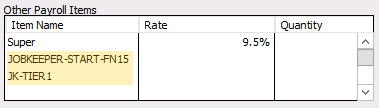
- On the next line select the JOBKEEPER-TOPUP allowance item. As the ATO guarantees a minimum wage of $1200 per fortnight ($600 weekly or $2400 for 4 weeks) for JobKeeper, the top up allowance item is used to calculate the top up the gross amount.
In the sample weekly pay run below, the employee is paid for his ordinary wages ($500). However, his hours worked has reduced to only 20 hours. The JOBKEEPER-TOPUP allowance amount will be $100 ($600 - $500).Even if the employee's normal wage is less than $1,200 per fortnight for Tier 1 employees / $750 for Tier 2 employees, or the hours worked for a casual equate to less than $1,200 per fortnight for Tier 1 employees/ $750 for Tier 2 employees, the Government has guaranteed a $1,200 minimum for Tier 1 employees / $750 for Tier 2 employees and hence all wages less than $1,200 per fortnight for Tier 1 employees / $750 per fortnight for Tier 2 employees must be "topped up" to this amount. Please see your qualified adviser for further information.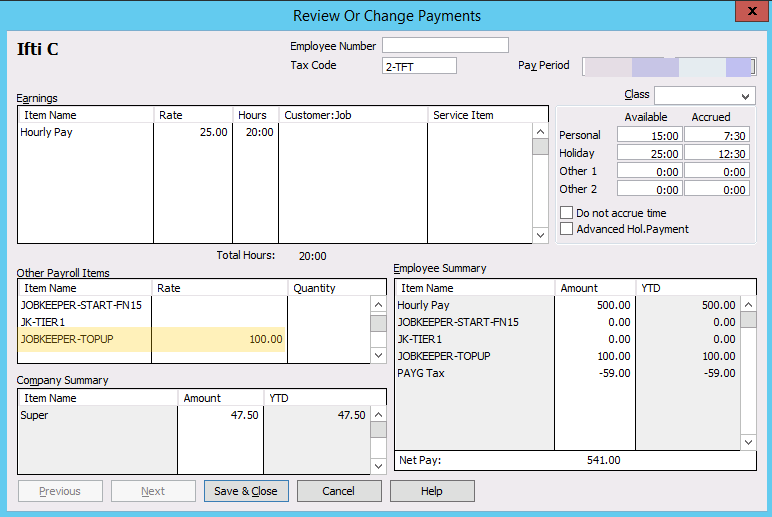
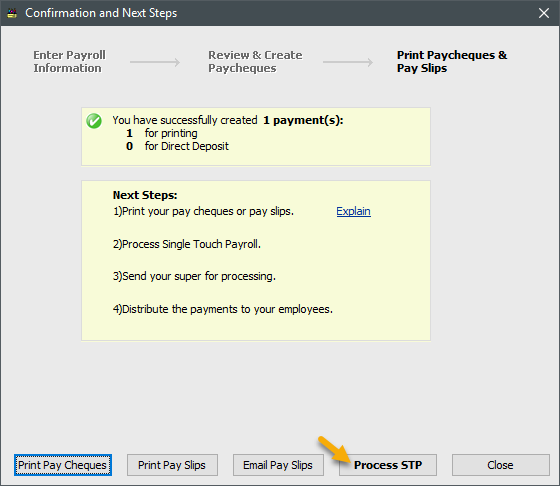
- Complete the pay run and select Process STP (this new option is available in Reckon Accounts 2020 R1, for older versions please go to Employees menu > Process Single Touch Payroll)
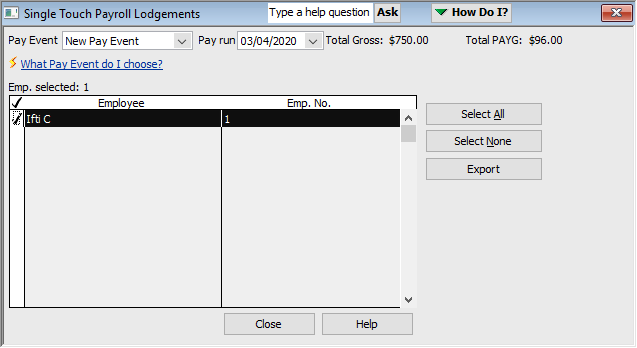
- Select New Pay Event (this new option is available in Reckon Accounts 2020 R1, for other versions you do not need to choose the Event type)
- Choose the pay run and select the employee/s that are part of it
- Click Export (Reckon Accounts 2020 R1) or Lodge (older versions)
Subsequent Pays
The Federal Government guarantees the below minimum wage for JobKeeper, therefore a top up allowance item is used to increase the employee's gross wage to this minimum guarantee.
- Tier 1: $1,200 per fortnight ($600 weekly or $2400 for 4 weeks)
- Tier 2: $750 per fortnight ($375 weekly or $1500 for 4 weeks)
For subsequently pay runs after the first JobKeeper payment is reported, you would only need to use JOBKEEPER-TOPUP to report the top up gross amount.
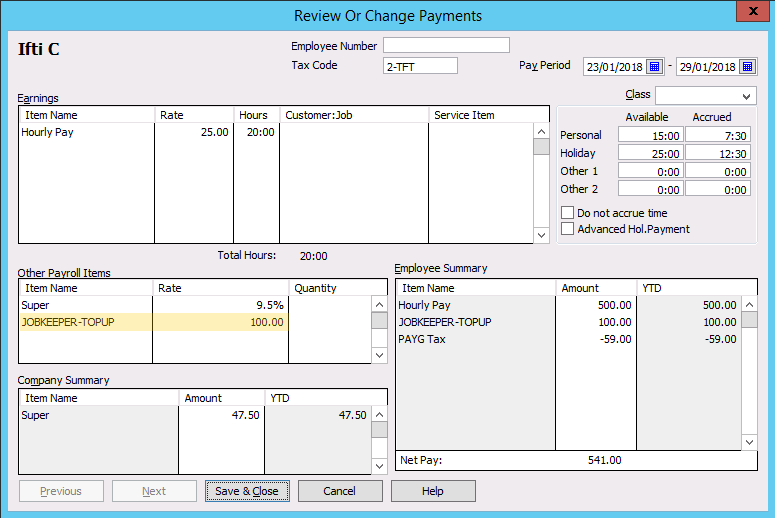
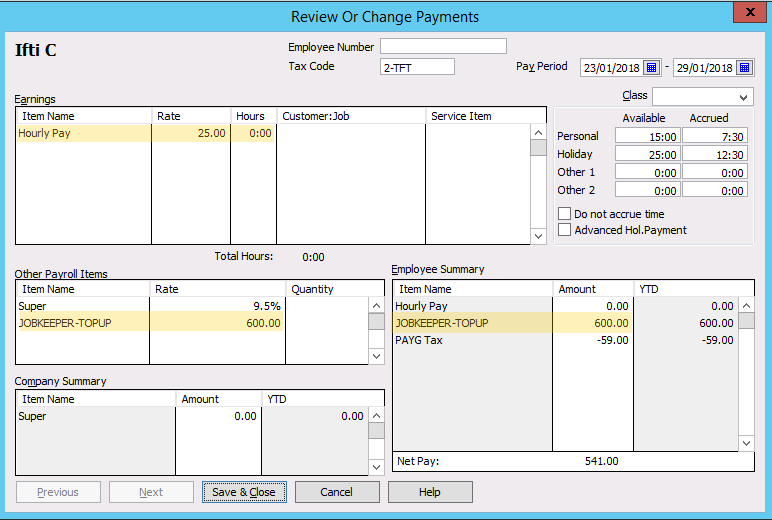
In the sample weekly pay run below, the employee has not been paid his ordinary wage as the business has closed. JOBKEEPER-TOPUP allowance gross amount will be $600.
Top Up for a closed business
In the weekly pay run example below, this Tier 1 employee has not been paid his ordinary wage as the business has closed during the COVID-19 pandemic. The JOBKEEPER-TOPUP allowance gross amount will therefore be $600 ($1,200 / 2).
nb. If the employee was normally paid every 4 weeks the payment would be $2,400 ($1,200 x 2).
Final pay of JobKeeper Payment
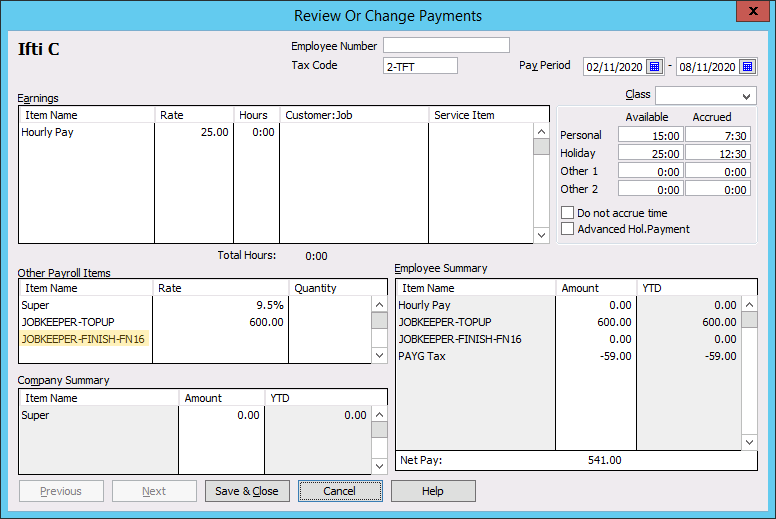
JOBKEEPER-FINISH-FNXX or JK-FI-FNXX allowance item is used on the pay run to inform the ATO when the employee is no longer eligible for JobKeeper payments.
If you want to show this payroll item on the Payslip, you will need to enter 1 cent (0.01) in the Rate field. You might want to offset the 1 cent by using a deduction item.
JOBKEEPER-FINISH-FNXX/JK-FI-FNXX allowance item is only used once to notify the ATO that the this is the final jobkeeper reporting end period for the employee.
In the sample pay run below, the pay date is 4 November 2020 which falls in FN16 (26/10/2020 - 08/11/2020) period. JOBKEEPER-FINISH-FN16 allowance item is created and used on the last JobKeeper payment. You can use either JOBKEEPER-FINISH-FN16 OR JK-FI-FN16.
Leave Requirements
For information about leave requirements for employees during JobKeeper please consult the Fairwork Australia website.
If after consulting Fairwork you are required to accrue leave on an employee without them working (ie. the employee has been stood down from the business, either fully or partially), you may need to change their leave accruals to handle this. To determine whether you should be doing this, it is best to speak to your bookkeeper or accountant first for advice.
The below information is general in nature and should not necessarily be relied upon for every businesses circumstance.
If you are required to accrue leave on a employee even though they are not working, you may need to change their accrual details for leave.
Method 1
- Go to Lists menu > Payroll Item List > Right-click in the list and select New
- Create a new item with the following:
Payroll item type = Wage
Wages (screen 1) = Hourly Wages
Wages (screen 2) = Regular Pay
Name used in payments and payroll reports = Stand down (business discretion)
Expense account = business discretion
Tax tracking type = Gross Payments
Taxes = Not required as the value on the payslip will be 0.00
Inclusions > Include in "Every hour worked" leave accruals = YES
Inclusions > Super = Not required as the value on the payslip will be 0.00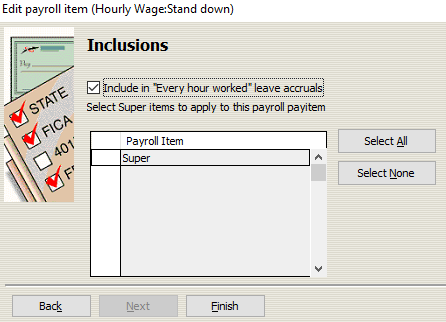
- Select Finish
When completing your pay run, use the employees normal Earnings item as per normal with the reduced hours. Note this will reduce the leave accrued.
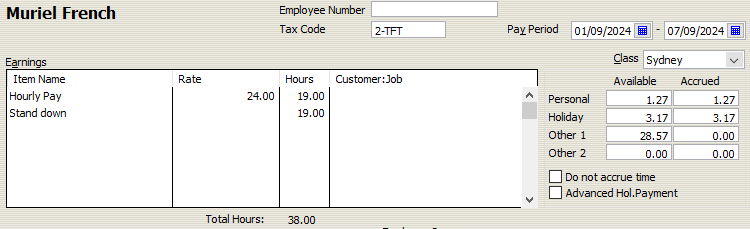
Then add the Stand down earnings item, with no Rate, however include the hours that have been lost due to the employee being partially or fully stood down. Note this will increase the leave accrued.
In the example below, the employee has been partially stood down from 38hrs per week to 19hrs per week. Using the Stand down earnings item the pay has reduced however the leave has accrued on a 38hr work week.
Method 2
To change leave accrual details of an employee, you will need to:
- Go to Employee Centre
- Double click on the employee
- Change tabs: to Payroll and Compensation Info
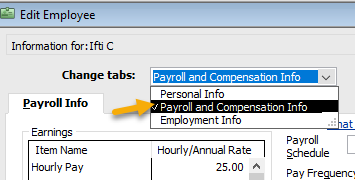
- Click Leave Details > Holiday
- Make the required change. One way to achieve accruing leave whilst not paying employees is to set the Accrual period to Pays. This means that every time the employee has a pay run processed, even if its only for JobKeeper or for a $0 payment, leave will be accrued to the employees profile. You will need to adjust the Hours accrued per pay amount to the amount a employee usually accrues per pay period when working for your business.
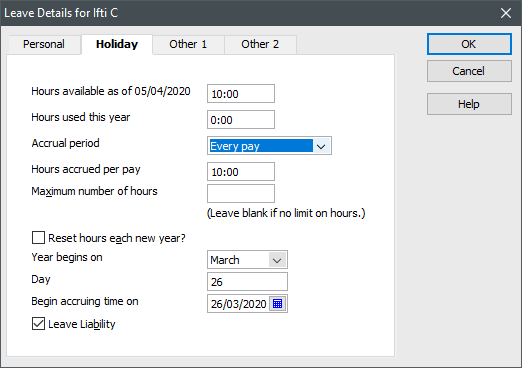
- Once you are done, click OK > then OK again to close the employee's profile
- Repeat the above steps if you need to update more than one employee records
