Table of Contents
Introduction
User and Feed Management
Also on this page:
Why User and Feed Management
Insights User and Feed Management has two main purposes:
- Data: Administering data feeds, and permissions around those data feeds.
- Access: Control of access to Insights content presented through the application.
Landing Pages
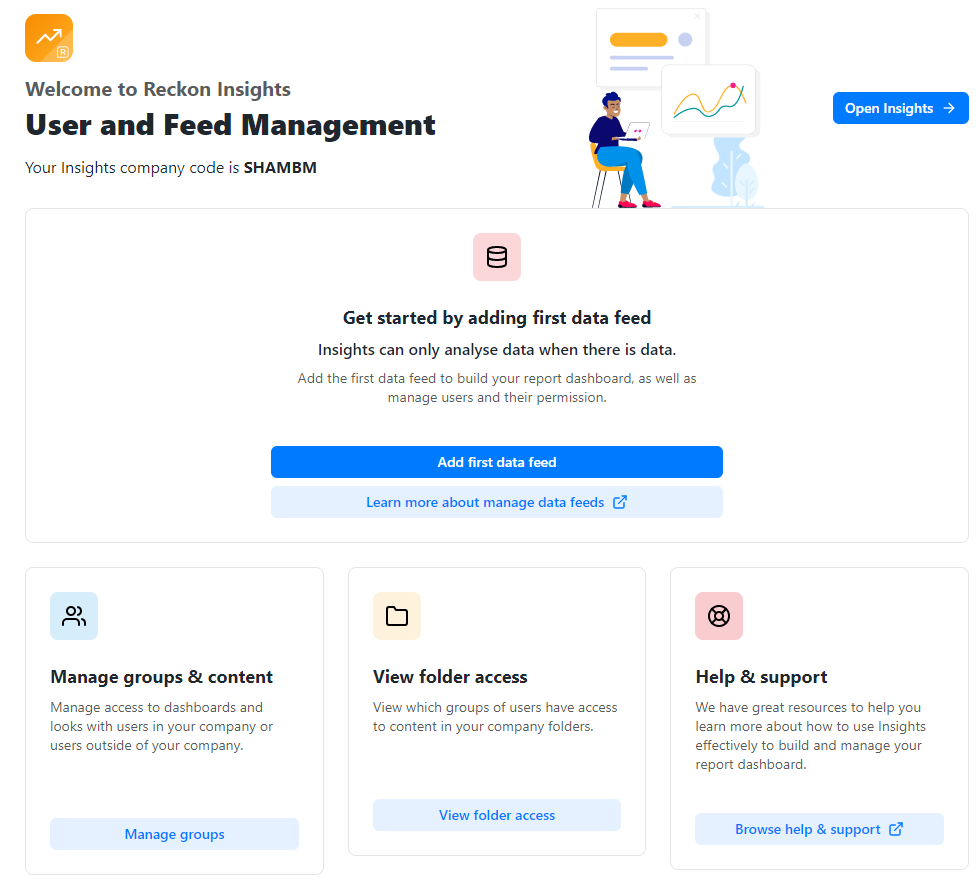
When opening for the first time, Reckon Insights User and Feed Management presents the following landing page, prompting you to set up the first data feed. For more on data feeds, see Data Feeds.
Thereafter the landing page is the following:
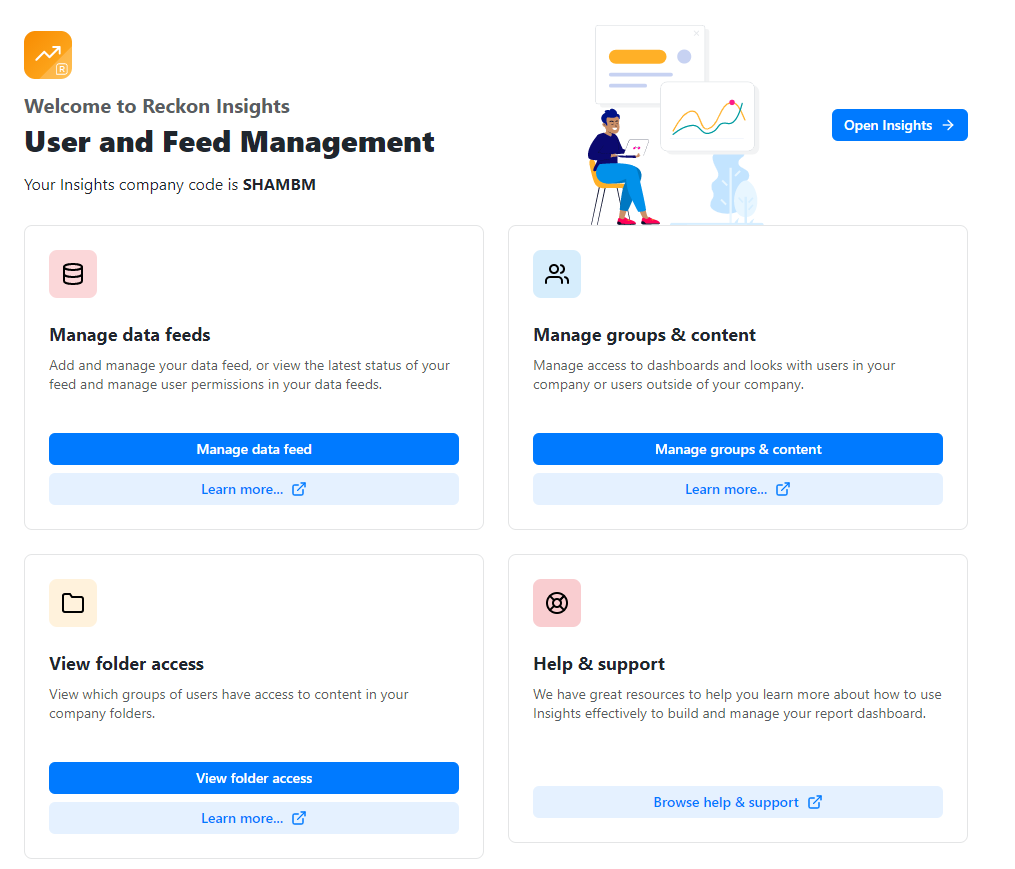
From this page there are buttons to directly open each of the User and Feed Management pages, as well as links to the following help articles:
Browse Help and Support: This article
Manage Data Feeds - Learn more: Data Feeds Introduction
Manage Groups and Content - Learn more: Groups and Content Introduction
View Folder Access - Learn more: Folders Introduction
Company Key
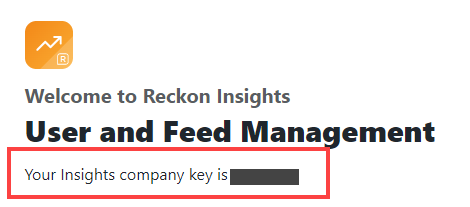
Both landing pages display your Company Key directly beneath the User and Feed Management heading.
Page Layout
All of the pages of User and Feed Management share a common header.

Making up the header of Insights User and Feed Management, which is visible on every page, from left to right are the:
- Reckon Insights logo.
- Page indicators.
- Account drop-down.
Page Indicators
The page indicators beside the logo show the pages that cover the main functions of Insights User and Feed Management, and are darkened and underlined to show the current page:
- Data Feeds: The page for managing data feeds.
- Groups: The page for managing Users, Folder access and sharing.
- Folders: A read-only page that summarises the current access rights for the folders.
Account Drop-down
Displays the account name, and when clicked shows a link to this help article, a link to log out, and a version label.
Getting help for User and Feed Management
To get help for Insights User and Feed Management from the landing page, click any of the Learn more... buttons to go to the appropriate area.
To get help for Insights User and Feed Management from any page, either:
- Click on the account drop-down and select Help & Support to open this article.
- Click on the Learn more... link beside the description in each page-header to go to the article for that page.

Logging out of User and Feed Management
To log out of Insights User and Feed Management, from any page, click on the account drop-down and select Log out.

See also:
Need more help?
Ask the Reckon Community at: https://community.reckon.com/
Or Log a Support Ticket: https://www.reckon.com/au/support/
