Unable to Send Emails (Invoices or Payslips) After Upgrading to Reckon Accounts V35
Overview
After upgrading to Reckon Accounts V35, some users may encounter an issue where emails (such as invoices or payslips) fail to send.
This can affect users regardless of the email provider being used, including Outlook Classic.
Symptoms
You may experience the following:
- Unable to send invoices, payslips, or other emails from within Reckon Accounts
- Issue occurs across different email providers
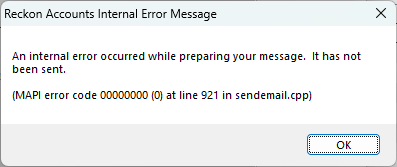
- The following error message appears:
“An internal error occurred while preparing your message. It has not been sent. (MAPI error code 00000000 (0) at line 921 in sendemail.cpp)”
- Issue may be encountered after upgrading to Reckon Accounts V35
- Previously working setups (e.g. Outlook Classic integration) stop functioning
Possible Cause
This issue appears to be related to a corrupted or incompatible QBPRINT.QBP file, which stores form and printing configuration settings used by Reckon Accounts.
After an upgrade, this file may cause conflicts when generating email attachments.
Resolution
Renaming the QBPRINT.QBP file allows Reckon Accounts to recreate it, which resolves the issue.
Steps to Fix
- Close Reckon Accounts
- Navigate to your Reckon Accounts company file folder
- Locate the file:
- QBPRINT.QBP (Below is an example of the default location, not that it may be different on your computer)

- Right-click the file and select Rename by adding a prefix or suffix to the file name.
- For example, rename the file to QBPRINT-OLD.QBP
- Reopen the Reckon Accounts application
- Try sending an email (invoice or payslip) again
Expected Result
- Reckon Accounts will automatically generate a new QBPRINT.QBP file
- Email functionality should be restored
- No data loss will occur (this file only stores print/layout settings)
Additional Notes
- You may need to reconfigure some form or print settings after the file is recreated
- This fix applies regardless of the email provider used
- Particularly relevant for users integrating with Outlook Classic
When to Contact Support
If the issue persists after following the steps above:
- Confirm your email preferences inside Reckon Accounts
- Check Outlook configuration and default email app settings
- Contact Reckon Support and provide:
- The full error message
- Your Reckon Accounts version
- Your email setup details
